A timeline built for speed and precision.
Trim, reorder, and layer clips with no-fuss precision and control in a fluid, multi-track timeline. Apply cinematic color in a tap and easily add animated captions.


Premiere on iPhone is a free mobile video editing app that offers unmatched speed on a precise multi-track timeline. It’s powerful yet simple.
Scan the QR code to get the free app.


ADOBE PREMIERE — OFFICIAL PARTNER OF YOUTUBE SHORTS
Premiere on iPhone offers a dedicated space for editing YouTube Shorts with exclusive templates, effects, transitions, and title presets — and you can publish directly to YouTube.
Quickly turn any idea into attention-grabbing content with unmatched speed on a precise, multi-track timeline, studio-quality audio, and generative AI tools.
Trim, reorder, and layer clips with no-fuss precision and control in a fluid, multi-track timeline. Apply cinematic color in a tap and easily add animated captions.
Share videos that pack a punch. Choose from hundreds of thousands of images, videos, stickers, fonts, and more to make your videos pop — or explore new ideas with generative AI right at your fingertips.
Achieve studio-grade sound with powerful AI audio tools for crystal-clear voiceovers. And use your own voice to create amazing and perfectly timed sound effects.
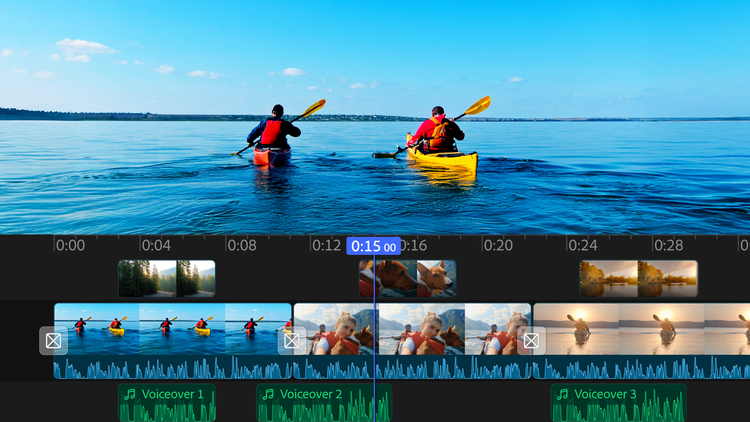
Overlay clips and organize your content on a multi-track timeline designed for speed and precision.
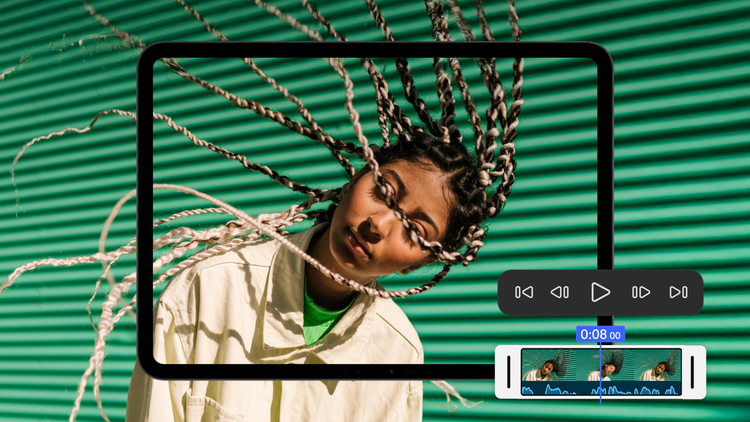
Count on stable, high-performance editing — including with 4k footage — using an app built natively on iOS.
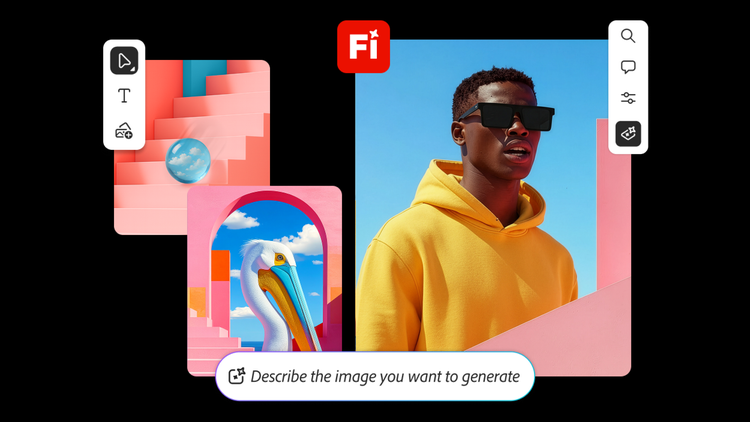
Use features powered by Adobe Firefly AI to generate stickers and images, extend backgrounds, or turn images into clips. You can also help yourself to free creative assets from a massive in-app library.
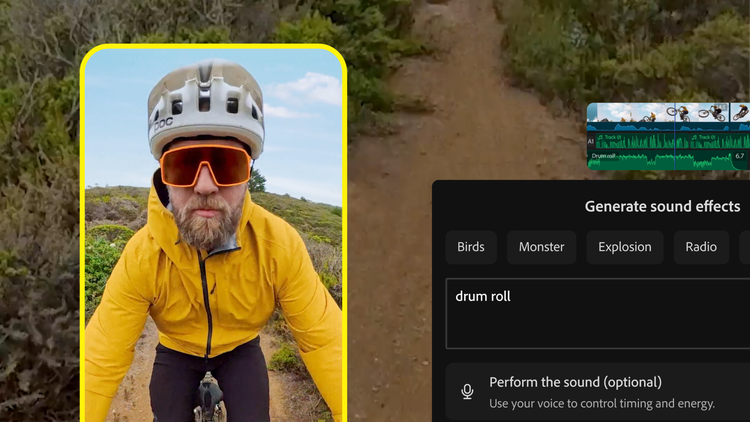
Create custom sound effects for your videos using the Generate Sound Effects feature. Simply use your iPhone’s mic to capture the timing and inflection you want, and let AI do the rest.
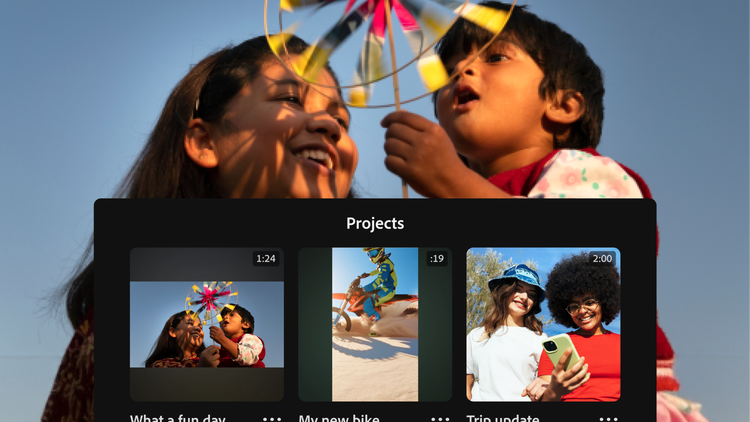
Adobe doesn’t claim any ownership of your content, and we only train Adobe Firefly generative AI models on content where we have permission to do so.
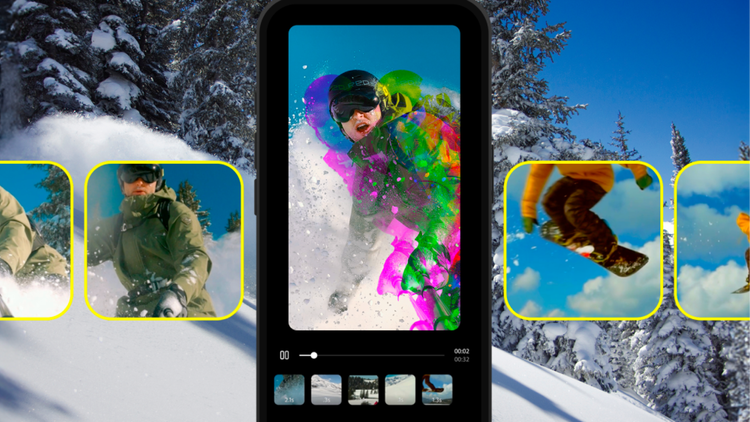
No watermarks, upsell pop-up ads, or clutter. The only time you pay is when you want to use generative AI credits. Enjoy a seamless editing experience that lets you stay focused on your content.

Kick off a project on mobile. Then pick up where you left off in the Premiere desktop app to polish it up with advanced tools and creative control.
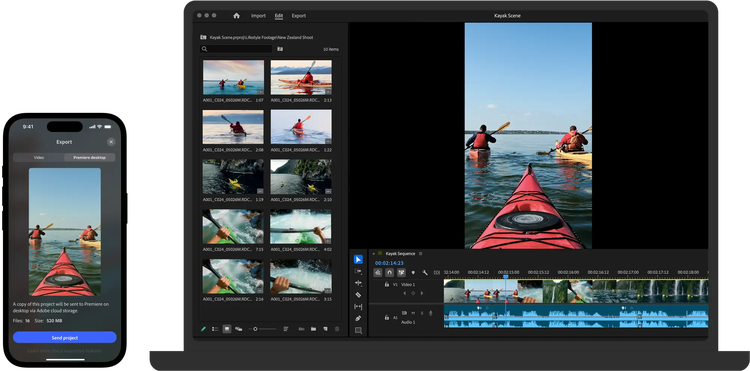
Create videos that are always a cut above, from anywhere. Experience the power of Premiere on desktop and iPhone with a single subscription.

Visualize shots and effects ahead of the shoot, generate assets missed in production to complement your edit, and eliminate tedious tasks to stay focused on your creative ideas.