Create and get work done with Adobe in Google Gemini.
Move seamlessly from idea to finished creation with capabilities across Adobe Photoshop, Lightroom, Firefly, and Adobe Express — all within your conversations.
Why use Adobe in Google Gemini?
Adobe in Google Gemini brings the right capabilities and skills together to help you turn ideas into polished visuals, social assets, mockups, and designs in one connected workflow.

Go from idea to finished in one conversation.
Batch-edit visuals and create polished social posts, promotional assets, and mockups right in your Google Gemini conversation.

Create polished content that matches your style.
Turn ideas and images into polished outputs that reflect your style and preferences, so every post, mockup, and asset feels intentional and consistent.

Keep creating wherever you work.
Access Adobe tools within Google Gemini, where you already ideate and work. When you’re signed in, your work is saved, so you can pick up where you left off or continue in Adobe apps.
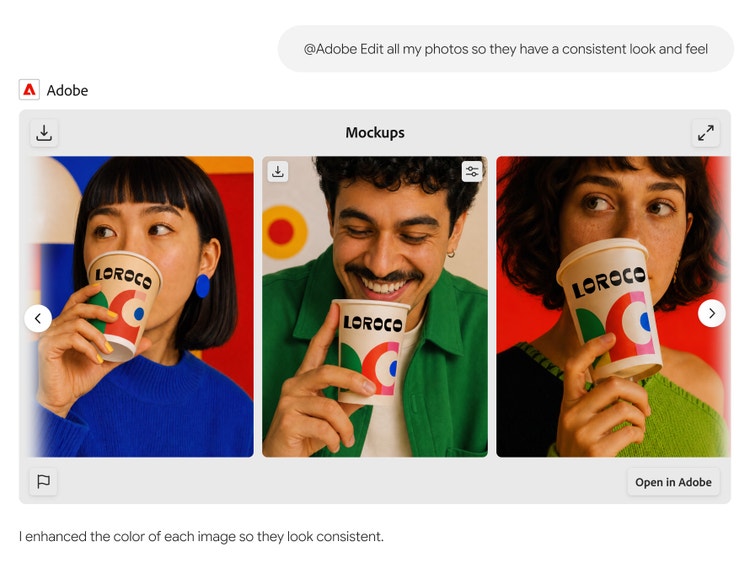
Retouch and edit photos in bulk.
Upload multiple photos in Google Gemini and ask Adobe to create the look you want. For example, add a series of product photos and ask to adjust tone and lighting or apply a Lightroom preset for a consistent look.
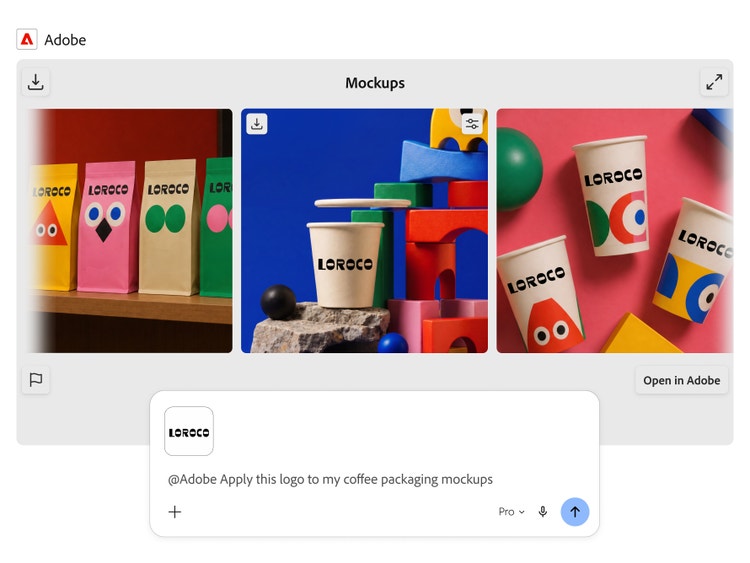
Create a mockup.
Bring in your logo and product imagery to create branded mockups with Adobe tools in Google Gemini. Just drag your logo file into the conversation and apply it to multiple products at once.
Resize assets.
Easily create image variations for social media platforms, websites, and product catalogs. For example, ask Adobe in Google Gemini to create different versions of your product mockup images that you can use for ecommerce, Instagram, TikTok, and Facebook. Then download your resized assets and share wherever you want.

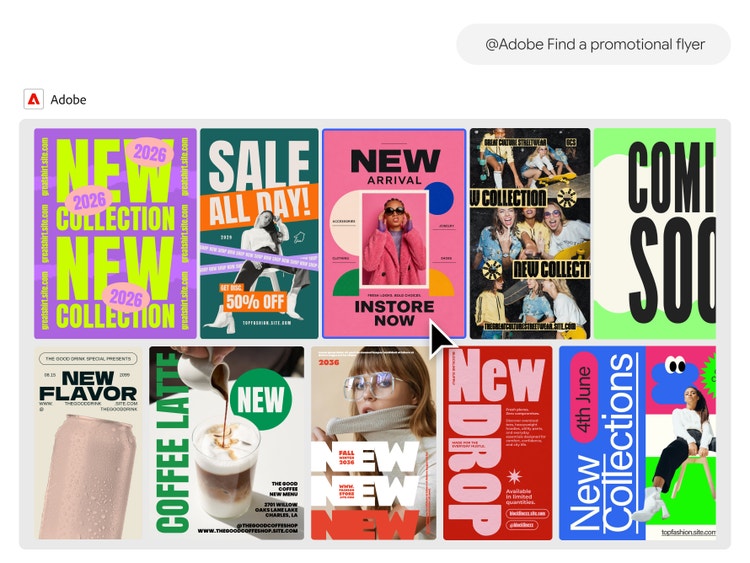
Design from high-quality templates.
Explore Adobe Express templates in Google Gemini and choose the one you want. Customize text and colors and animate it for social media.
How to connect Adobe tools to Google Gemini.
Step 1
Open Google Gemini.
Step 2
Connect Adobe.
Step 3
Sign in.
Step 4
Start a new conversation.
Step 5
Start creating with Adobe.
- How to connect Adobe tools to Gemini.
- Steps on how to connect Adobe tools to Gemini.
- PT5M
- firefly