How to warp text in Photoshop Elements
Bend, arc, wave, and distort your text into expressive shapes using the Warp Text tool. It takes just a few clicks to give plain text a dynamic, eye-catching quality — no design experience required.

What is the Warp Text tool?
The Warp Text tool in Photoshop Elements lets you distort a line of text into a range of preset shapes — arcs, arches, bulges, waves, flags, and more. Rather than text sitting flat on the page, it bends and curves to give it energy and visual interest. It’s useful for titles, event announcements, greeting cards, or any project where you want text that feels designed rather than just typed. The sliders give you precise control over how much the text bends, so you can go subtle or dramatic depending on what you need.
Time required: About 5 minutes. Skill level: Beginner-friendly.
Before you begin, make sure you have:
- Photoshop Elements installed and open on your computer. Don’t have it yet? Start a free 7-day trial.
- A photo you’d like to add text to.
- A short phrase or title in mind. Warp Text works best on a single line or short phrase.
Step 1: Add your text with the Type tool
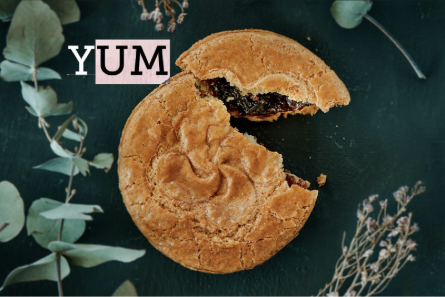
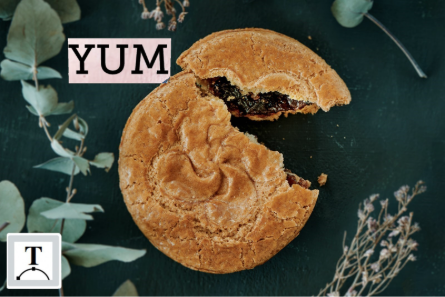
Open your photo in Advanced mode. In the toolbar on the left, click the Type tool — it looks like the letter T. Click on your photo where you want the text to appear and type your text.
Step 2: Select the Warp Text tool
With your text layer still selected, in the top menu select Layer > Type > Warp Text.
Step 3: Choose a warp style
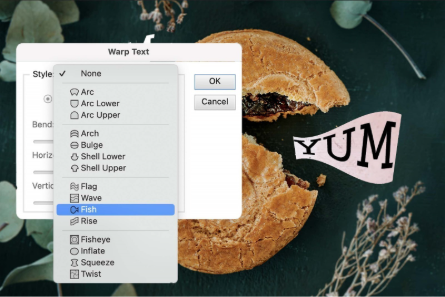
A Style dropdown menu will appear with a range of preset warp options — Arc, Arch, Bulge, Wave, Flag, Fish, and more. Click through the options to preview how each one looks on your text, then select the one that fits what you have in mind.
Step 4: Fine-tune the warp with the sliders
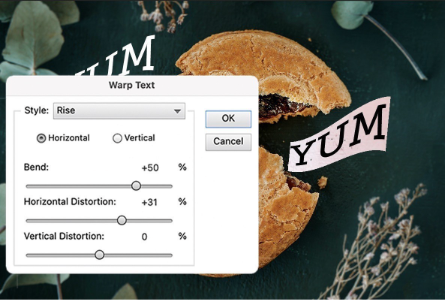
Use the Bend slider to control how much the text curves — move it to the right for more bend, to the left for less. The Horizontal Distortion and Vertical Distortion sliders let you stretch the effect in either direction for a more exaggerated or subtle look.
Step 5: Save your result
When you’re happy with the warp, click OK to apply it. Your photo will return to the main editor window where you can continue making changes or go straight to saving. Go to File > Save As and give your edited version a new name to keep your original photo safe and untouched.
Helpful hints for better results
Start with a subtle bend
A small amount of warp often looks more intentional and polished than a heavy distortion. Try setting the Bend slider to around 20–30% first and increase from there if you want something more dramatic.
Use a bold font for warped text
Thin or delicate fonts can look spindly when warped, especially at higher bend values. A bold or medium-weight font holds its shape better and stays readable as it curves.
Warp works well with Text Styles
Once you’ve warped your text, you can apply a preset style from the Effects panel — a drop shadow, glow, or bevel — to enhance it further. The two techniques complement each other well.
You can always undo
Press Ctrl+Z on a PC or Command+Z on a Mac to undo any step. You can also reopen the Warp Text dialog at any time by selecting your text layer and clicking the Warp icon again.
Common questions

You may also like