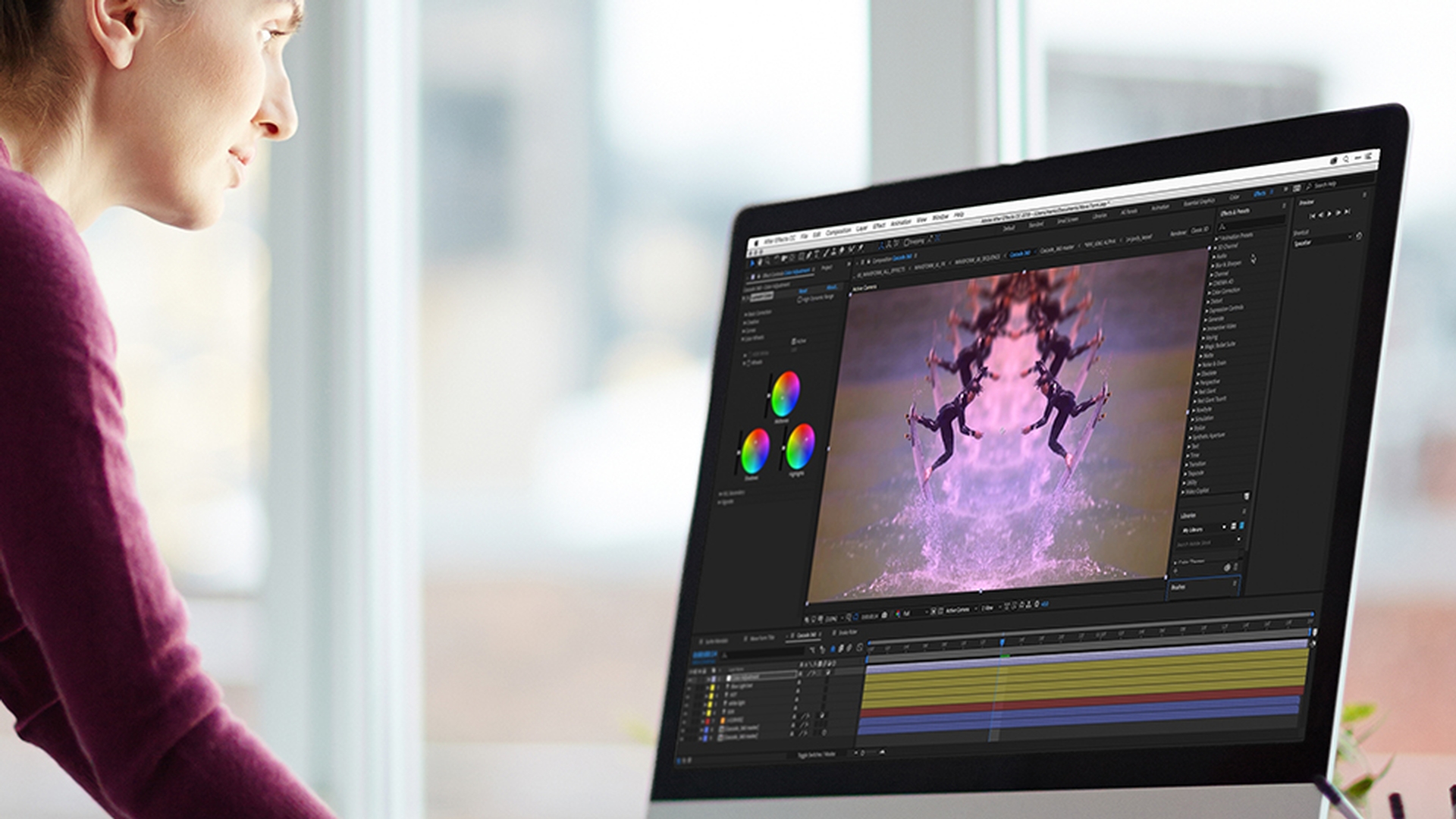
The interface in Adobe After Effects CC is very deep containing lots of panels for its many features.
But it's also highly customizable.
This tutorial will teach you how to take advantage of the Workspaces feature to personalize the After Effects CC UI and boost your productivity.
A Workspace is a specific arrangement of UI panels in the application window.
For instance, if you're creating text animations you'll probably want to have the Character panel in your Workspace.
Or if you're color correcting video clips you'll find the Lumetri scopes panel highly useful.
You can create your own custom Workspaces or choose from presets already provided.
You select, save and edit Workspaces from the Window menu.
Or you can use these handy shortcut buttons that appear in the Tool panel.
You'll find additional Workspaces in this Overflow Menu.
Dragging the Width bar allows you to move Workspaces from the Overflow Menu to the Toolbar.
After Effects CC comes loaded with useful presets, but you can easily create your own.
Add panels to the UI from the Window menu.
Arrange panels
Close unneeded panels from the menu at the top right.
You can resize panels by clicking and dragging the borders.
Just watch for the cursor to switch to the resize icon.
The panels automatically flow to fill the application window.
To move a panel to a new location, click the grab bar along the top and with the mouse button still down drag it to a new location.
Colored drop zones will appear showing you where the panel will dock.
Dropping the panel into the middle drop zone or into a tab panel will create a new group.
A panel group allows you to nest several panels into one part of the interface.
This is a stacked panel group.
It gives you a clean uncluttered look with single click access to panels.
To view all members of the stack Command click on a Mac or Control click on Windows.
Option clicking a panel will toggle the solo mode on and off.
If you prefer you can select the tabbed group option from the panel menu.
Within the tabbed group you can drag the panel names to rearrange their order and quickly access other panels in the Overflow Menu.
You can move an entire tabbed group by grabbing it from the right side of a panel name.
Just watch for the special icon to appear.
To ungroup a single panel grab it from the left side of the grab bar and drag it to a new location.
If you're working with multiple monitors, you may wish to float a panel.
Select the Undock panel option from the panel menu or drag the panel off of the application window.
Redock the same way you would normally move a panel.
Arrange workspaces
After Effects CC saves your current Workspace in the project file as you work, but you can also save it for use in any project.
From the Workspace menu in the Window menu or one of the shortcut menus you can save your new layout to an existing Workspace or create your own.
You may also wish to change the order of the Workspaces or delete ones you never use.
Select Edit Workspaces... and drag them into the order you like.
Or select a Workspace and click Delete to remove it from the menu.
You may also find it useful to move Workspaces from the Toolbar panel to the Overflow Menu.
If you often switch back and forth between Workspaces you might find it useful to sign your favorites to a keyboard shortcut.
While any Workspace is active you can assign it to one of the three available shortcuts.
Finally, you should note that when a project with a custom Workspace is opened on another user's machine After Effects CC will look for a Workspace with the matching name.
If it can't find one, it will assign it to the current Workspace instead.
Decide which Workspace fits your needs best and create your own to personalize your After Effects CC experience.





