Learn how to create an eye-catching t-shirt graphic using basic shapes and simple techniques in Adobe Illustrator. Kick-start your design with Adobe Creative Cloud mobile apps.
Download the practice files and open design-a-tshirt.ai with the latest version of Illustrator. Follow along to create a stylized boom box design with heart-shaped speakers.
1
Set up your project
Open the design-a-tshirt.ai sample file provided with this tutorial. Alternatively, launch Illustrator and click the Create new button or press Control+N (Windows) or Command+N (macOS). Select the Print tab, click the Letter preset, and then click Create. This opens a new document with the correct color mode and resolution for printing.
2
Draw some basic shapes
Press M to select the Rectangle tool in the Tools panel. Drag rectangles of various sizes to create the boom box design. You can change the dimensions of any rectangle by dragging one of the corner handles. To reposition any rectangle on the artboard, simply click the dot in the center of the rectangle and drag it to a new location.
Tip: As you drag the rectangles, look for magenta Smart Guides that help you align the shapes.
Now you’ll draw the speaker. Press and hold the Rectangle tool icon in the Tools panel to select the Ellipse tool. As you drag, look for magenta crosshairs that indicate a perfect circle. Or press Shift while dragging to constrain your shape to a circle. Drag its center point to position the circle on the left side of the boom box.
3
Combine paths to create new shapes
Select the Curvature tool and click to create four points on a different part of the artboard. This creates the left side of the heart shape. Press Escape after clicking the fourth point to finish drawing the path.
Press V to switch to the Selection tool, and then click on the path. Press Alt (Win) or Option (macOS) and drag the path to duplicate it. You can press Shift while dragging the duplicate path to keep the paths in alignment.
Choose Object > Transform > Reflect. Select Vertical to flip the path. Click OK.
Tip:
Alternatively, you can simply click the Flip along horizontal axis icon in the Path section of the Properties panel to achieve the same result.
Press V to switch to the Selection tool. Press Shift and drag the right side of the heart so the two paths overlap. Press Shift and click the other half of the heart to select both paths.
Press and hold the Shaper tool in the Tools panel to select the Join tool. Drag the Join tool over the areas where the two paths meet to join them together.Learn more about joining and trimming paths .
4
Resize, duplicate, and position shapes
Click an edge of the heart-shaped path with the Selection tool. Press Shift and drag a corner of the bounding box to resize it, and then drag the heart inside the round speaker. Press Shift and click the circle to select both shapes. Press Alt (Win) or Option (macOS) and drag both shapes to duplicate the left speaker. Additionally, press Shift to keep both speakers aligned.
5
Add some type
Next you’ll create a bold headline below your boom box. Type T or select the Type tool in the Tools panel. Draw a text frame below the boom box. Replace the default text with your own, and then triple-click to highlight your text. Click the Properties panel tab to view it. (Choose Window > Properties.) In the Character section of this panel, you can change the font, weight, size — even adjust the amount of space between the letters. SeeSet a beautiful title to learn how to set an eye-catching headline.
Creative Cloud members can choose from the vast library of high-quality typefaces in Adobe Typekit. WatchTap into a library of available fonts to learn how to browse, sync, and access hundreds of high-quality fonts from Typekit — right inside Illustrator.
Tip: You can scale and reposition your headline just like you resized the heart in Step 4.
6
Adjust the colors
Press V to switch to the Selection tool, and then drag a box around the boom box to select it. Try changing the colors and the stroke (border) width.
Under Appearance in the Properties panel, select a larger stroke width from the menu.
To apply a custom color to the shapes, select a shape and click the Fill or Stroke icon in the Properties panel. Choose a new color from the Swatches panel.
Tip: Try setting the stroke or fill color to None to create interesting effects.
7
Customize and experiment
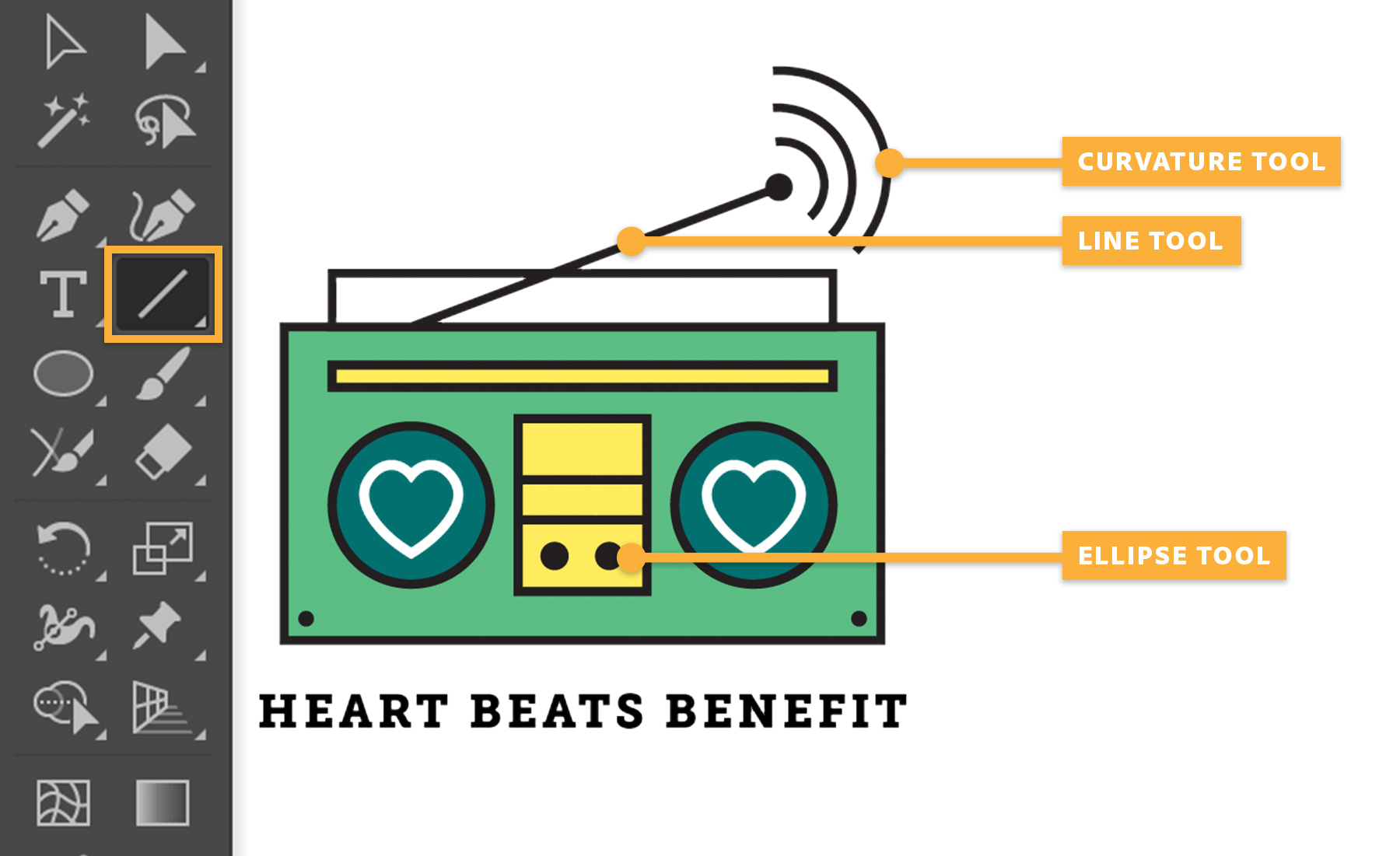
Now draw the antenna on the boom box. Using the Line Segment tool, click and drag a straight line as shown. Press Shift to draw perfectly horizontal or vertical lines. Use the other skills you’ve just learned to embellish your design.
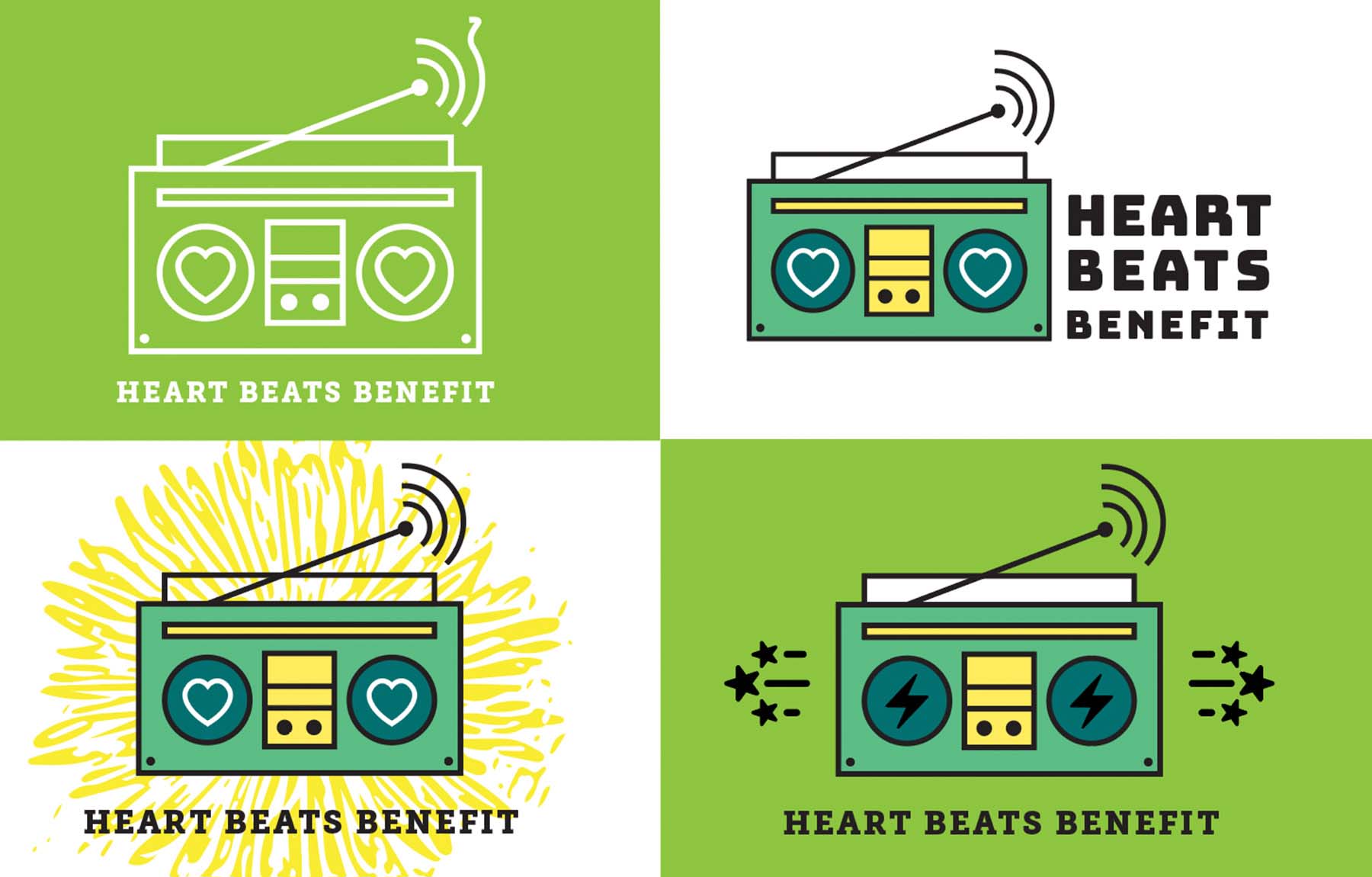
Experiment with other design techniques. Use Adobe Capture to capture a shape with your mobile device and add a textured background.
Check out tshirt-inspiration.pdf included in the sample files folder to get more inspiration for customizing your design.
28 March 2018
Try these tutorials with Illustrator
Create illustrations and other graphics with vectors.
You can control how Adobe websites use cookies and similar technologies by making choices below. But note that if you disable cookies and similar technologies entirely, Adobe websites may not function properly.
Cookies are small text files stored by your web browser when you use websites. There are also other technologies that can be used for similar purposes like HTML5 Local Storage and local shared objects, web beacons, and embedded scripts. These technologies help us do things like remembering you and your preferences when you return to our sites, measure how you use the website, conduct market research, and gather information about the ads you see and interact with.
You can make choices in the menu below about what cookies and other technologies you want us to use on Adobe sites when you visit them from this browser. You can always change those choices later by clicking on the Cookie Preferences link at the bottom of the page.
If enabled:
We can improve your experience by tailoring the site and the content to things we think might be of interest
We can better keep track of your preferences — like what language you prefer to use
We will better understand your likely interests so we can provide you more relevant Adobe ads and content on non-Adobe websites and in non-Adobe apps
It will help us improve the performance of our website and those of our partners who use the Adobe Experience Cloud
If disabled:
We won’t be able to remember you from session to session so the experience may not be tailored to your interests
You’ll still have access to the content of the site but certain features that depend on cookies may not function
You’ll still see ads, they just may not be as relevant to you
General information
You can control how Adobe websites use cookies and similar technologies by making choices below. But note that if you disable cookies and similar technologies entirely, Adobe websites may not function properly.
Cookies are small text files stored by your web browser when you use websites. There are also other technologies that can be used for similar purposes like HTML5 Local Storage, web beacons, and embedded scripts. These technologies help us do things like remembering you and your preferences when you return to our sites, measure how you use the website, conduct market research, and gather information about the ads you see and interact with.
You can make choices in the menu below about what cookies and other technologies you want us to use on Adobe sites when you visit them from this browser. You can always change those choices later by clicking on the Cookie Preferences link at the bottom of the page.
If enabled:
We can improve your experience by tailoring the site and the content to things we think might be of interest
We can better keep track of your preferences — like what language you prefer to use
We will better understand your likely interests so we can provide you more relevant Adobe ads and content on non-Adobe websites and in non-Adobe apps
It will help us improve the performance of our website and those of our partners who use the Adobe Experience Cloud
If disabled:
We won’t be able to remember you from session to session so the experience may not be tailored to your interests
We’ll still count your use of our site and services
You’ll still have access to the content of the site but certain features that depend on cookies may not function
You’ll still see ads, they just may not be as relevant to you
Operate the site and core servicesOperate site and measure engagement
Always active
These cookies are required, and they are used to enable the site and related services core functionality. Without them the site could not operate, so they cannot be disabled.
These cookies enable the site and related services’ core functionality and collect statistics about user engagement, such as counting active use to help us understand trends. These cookies cannot be disabled.
Measure performance
These cookies are used to analyze site usage to measure and improve performance. Without them Adobe cannot know what content is most valued and how often unique visitors return to the site, making it hard to improve information we offer to you.
These cookies are used to analyze site usage to measure and improve performance. Without them Adobe cannot know what content is most valued, making it hard to improve information we offer to you.
Extend functionality
These cookies are used to enhance the functionality of Adobe sites such as remembering your settings and preferences to deliver a personalized experience; for example, your username, your repeated visits, preferred language, your country, or any other saved preference.
Personalize advertising
These cookies are used to enable Adobe and our partners to serve ads more relevant to your interests. Without them you will still see ads, but they might not be as relevant to you.
Personalize advertising
These cookies are used to enable Adobe and our partners to serve ads more relevant to your interests. Without them you will still see ads, but they might not be as relevant to you.