Introduction
One of the most interesting - selection tools in Photoshop is the Object Selection Tool.
As the name suggests, - this tool is designed to identify different objects - within a photo so that you can easily select them.
Once an object has been detected, - you can just click on it to select it.
But it gets better - because in addition to objects, the Object Selection Tool can also identify - different areas within a scene such as the sky, water or the ground.
Hi, I'm Seán Duggan, - a photographer and Photoshop author.
Let's take the Object Selection Tool - down to the beach and see how it works.
How the object selection tool identifies objects and areas
The key to the Object Selection Tool is that it uses artificial intelligence - to analyze the content of an image and identify the objects - and different areas within the scene.
One of the main settings - in the Options bar for this tool is the Object Finder.
When you see - the rotating circular arrow icon, this tells you that the tool - is looking at the image and finding the different objects - and areas in the scene.
When the Object Finder is done, you can move the cursor - over the different areas of the scene and a colored overlay - will appear on the regions and objects that have been found.
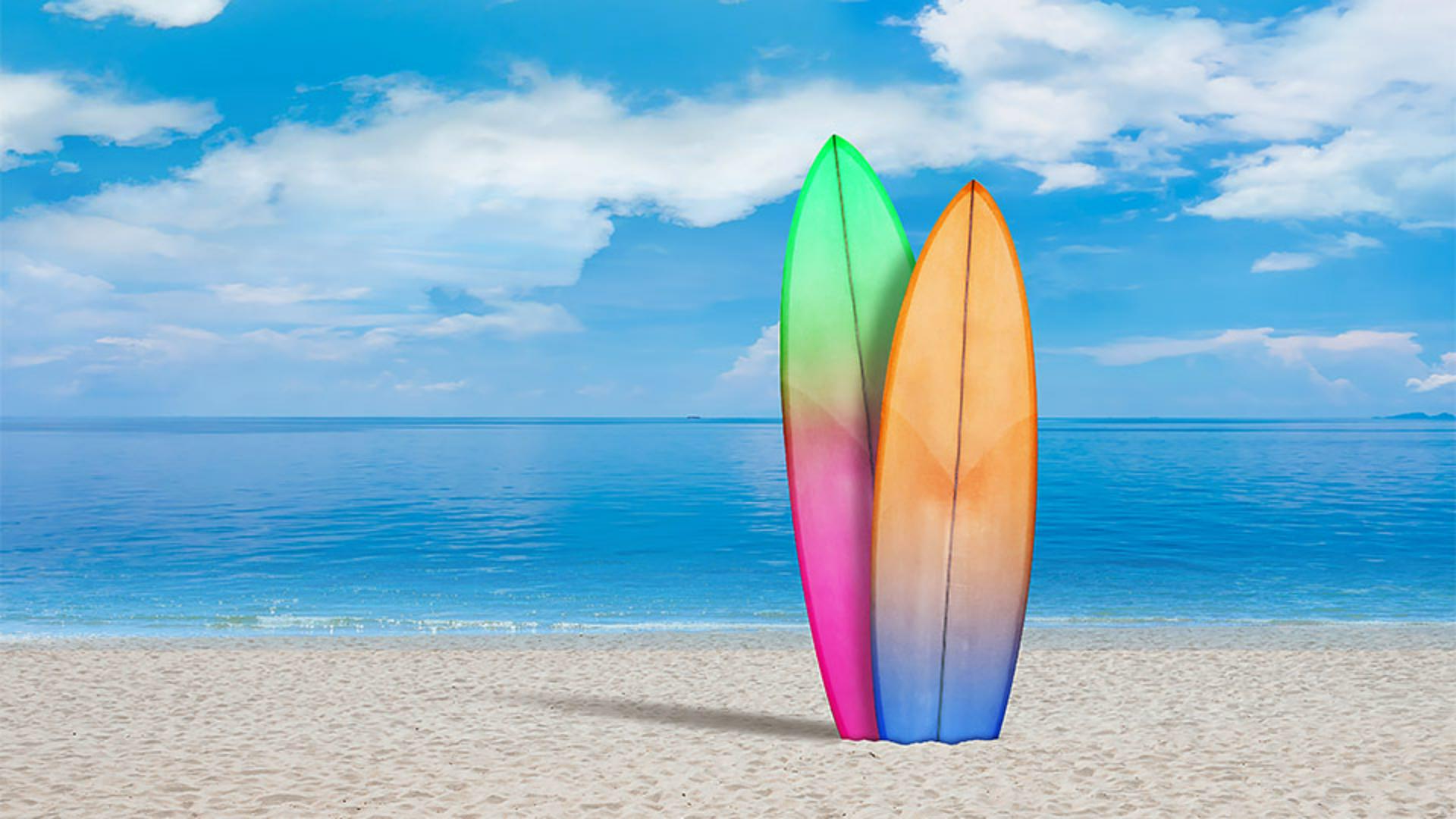
In this image, it has identified the sky, the surfboard on the left, the right surfboard, the water and the beach.
If you have a file - that contains multiple layers, you can turn on - the Sample All Layers checkbox in the Options bar.
So the tool analyzes the content - on all the visible layers as it looks for objects.
To select a highlighted object, - simply move the cursor over it,
Selecting and combining multiple objects
and click.
If you use the Object Selection Tool - to select the sky, it's the same - as using the Select Sky Command, which can be found in the Select menu.
I'll deselect the selection - of the sky for now.
If you want to select an object and then add other objects - to the selection, you can do so using the Add icon - on the left side of the Options bar.
Or you can also use the keyboard shortcut, - which is the Shift key.
So if I wanted to select the surfboard - on the right, I can just click on it and then I can Shift-click - on the surfboard on the left and now both surfboards are selected.
Manually selecting objects without the object finder
If you don't want to use the Object Finder or if you find the colored overlays - a bit distracting, you can turn it off in the Options bar and manually tell - the Object Selection Tool what you want to select.
To do this, you can use - either a Rectangle Marquee or a Lasso, - which you can find in the Mode menu I'll choose the Rectangle and I'll draw a marquee - around most of the surfboards.
And even though I don't select - all of the surfboards, it understands what I want, - and it creates the selection.
With the surfboard selected, - I'll go to the Layers panel
Enhancing selected objects with adjustment layers
and I'll click - on the Add New Adjustment Layer icon in the bottom of the panel and I'll choose - a Brightness/Contrast adjustment.
I'll move the Contrast slider - to the right to increase the contrast - of the surfboards, which really helps - make them pop a bit more in the scene.
I think the beach area - is too bright in this image
Selecting scene areas and refining selections
and would look better - if it was a bit darker.
In the Options bar, - I'll turn the Object Finder back on and I'll move my cursor - over the beach area and I'll click to select it.
Now notice that it did not select - the shadow of the surfboards on the sand.
Now I definitely want - to have that area selected, so it's affected by the adjustment - that I'm going to apply.
In the Options bar, I'll open the Mode menu - and I'll choose the Lasso Tool and then I'll hold down the Shift key - and drag a Lasso around that shadow so I can add it back - into the selection of the beach.
There we go, that looks good.
Now that I have the entire beach selected, I'll click - on the Add New Adjustment Layer icon in the Layers panel, and once again, - I'll choose Brightness/Contrast.
And this time I will move - the Brightness slider to the left to darken the beach a bit - and I think I'll take it to about -35.
That looks good.
Whenever you have an image - that contains different objects or specific areas - that you want to select, give the Object Selection Tool a try and see if I can help you - create the selection that you need. -