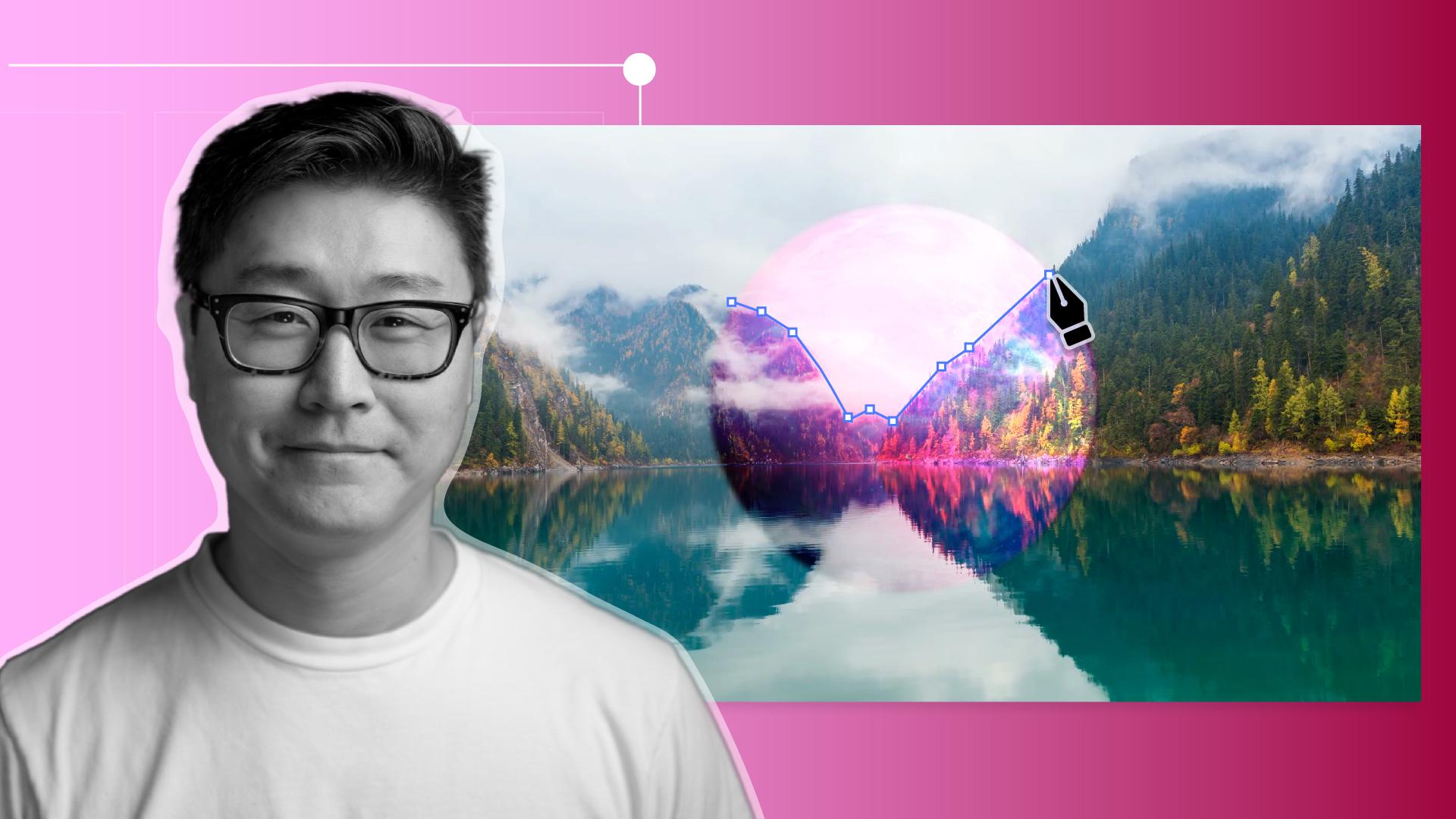
[Dave Ko]: Olá, sou Dave Ko.
Uso o After Effects há mais de 25 anos como animador em entretenimento e publicidade.
Cresci assistindo a muita ficção científica.
Quando não entendia como um efeito funcionava, eu pensava, “Quero criar isso”.
Hoje vou mostrar como combinar dois mundos usando modos de transferência, mascaramento e desfoque.
Criei um arquivo no After Effects para composição de efeitos visuais para você acompanhar.
Vamos abri-lo e dar uma misturada.
Esta é a Colisão de mundos na pasta Composições.
É uma bela gravação de lago entre as montanhas.
Bonito, mas quero criar algo mais misterioso e sombrio.
Crie uma Camada de ajuste acessando Ajuste, Novo, Camada de ajuste.
Clique com o botão direito na Camada de ajuste e acesse Efeito, Correção de cores, Níveis.
Se o painel Controles de efeito não abrir no canto superior esquerdo, vá até Janela, Controles de efeito, Camada de ajuste 1.
Vou ajustar o Histograma para realçar os tons de preto e aumentar o Contraste.
Vou limitar o branco para que o céu não fique tão claro definindo um limite.
Vamos adicionar a foto Planeta Rosa à linha do tempo.
Vou aumentar um pouco o planeta para 115% para deixá-lo mais evidente.
Vamos ativar a Grade de proporções na parte inferior do painel Composição e centralizar o planeta no eixo X.
Desative a grade.
Com a camada selecionada, use a ferramenta Elipse para mascarar somente o planeta.
Vamos adicionar difusão para criar um brilho em volta do planeta.
Se Modo de transferência e Fosco de controle não aparecerem, desça até aqui e expanda e recolha o painel Controles de transferência.
Isso oculta ou exibe as duas colunas.
Mude o Modo de transferência para Sobreposição, destacando a cor do planeta sem afetar os realces e sombras das camadas subjacentes.
Crie uma Camada de forma para usar como Fosco de controle e esconder o planeta ao fundo.
Desative a visibilidade do planeta para ver o canto da montanha.
Cancele a seleção de todas as camadas clicando em qualquer ponto vazio da linha do tempo, como aqui.
Com a ferramenta Lápis, contorne a montanha o mais próximo possível.
Não precisa ser perfeito, pois vamos suavizar as bordas com Desfoque gaussiano.
Parte do planeta brilha através das árvores e névoa.
Clique com o botão direito na Camada de forma, vá até Efeito, Desfoque e nitidez, Desfoque gaussiano.
Após fechar a Camada de forma, vá até a camada do planeta e, em Fosco de controle, clique no ícone de seleção e arraste até a Camada de forma.
Reative a visibilidade do planeta rosa.
A parte errada do planeta foi cortada.
Clique aqui para inverter o Fosco de controle.
Pronto.
Adicione um reflexo do planeta na superfície do lago duplicando as camadas do planeta rosa e da forma e movendo-as abaixo das originais.
Antes de inverter a posição das camadas, desvincule as propriedades dos eixos X e Y no valor de Escala.
Clique no valor de Y e transforme-o em negativo para virar a imagem na vertical.
Vamos ajustar a posição do Fosco.
Ajuste um pouco a camada para deixar o reflexo mais realista.
Como é um reflexo, vamos adicionar Desfoque gaussiano.
Algo em torno de 10.
Está ficando sombrio e com cara de ficção científica.
É hora de finalizar a sequência de conclusão.
Vou pegar o vídeo de lago com montanhas e arrastá-lo até a linha do tempo.
Adicione um quadro-chave de Opacidade na marca de 1 segundo e outro na marca de 2,5 segundos.
Defina uma Opacidade de 0 para que o quadro desapareça.
O planeta rosa aparecerá na cena noturna. [clipe silencioso sendo reproduzido] Na pasta Composições, há um Túnel de teletransporte.
Arraste-o até a linha do tempo e mude o Modo de mesclagem para Tela para que as áreas escuras fiquem transparentes.
Pronto.
Pressione espaço para reproduzir a composição.
A cena de ficção científica está pronta.
Uma viagem no tempo entre dois planetas que existem lado a lado. [clipe silencioso sendo reproduzido]





