



Maze generator.
Designing a maze from scratch can be time-consuming. Whether you’re creating random mazes for fun or want to challenge yourself, you can use the HARMAN Maze Generator add-on in Adobe Express, to quickly design mazes, all while adding personalized flare with colors, icons, borders, and more.
*Note: this is not a generative AI feature.
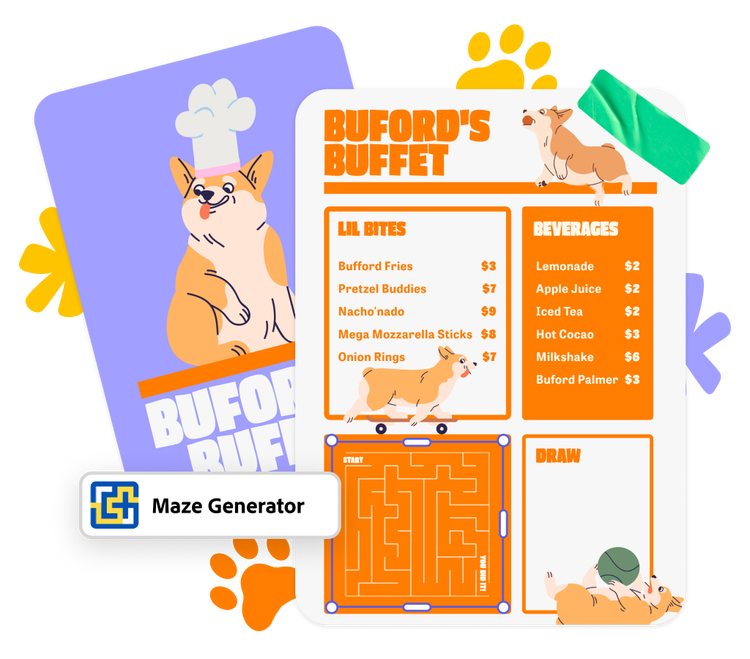
1. Launch Adobe Express.
Open Adobe Express for free on your desktop or mobile device. Select the add-ons panel in the left menu and install the Maze Generator add-on.
2. Generate your maze.
Drag the slider to adjust the difficulty of your maze. Then watch the complexity of the maze change in real-time. Select the desired difficulty for your intended audience and add the finished maze to your project. Refresh the generator to get more options.
3. Continue editing.
From the Adobe Express editor, you can continue to edit the look of the maze by changing its color, adding text, icons, shapes, and borders.
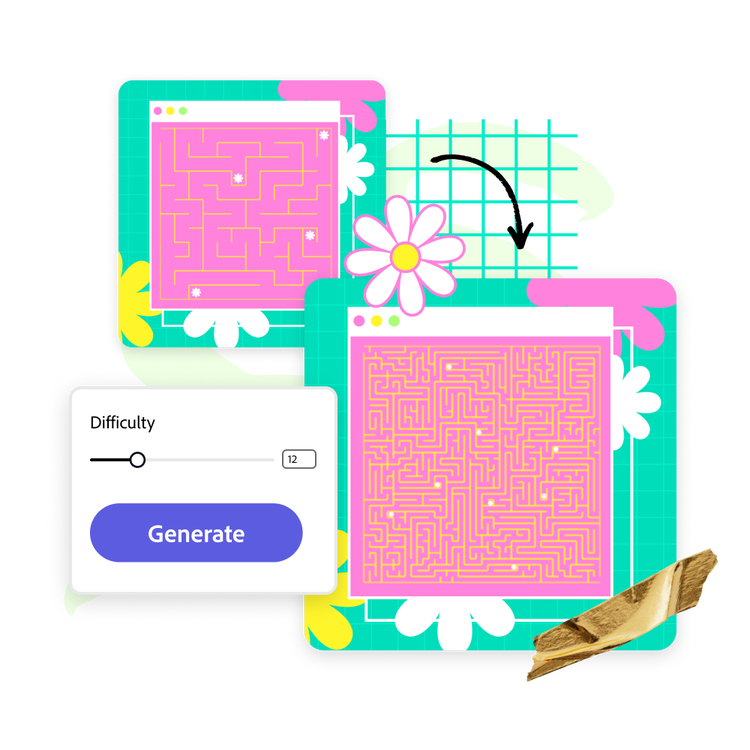
Customize the difficulty of your puzzles.
Mazes should be challenging, but not impossible to solve. If you work with kids from different grade levels, you’ll want to give them a maze that is appropriate for their grade level. With the maze generator add-on, it’s easy to adjust the difficulty with the simple slider tool.
Mazes add a hands-on element to your design project.
After you’ve generated your maze, add it to your design to keep editing. Mazes are a great addition to coloring books, lesson plans, and kids' menus. Add an extra page to your design and feature a collection of fun.
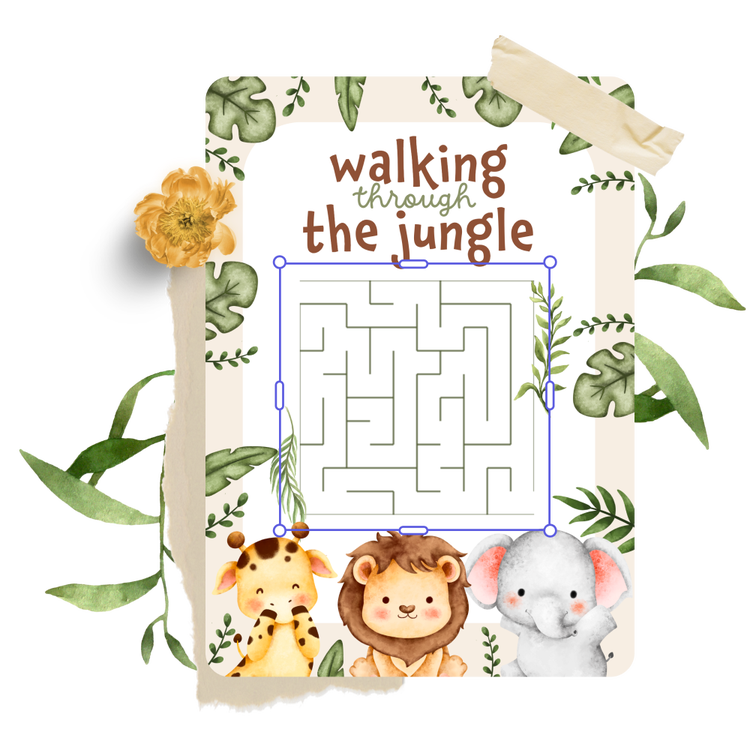
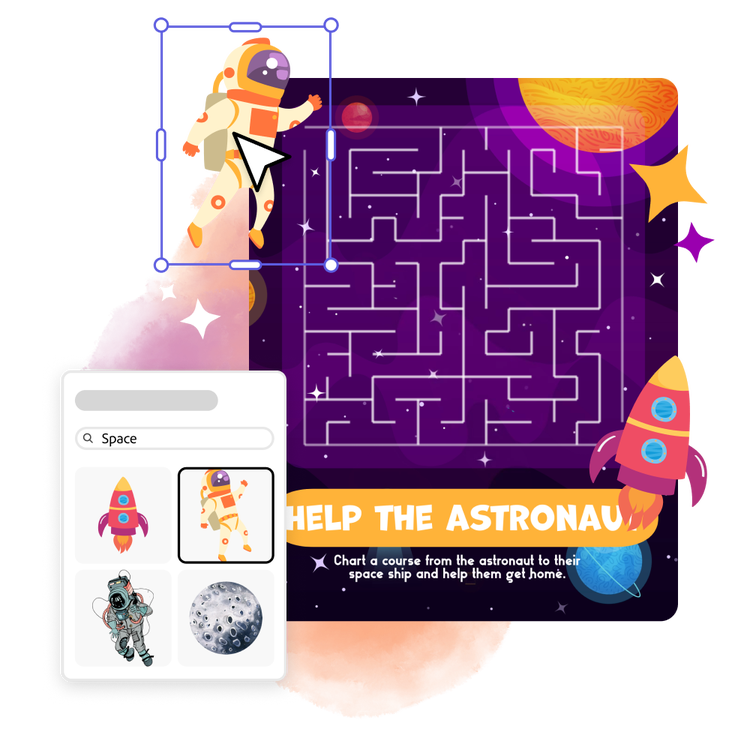
Make the maze your own in the Adobe Express editor.
Add design elements to make your maze even more fun within Adobe Express. Change the color, add cartoon icons, or maybe a silly border. You can also add text to give directions or create a story that involves a character who must get through the maze. All these design choices help customize your maze to fit your needs.
Frequently asked questions.
How do I access the maze generator?
Accessing the maze generator is easy. In the Adobe Express editor, select “Add-ons” from the menu. Type “maze generator” into the Search bar to find the third-party add-on, then click “add” to install it.
Do I need to create a separate account with the third-party developer of the Maze Generator add-on?
No. Once you add the Maze Generator in Adobe Express, it will be ready to use right away.
What are the other design elements I can add to the maze from Adobe Express?
There are numerous ways to customize a maze in Adobe Express. Icons, borders, borders, backgrounds, and shapes are just some of the elements you can add. Text boxes and fonts are also useful in noting the start and finish line of the maze.
Can I add a maze to an existing template?
Yes. Once you've chosen your maze, you can add it to templates and enhance it with graphic elements. Adobe Express has numerous personalization options to make your project stand out.
illustrator

