Acrobat
How to create and sign professional invoices in Word.
A step-by-step guide to designing, formatting and signing professional invoices using Word templates for fast, reliable billing.
Published by Adobe Acrobat India on 15 July 2025
JUMP TO SECTION
Why choose Word for invoicing?
Getting started: How to create an invoice in Word
What should be included in a professional invoice?
Customising your invoice: Tips for design and clarity
Adding a signature to your Word invoice
Tips for saving time with Word invoice templates
Troubleshooting common invoice issues
Why choose Word for invoicing?
Many professionals use Word invoice templates because the platform is easy to access and customise. Whether you're working on a PC or Mac, Word allows you to edit, save and share invoice files with clients in a flexible format.
Here’s why Word remains a popular choice:
- You can create an editable invoice template in Word once and reuse it.
- Word offers a range of customisable invoice templates suited to various business needs.
- The layout and formatting tools make it easy to match your invoice to your brand.
If you often work offline or want to avoid the cost of invoicing software, Word provides a practical solution that gets the job done with minimal setup.
Getting started: How to create an invoice in Word.
To begin, open a new document and search for invoice template in Word using Word’s built-in template gallery. You can find a range of styles, from minimalist freelance invoices to formal corporate formats.
Here’s how to get started:
- Open Microsoft Word and go to File > New.
- Type “invoice” in the template search bar.
- Choose a design that fits your business needs.
- Click “Create” to open the invoice template in Word.
At this point, you have a ready-made invoice layout with placeholder fields. Now it’s time to customise it by adding your business information, client details, and specific transaction data.
What should be included in a professional invoice?
Regardless of which invoice Word invoice templates you choose, every invoice should include the following key elements:
- Your business name and contact information
- The client’s name and billing details
- A unique invoice number
- Invoice issue date and due date
- A detailed list of products or services provided
- The amount owed, including any taxes or discounts
- Your payment methods and terms
- Optional: A thank you note or additional terms
If you're creating your own layout, ensure your invoice format in Word follows this structure for clarity and compliance.
Customising your invoice: Tips for design and clarity.
A clean, well-organised invoice reflects professionalism. Here are some tips to improve your invoice’s readability and visual appeal:
- Use bold headers to separate sections clearly.
- Add your logo to reinforce brand identity.
- Apply subtle borders or shading to table rows for better visual flow.
- Include hyperlinks for email or online payment links.
- Once you're happy with your layout, save the file as a created invoice template you can use again.
To preserve your invoice formatting across all devices, it’s best to convert the file to PDF before sending it. Adobe Acrobat makes it easy to quickly and accurately convert Word to PDF, ensuring your layout stays consistent and professional.
Adding a signature to your Word invoice.
Signing your invoice is a simple way to confirm its authenticity and add a professional touch. While Word does offer a basic digital signature option, using a PDF format with a secure digital signature provides greater reliability - especially for clients who may want assurance the document hasn’t been altered.
After finalising your invoice in Word, follow these steps:
- Convert the invoice to PDF.
- Open the PDF in Adobe Acrobat.
- Use the fill and sign tool in Acrobat to insert your digital signature.
- Save and share the signed document with your client.
If your business already uses Microsoft 365, you can also take advantage of Acrobat’s integration with the full Office suite. This allows you to create, sign, and share invoices directly within your workflow. See how Adobe Acrobat integrates with Microsoft Office 365 for seamless document management.
Example: A freelance graphic designer invoice.
Let’s say you’re a freelance graphic designer billing a client for logo and brand kit development. Using a free invoice template Word provides a straightforward way to bill your services.
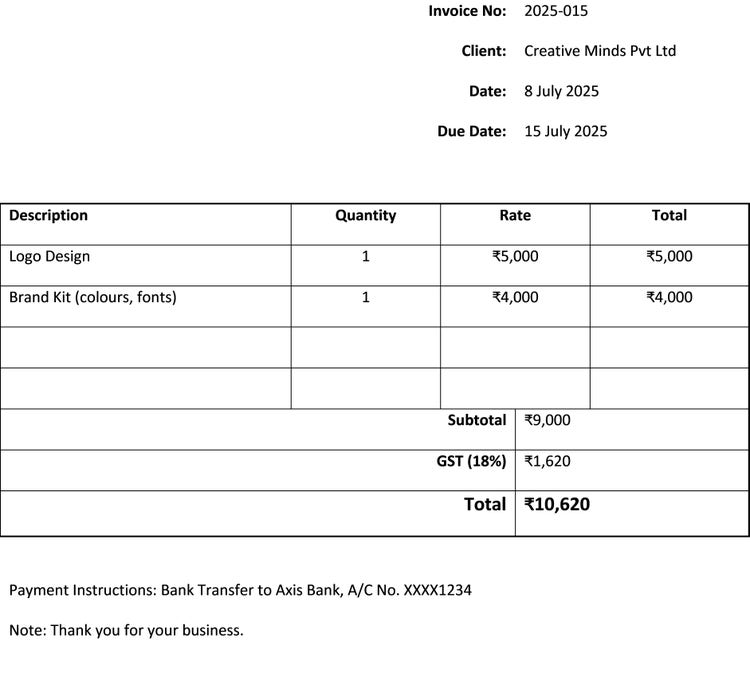
Once created, convert to PDF and apply your signature before sending to the client.
Tips for saving time with Word invoice templates.
If you issue multiple invoices each month, streamline the process by
- Saving your preferred layout as an invoice template in Word
- Duplicating and renaming the file for each new invoice
- Using autofill fields for dates or client names
- Using a template with pre-set formulas (for totals and tax) using Word tables
For teams managing larger volumes of invoices or collaborating across departments, integrating Adobe Acrobat with Microsoft SharePoint can further streamline access and document control. Learn more about how Acrobat works with Microsoft SharePoint to support efficient invoicing workflows.
Troubleshooting common invoice issues.
Even with a well-designed Word invoice format, small errors can lead to confusion or late payments. Here’s how to avoid them:
Client cannot open the Word file.
Convert the invoice to PDF before sending. It ensures consistency and accessibility.
Amounts not calculating correctly.
Double-check formulas or totals manually before saving. Word tables can be edited but don’t always auto-calculate.
Missing invoice number.
Create an invoice numbering system (e.g. 2025-001, 2025-002) to stay organised and track payments efficiently.
Signature not appearing.
If a digital signature does not show in Word, convert the file to PDF and sign using Acrobat to ensure it is displayed and locked properly.
Why professional invoices matter.
Your invoice is often the last impression you leave with a client before payment is made. A professional layout, accurate information and clear branding increase the chances of timely payments and fewer disputes.
Using invoice templates in Word gives you control over your branding while keeping things simple. When paired with tools like Adobe Acrobat, you can sign, secure and archive your invoices in a way that’s both professional and practical.
Whether you are sending a quick editable Word invoice template or managing hundreds of invoices each quarter, creating a reusable system and choosing the right format is essential to staying efficient.

Frequently asked questions.
Can I include international currency formatting in a Word invoice?
How can I convert a Word invoice into an editable format for clients to fill out?
Is it possible to automate recurring invoices in Word?
How do I align my invoice layout with brand guidelines in Word?
What’s the best way to store and organise Word invoice files?
Can I protect a Word invoice from being edited by others?
Is there a way to track when a client has opened or viewed the invoice?
How do I create a bilingual invoice in Word?
Should I include late payment penalties in my Word invoice?
What file format should I save my invoice in to ensure compatibility?
More resources
https://main--dc--adobecom.hlx.live/dc-shared/fragments/roc/blog/business/do-more-with-acrobat-blade
caas:business-unit/document-cloud,caas:products/acrobat,caas:content-type/article, caas:topic/invoices,
caas:topic/document-management,
caas:topic/digital-transformation