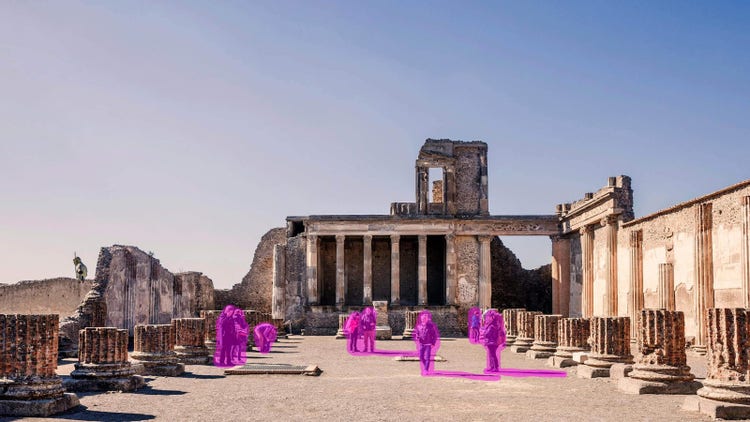
Remove people from photos, like tourists, using AI in Photoshop
Removing people from photos, especially in busy places like tourist attractions, parks or events, can transform an ordinary snapshot into a clean, professional-looking image. Whether you’re trying to capture a crowded landmark or erase someone from a group picture, AI-powered tools in Adobe Photoshop make it easy to edit your photos.
Here are some ways to remove unwanted people from a photo using Photoshop:
- If you’re dealing with a background full of tourists, use the Removal Tool or Content-Aware Fill to erase individuals in open spaces. Try working in smaller sections for more complex edits rather than attempting to erase an entire group at once.
- For a more natural look, you may need to refine your edit using the Clone Stamp Tool or Healing Brush to blend textures. You can also manually sample nearby areas to recreate missing details more accurately.
- With some advanced planning, you can take multiple shots from the same angle and stack them with Auto-Align Layers. Use layer masking to remove people across different frames.
- If you want to remove a specific person from an event photo, zoom in and carefully erase them in sections. Pay attention to shadows, reflections and interactions with objects in the scene to ensure a natural result.
With AI-powered tools like the Remove Tool, Generative Fill, and Content-Aware Fill, Photoshop makes it easy to remove people from photos online and create clean, distraction-free images.