#1e1e1e

VIDEO

Turn voiceovers or music into full visual stories with Adobe’s MP3 to MP4 conversion tools.

Transform static audio into dynamic, shareable video content using Creative Cloud’s MP3 to MP4 tools, perfect for reels, intros, and visual storytelling.

Explore Premiere Pro

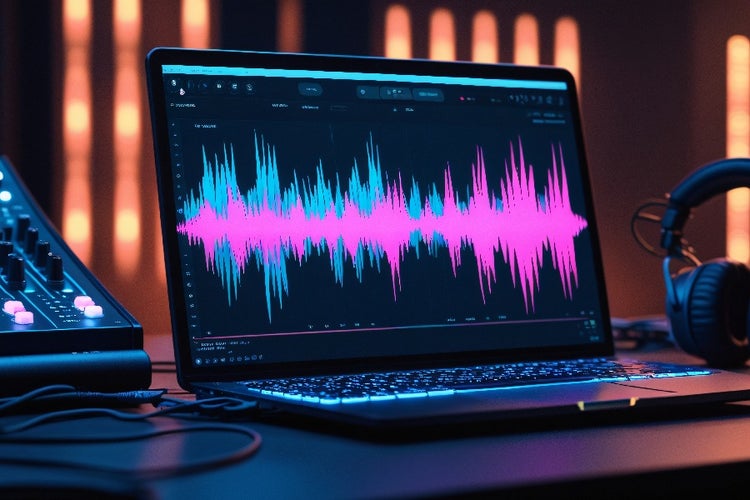
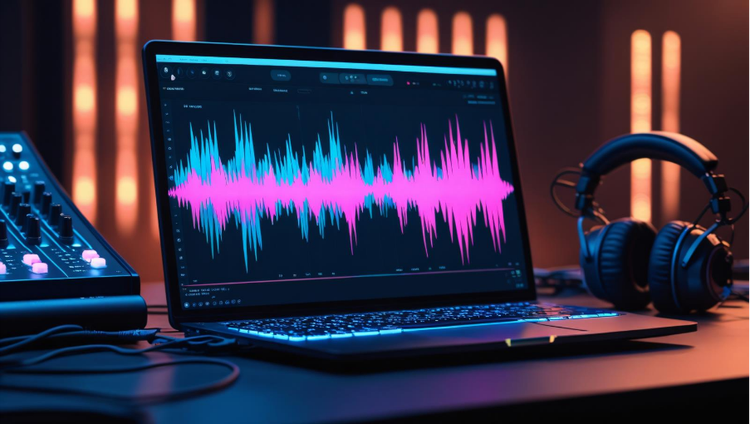
Visual representation of sound waves on a laptop screen.
#F5F5F5
MP3s can sound great, but in a visual world, audio-only content is easy to scroll past. Podcasters, voice actors, and music producers can boost engagement by turning MP3s into shareable MP4s tailored for platforms like Instagram, YouTube, and LinkedIn. That’s where Creative Cloud comes in. With tools like Waveform Visualiser, Smart Backgrounds and Auto-sync, you can add motion, mood and professional polish to any audio track. It’s your fast track to turning static formats into fully realised content.

What turning MP3 into MP4 unlocks for creators.

An MP3 to MP4 converter isn’t just about changing formats. It’s about making your audio visually engaging. A talking head clip, a snippet of a podcast, or a snippet of voiceover work - these all become more powerful when paired with visuals.

Creative Cloud makes it easy to:

  • Add movement to music
  • Highlight key beats or words
  • Sync visuals with the rhythm of your track
  • Create portfolio assets from voice demos
  • Build reels or teasers from podcast intros

How to convert MP3 to MP4 with Creative Cloud.

If you’re wondering how to convert MP3 to MP4 without losing creative control, here’s the process using Creative Cloud tools:

1. Import your MP3.

Drop your audio file into Premiere Pro or Adobe Express. No conversion needed - it’s compatible out of the box.

2. Apply the Waveform Visualiser.

Choose from dynamic waveform styles that move in sync with your audio. Adjust colour, size and positioning to match your tone and format.

3. Add Smart Backgrounds or images.

Use Adobe Stock or your own assets to set the visual mood. Smart Backgrounds use AI to adjust contrast and framing based on your waveform or titles.

4. Sync titles and motion graphics.

Add your name, episode title or lyrics using motion text tools. Use Auto-sync to align visuals and captions to the beat or phrases.

5. Export and share.

Use Creative Cloud’s platform presets to export an MP4 for Instagram, YouTube, Spotify Canvas or client delivery.

Find the step-by-step guide on how to convert MP3 to MP4 files.

Microphone in front of digital data visualisations, representing the use of MP3 to MP4 tools to transform audio content into visual media.

What makes Adobe’s MP3 to MP4 converter different?

Most free MP3 to MP4 tools let you upload a file and get a static screen with basic visuals. With Creative Cloud, you get:

  • AI waveform animation with custom styles
  • Smart Backgrounds that react to sound
  • Auto-sync for captions and graphic layers
  • Seamless design integration across apps
  • Brand-safe templates and export presets

This turns your audio into something you can promote, pitch or publish.

Practical ways to turn MP3 files into client-ready video.

Creative Cloud’s MP3 to MP4 tools help creators stand out with minimal effort:

1. Voice actors

Turn demo reels into visual portfolios with waveform motion and clean intros.

2. Podcast producers

Use a podcast intro, quote or highlight clip to make shareable reels or teaser content.

3. Musicians

Turn a track into an animated promo with custom artwork, lyrics and synced visual beats.

4. Educators

Convert lesson audio into video posts with captions and topic titles.

5. Freelancers

Use MP3 to MP4 tools to pitch work, showcase audio design, or win new briefs on Upwork and Fiverr.

Create once, publish everywhere: turn audio into scroll-stopping videos for every platform.

Creating new content from scratch takes time. With Creative Cloud’s MP3 to MP4 tools, you can transform a single audio file into an entire content series. Use auto-sync to cut down editing time, apply waveform templates for instant visuals, and export platform-ready versions in just minutes.

One podcast can quickly become:

  • A teaser reel for Instagram
  • A branded snippet for LinkedIn
  • A visual quote for Stories or YouTube Shorts

Many creators now turn highlight moments into MP4s using animated waveforms and branded templates. Each episode takes less than 20 minutes to convert, which helps reach new audiences and simplify client reporting. By converting once and publishing everywhere, creators save time, extend their reach, and get more out of every minute of content.

Woman wearing headphones working on a laptop, illustrating MP3 to MP4 conversion for creating engaging audio-visual content.

Frequently asked questions.

Can I add subtitles or lyrics to my MP3 to MP4 conversion?

Yes. In Premiere Pro, you can overlay text manually or use automated caption tools to add subtitles, quotes, or lyrics that sync with your audio.

How can I repurpose audio clips into regional language videos?

You can repurpose your podcast clips, music, or voiceovers into MP4 visuals and overlay subtitles or text in different languages. This is especially helpful if you’re a creator or influencer looking to engage diverse audiences across India on platforms like Instagram, YouTube Shorts, or LinkedIn.

What’s the best visual format for posting MP4s from audio on Instagram?

Instagram Reels favour 9:16 vertical videos. When converting MP3 to MP4, use Creative Cloud’s export presets to format your output specifically for mobile-first platforms.

Can I use my own branding (logos, colours, fonts) in the visual templates?

Definitely. You can customise waveform styles, backgrounds, and title cards in Creative Cloud to match your brand aesthetic - great for portfolio consistency.

How do I choose the right background visuals for my audio?

Smart Backgrounds can auto-match mood or tone, but you can also upload your own images, gradients, or video loops to create a more tailored look.

Can I convert audio clips into MP4s that include animated text or CTAs?

Yes. Using After Effects or motion presets in Premiere Pro, you can easily add animated callouts, quotes, or end screens to boost engagement.

Is there a way to preview how my MP3 to MP4 video will look on each platform?

Yes. Creative Cloud allows you to preview outputs in different aspect ratios (e.g., vertical, square, widescreen) before you export, ensuring perfect framing.

Can I store and reuse my visual settings for future audio projects?

Absolutely. Save your favourite waveform animations, text styles, and background settings to Creative Cloud Libraries to reuse across episodes or series.

Does Creative Cloud support audio visualisation in multiple languages?

Yes. You can add text overlays, captions, or subtitles in any language, making it ideal for regional podcasting, multilingual voiceovers, or global distribution.

How can I test which version of my audio-visual post performs best?

By exporting a few variations with different intros, visuals or CTA placement, you can A/B test across platforms - an efficient way to improve performance over time.

Can I automate the MP3 to MP4 process for multiple episodes or files?

For series-based creators, you can build reusable templates and batch-convert multiple MP3s into MP4s using Adobe Media Encoder, speeding up production for podcasts or training modules.

https://main--cc--adobecom.aem.page/cc-shared/fragments/creativity-for-all/default

You may also like

Content as a Service v3 - photo - Tuesday 19 August 2025 at 17:23

https://main--cc--adobecom.hlx.page/cc-shared/fragments/seo-articles/do-more-premiere-pro-color-blade