VIDEO
How to translate captions on a video.
Whether you’re producing YouTube tutorials in Hindi or product demos in English, language can make or break audience engagement. In a multilingual country like India, viewers are more likely to stay, like, subscribe, and share when they understand your message. But translating captions manually for every video takes time and effort.
That’s where Adobe Premiere’s automatic caption translation comes in. This feature helps you instantly translate captions into multiple languages, making your videos more accessible and helping you reach wider, multilingual audiences faster.

How to translate captions in Premiere.
Before translation, you need to create a transcript of your video. To do this, import your media, and then open the Text panel and select Transcribe to generate a transcript. You can also enable automatic transcription while importing your media under Import settings.
Once that is done, continue with the following steps to translate the captions into other languages:
- Select the Create captions icon on the header of the Transcript tab.
- Select the Translate captions icon in the Captions tab.
- Choose the language you want your captions translated into and select Translate.
- A new track will be created in the Timeline panel, and the progress of the translation will be displayed in the Progress panel and on the track item.
- Select the eye icon for each corresponding language track to display all the captions on the Program Monitor.
- Select and style the captions using the options in the Properties panel.
- To apply styling, select the Redefine style icon in the Properties panel and select All captions on track.
- Export your captions.
You can use this same workflow to translate captions from Hindi to English, English to Telugu, or between other supported regional languages, making your videos more accessible to diverse audiences across India and beyond.
Why translating captions matters.
Translating captions means converting your existing on-screen text or subtitles into another language. It allows your video content to speak to audiences who prefer or understand a different language.
This capability helps creators, businesses, and entrepreneurs:
- Reach multilingual audiences.
By translating your video into different languages, you tap into audiences on a global scale who prefer content in their native language. This breaks down barriers and significantly increases your potential viewers and total audience.
- Improve accessibility.
Create a more inclusive viewing experience by offering content that can be enjoyed by both hearing and non-hearing audiences through captions that are available in their preferred or native language.
- Enter fresh markets.
Through simple translation, you create localised content. This is essential for targeting new and international markets that may not speak your language but are interested in what you have to offer.
- Boost engagement.
Multilingual captions are content that search engines can index, making your videos more visible across languages and discoverable on social media platforms. Adding translated closed captions in Hindi on Instagram or burned-in subtitles on Instagram, for example, can help your videos appear in more search results and attract viewers who prefer content in their native language.

Best practices for caption translation.
It’s one thing to generate translated captions. It’s another to make sure they look professional, effective, and perform the way they should. Here are some tips to consider when translating captions for your next video:
- Convey meaning accurately.
Check that the translated captions convey the intended meaning rather than being a word-for-word translation. Include every spoken word (slang, dialect, non-standard expressions, buffers, connecting words, etc.) to make the message clearer and more natural for your audience.
- Time your captions right.
Make sure your captions appear and disappear in sync with the speaker’s voice. Keep them on-screen long enough for viewers to comfortably read without pausing the video.
- Choose a simple format.
As a rule of thumb, limit captions to a maximum of two lines at a time for clear, distraction-free viewing. Select a font that's easy to read, use proper capitalisation and punctuation, and avoid using bold, underlined, or all-caps letters.
- Consider sounds and speaker clarity.
If essential to the video, incorporate background sounds, noises, and music, such as (wind howling), (heart pounding), or (ominous music). You can also add names of speakers in the captions when multiple people are talking at the same time.
- Use professional translation tools or services.
Tools like Adobe Premiere’s caption translation, paired with human editing or verified translation services, ensure your captions are accurate, culturally appropriate, and ready for global viewers.
- QA and test across devices and platforms.
Always take time to proofread and edit your translated captions before publishing to catch any spelling, grammar, or timing errors. Test your captions across multiple devices (mobile phones, TVs, laptops) to confirm they display correctly. Export captions as .SRT or .VTT files for compatibility with major video platforms.
Other Premiere features that make video editing easier.
Beyond caption translation, Premiere boasts an entire suite of tools that can help you produce high-quality videos faster and with less effort. It also has AI-powered video editing features that can intelligently handle repetitive editing tasks to help you save hours of manual work while keeping results precise and professional.
Here are a few powerful features that can elevate your workflow:
Achieve smoother storytelling with a wide range of built-in transitions, including fades, wipes, dissolves, and motion effects. Popular options such as dip to black, cross dissolve, morph cut, and VR chroma leaks help maintain visual flow between clips.
Keep your visuals consistent across cameras and platforms with real-time colour management. The Lumetri Color panel offers intuitive sliders and advanced grading tools, allowing you to fine-tune exposure, contrast, and saturation. You can also apply creative LUTs and make colour corrections in HDR or log footage formats.
Improve clarity, balance levels, and remove background noise using AI-powered audio tools. With over 75,000 royalty-free tracks in Adobe Stock and easy sound mixing controls, you can craft a polished soundscape that complements your visuals.
Automatically adjust your video’s aspect ratio for different platforms (like YouTube or Instagram) without manual cropping. This is great for repurposing content across multiple formats.
Smoothly work with 8k, HDR, and high-frame videos by generating lightweight proxy files that you can toggle between in an instant. During export, the full resolution media is used to make sure you get the best quality outputs every time.
Improve your editing speed with default keyboard shortcuts that can help in tackling repetitive tasks with fewer clicks. You can also create and edit shortcuts to create customised workflows that suit your needs and preferences.
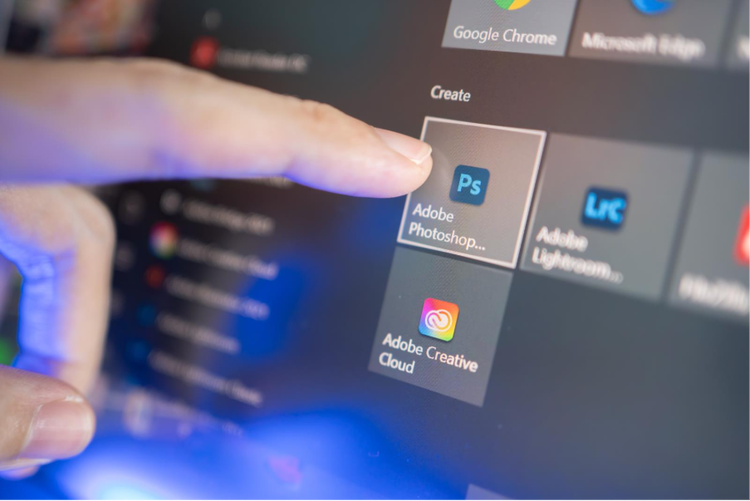
Additionally, Premiere seamlessly integrates with other apps in the Adobe Creative Cloud ecosystem. This can help you move from design to post-production (and everything in between) without breaking your creative flow.
- Photoshop: Design custom thumbnails, lower thirds, and title cards with precision. Retouch images or backgrounds, then import them into Premiere for a cohesive, professional look that reinforces your brand identity.
- After Effects: Bring your videos to life with motion graphics and cinematic effects. Create animated titles, logo reveals, or visual effects — then send them straight to Premiere using Dynamic Link, no rendering required.
- Express: Instantly repurpose your edited videos for social media. Resize clips, add captions or branded elements, and publish directly to platforms like Instagram or YouTube in just a few clicks.
Together, these apps create a streamlined production pipeline that saves time while elevating every project’s quality.
Frequently asked questions.
How do translated captions help with SEO?
Do I need an internet connection to use the translate captions feature?
Is the text data from my transcript and captions stored?
Can I edit the translated captions after export?
What technology does Adobe use for caption translation?
How do I add translated captions to Instagram videos?
What languages does Adobe Premiere support?
You may also like
Content as a Service v3 - file-type photo collection - Friday 5 December 2025 at 15:37
caas:business-unit/creative-cloud,
caas:products/premiere-pro,
caas:content-type/article,
caas:product-categories/video,
caas:topic/video-production,
caas:topic/creativity-design,
caas:topic/accessibility