JUMP TO SECTION
Types of video transitions in {{premiere}}
Integrate custom video transitions in Creative Cloud
[How to use Video Transitions in Adobe {{premiere}}](#how-to-use-video-transitions-in-Adobe {{premiere}})
Adobe {{premiere}}
Maintain a smooth flow and keep your viewers hooked by adding creative scene transitions. Learn how to place dynamic transitions into your videos with Adobe {{premiere}} so your audience stays engaged from one scene to the next without missing a beat.
Start free trial|Start free trial {{premiere}} Explore {{premiere}}
JUMP TO SECTION
Types of video transitions in {{premiere}}
Integrate custom video transitions in Creative Cloud
[How to use Video Transitions in Adobe {{premiere}}](#how-to-use-video-transitions-in-Adobe {{premiere}})
Explore the different types of video transitions in Adobe {{premiere}}, learn how to apply and customize them, integrate custom transitions from Creative Cloud, streamline your editing with default transitions, and get answers to common questions in our FAQs.
Perfect the art of selecting and applying video transitions in Adobe {{premiere}} to enrich your storytelling experience.
Choose and use the right video transition to signal scene changes, show the passage of time, enhance the mood, and amplify the impact of your storytelling.
Gradually fade one clip to black or white. Use for starting/ending scenes, and emotional shifts
Smoothly blend one clip into the next. Ideal for montages.
Wipe one clip off the screen to reveal the next, with patterns like horizontal, vertical, and circular. Great for dramatic changes or new locations.
Use creative effects like spinning, zooming, or distortion. Perfect for high-energy sequences.
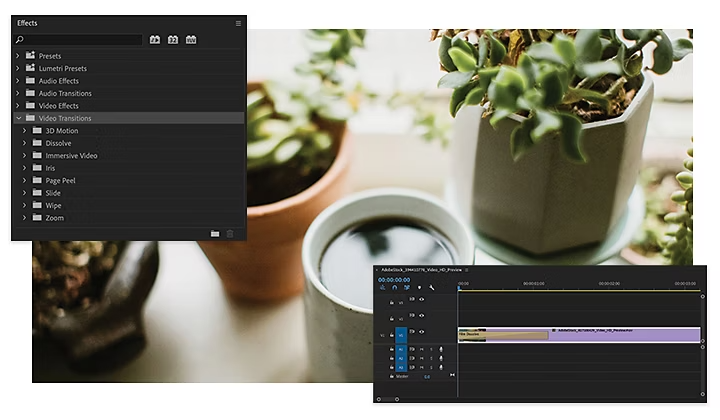
Handles are extra footage at the beginning and end of your clip, essential for seamless transitions in editing. Capture ample handle footage during filming for flexibility and to avoid abrupt cuts or transitions.
Expand your options with third-party plugins or custom transitions from After Effects/Photoshop and easily integrate them into your Adobe video editor using the Adobe Video Partner Finder for specialized effects like glitches, liquids, and smooth transitions.
1. Open the Effects panel under the Window tab.
2. Open the Video Transitions folder and select which transition you want to apply.
3. Drag and drop the transition in between the two clips where you want it to appear.
4. Customize the duration and alignment of your transition using the Effect Controls panel.
Check out this guided video tutorial for a step-by-step process.
To quickly add a transition, right-click between the two clips and select Apply Default Transition. This will add a cross-dissolve effect that you can use for video clips and audio tracks.
Some tips for video transition success: