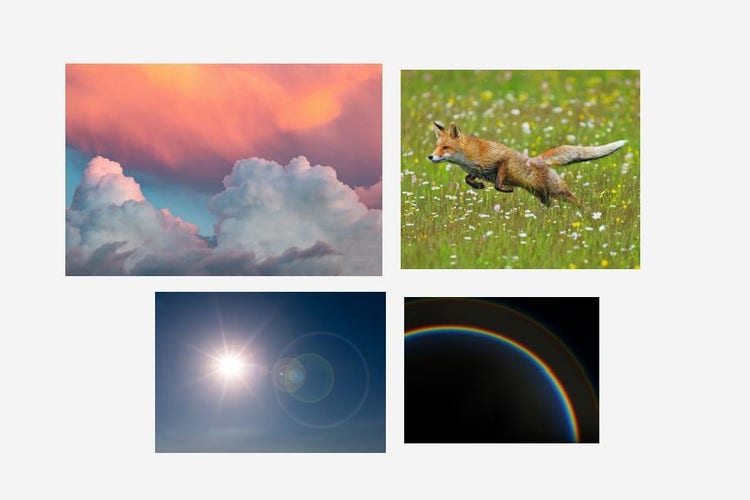
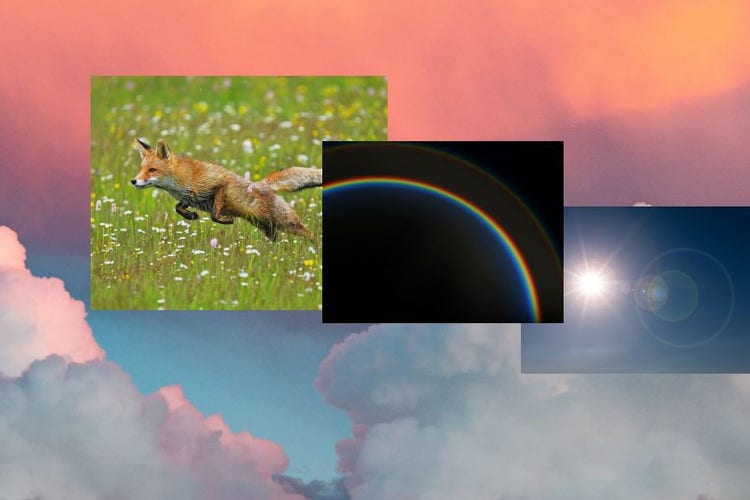
You can combine as many photos as you like, though most composites work best with two to four. Add each one through the Import panel or by dragging it onto the canvas from the Photo Bin.
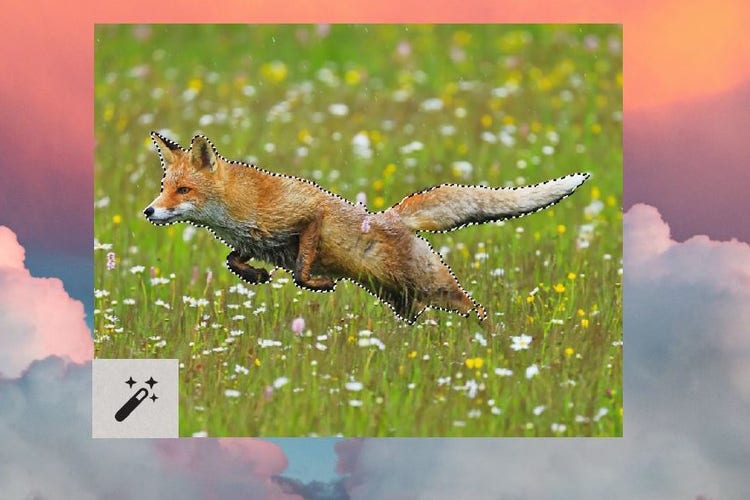
Remove Background automatically detects your subject and removes everything else in one step. Extract Objects gives you more control, letting you choose between Auto, Quick, Brush, or Refine selection tools to select a specific object or area yourself.
It designates the selected photo as the base layer that your other photos will sit on top of. Once set, you can scale or reposition it with the Move tool to fill the canvas the way you want.
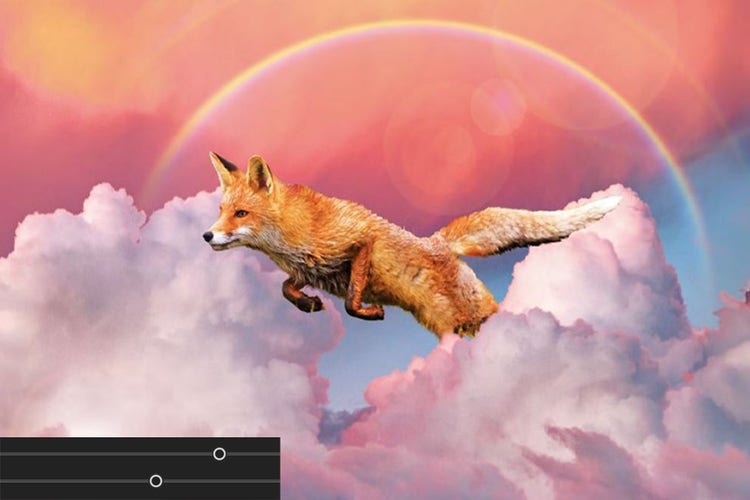
You can do either. Auto Match Tone gives you a solid starting point with one click, and the contrast, saturation, temperature, and luminance sliders let you fine-tune the result from there. You can also skip Auto Match Tone and adjust the sliders on your own.
A photo with natural depth and even, clear lighting gives you the most to work with. That said, you can combine almost any two photos, and the results can be surprising.
Not unless you save over them. Use File > Save As to save your combined image as a new file, and your original photos will stay exactly as they were.