
Try these tutorials with Acrobat Pro
Create, edit, and share PDFs.
Learn how to edit text and images in PDF documents with Adobe Acrobat on your Windows or Mac desktop.
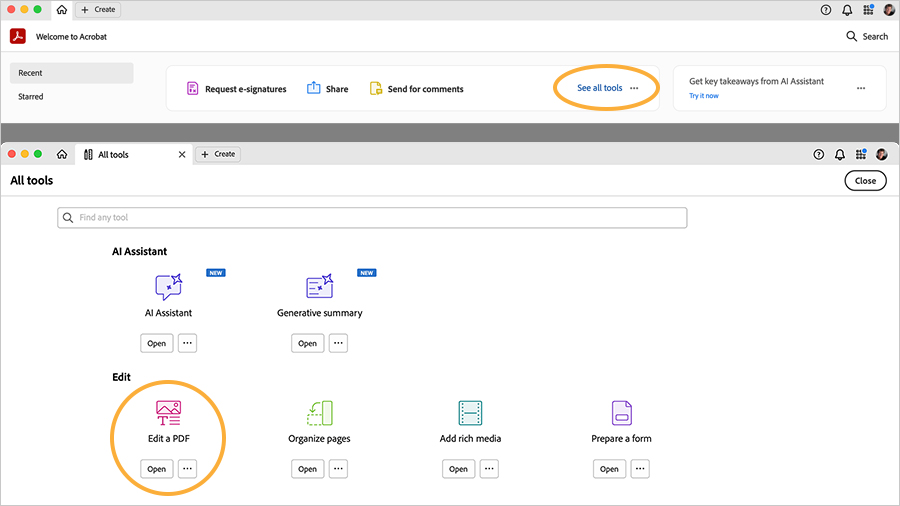
From the Acrobat Home screen, click the Edit a PDF tool near the top. If you don’t see this, click the See all tools link to display the All tools tab, and select Edit a PDF . If you are in a new document view, or you have already opened the document you want to edit, you can find Edit a PDF in the Tools panel on the left.
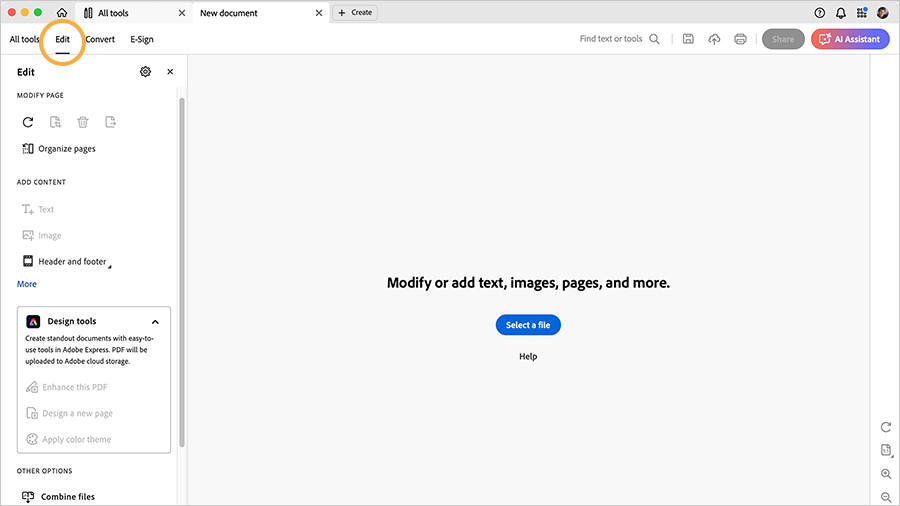
With the Edit tool selected, click the Select a File button. In the Open dialog box, select the Bodea Brochure.pdf sample file or a file you want to edit, and click Open.
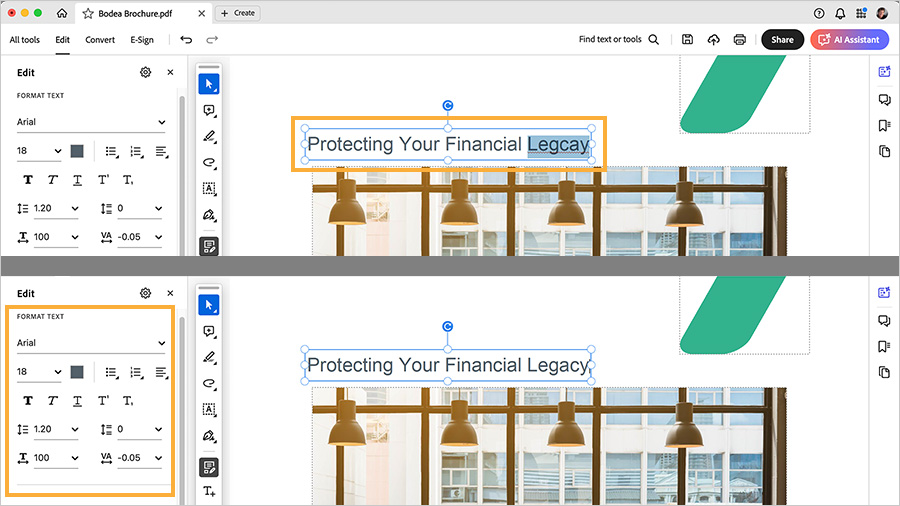
Click in a text box to edit the text with the built-in PDF editor. In the Bodea Brochure.pdf sample file, there is a typo in the first text box above the image. Click in the text box and then highlight the “Legcay” typo and correct it by typing “Legacy”. You can also use options in the Format section in the left panel to customize text. Learn more aboutediting text in PDFs .
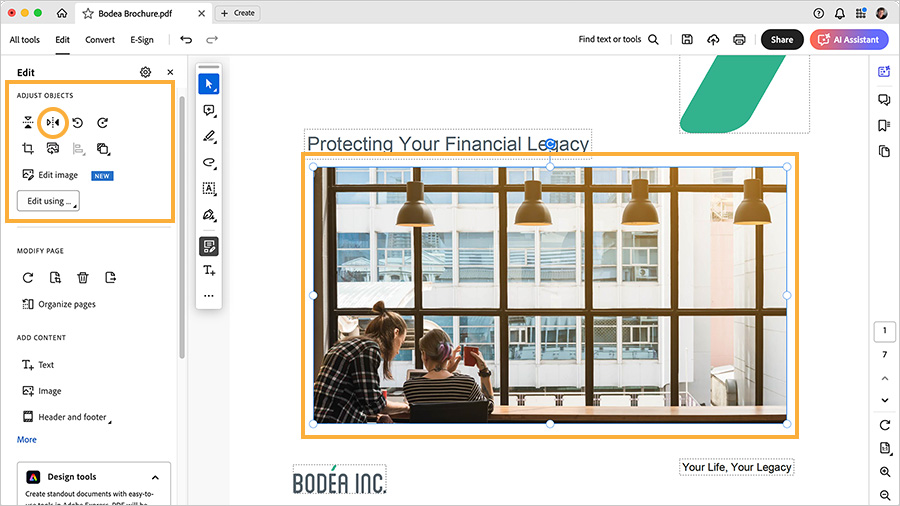
Click an image, then use the options in the Adjust Objects section in the left panel to flip, crop, align, rotate, or arrange the image. In the Bodea Brochure.pdf, try flipping the image of the office workers horizontally by clicking the image and then selecting the Flip Horizontal option in the Adjust Objects section. Learn more aboutediting images in PDFs .
Select File > Save or File > Save A s to save your edited file.