When you work on projects in Adobe Premiere Pro CC, there'll be times when you want to use another Adobe Creative Cloud app, to help you create a particular asset or achieve a special effect.
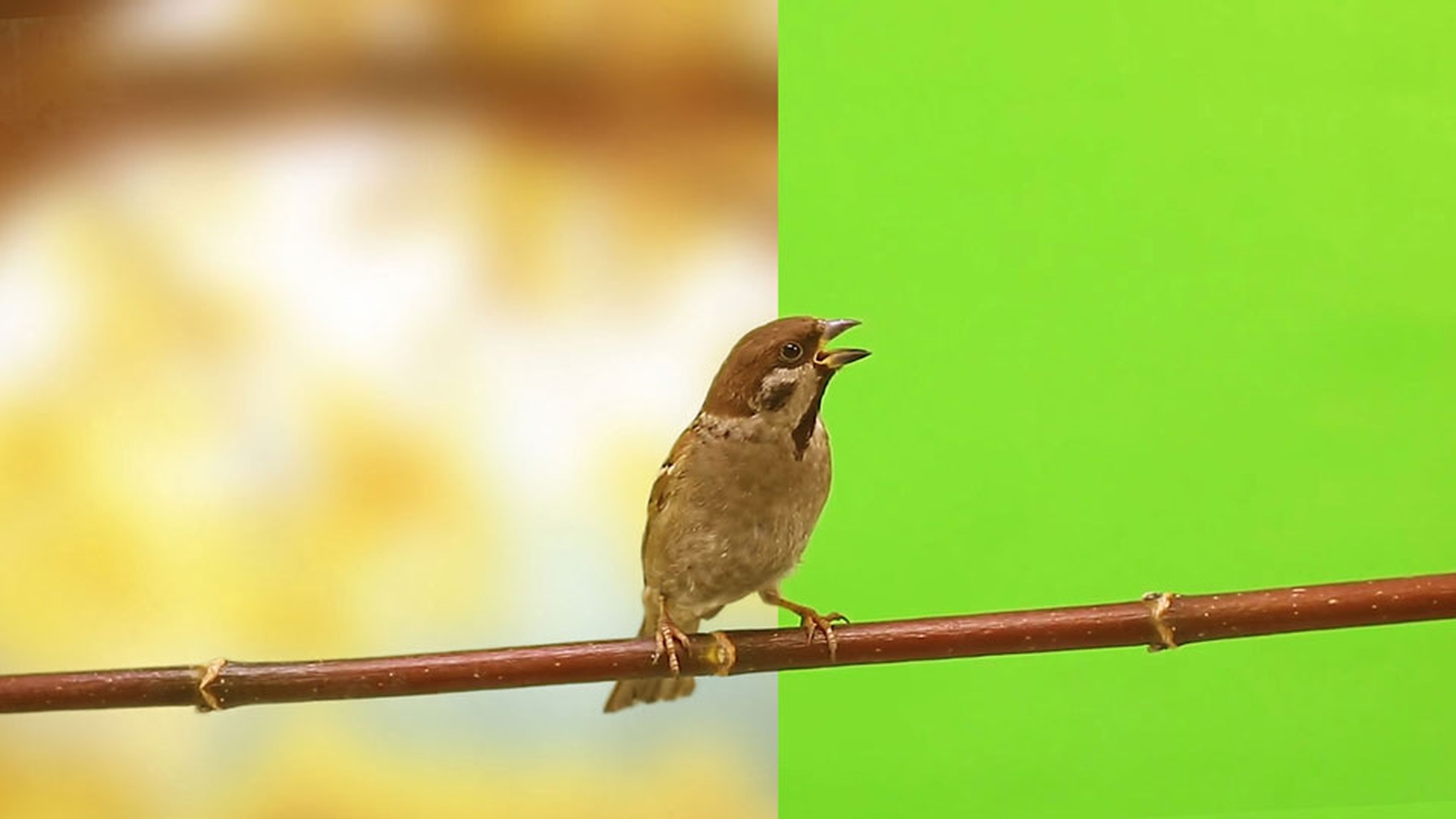
In this instance, we're going to show you how Adobe Photoshop CC can be a super valuable tool to help us combine this Adobe Stock green screen footage, and this tree background into this convincing clip for our project.
So, let's get started.
So, this is where my project is up to now in Premiere Pro CC.
But there's been feedback that we need maybe a clip to help ease the transition between these kind of overhead shots, down to this more human scale here.
So, my producer has found this video clip from Adobe Stock.
So, it's going to be our goal to integrate this in with our sequence.
And we're going to need a little help from Photoshop CC for the background.
So first up, let's add it to our clip.
I'm just going to drag these guys over, get a bit of space.
I just want the video from the bird here, and we'll move these guys along.
Before we move on, we'll quickly rotate them, it looks a little fake with him kind of directly across, so, with the clip selected, we'll get him too.
Just rotate a little bit.
We may have to scale him up just a tad.
Great, so now, let's go and key the background out.
Now I'm going to use that on my Effects Panel down here, I'm going to type in "ultra", I'll use "Ultra Key", drag it onto the clip.
Then I'm going to use my Eyedropper to pick this background here.
It's done a pretty good job without any adjustment, nice.
So, let's bring in a background from Adobe Stock.
OK, we found this one here.
I'm just going to trim it up so it fits, and we'll stick it just underneath.
OK, so I like the tones and I like the tree, but obviously the scale is way off, and the focus is as well.
So, this is where Photoshop CC can work its magic.
I'm going to right click it here in my timeline and go to this option that says, "Edit in Adobe Photoshop".
So here in Photoshop CC, I'm going to zoom out a little bit, Select All, and then I'm going to Transform it.
I'll use Scale.
I'm going to scale it up, then kind of move, I don't know, about there, press Return or hit Enter on your keyboard.
I'll Deselect.
And now I get to work my magic in Photoshop CC.
I'm going to zoom in a little bit.
So, it's really up to me now to decide what I want to do to help blend that foreground and background.
And the brilliant thing is that if I save this here in Photoshop CC, and jump back into Premiere Pro CC, you can see it goes and automatically updates.
So, you can toggle between the two programs or like me have them up on separate monitors, make adjustments in Photoshop CC and see the result instantly in Premiere Pro CC.
So back to Photoshop CC.
So, I want to add a few more leaves to fill in this sky here.
I'll use this Clone Stamp tool.
So, I want to set a target from this tool to clone from.
You can do this by holding down the Option key on a Mac, or the ALT key on a PC.
I'm going to set this target here in the middle of these leaves.
Now I'll let go of the Option or ALT key, and just paint in the sky here.
Now, I like to choose a new target every now and again, just so that I don't have any obvious repetition.
Now it's not super important for me to be really accurate here, as I plan to go through and blur the background later on.
So, I'm just working really quickly.
And let's say that I don't want some of these branches, I'm going to use the Spot Healing Brush here, and I'm just going to kind of work a few of these out of the image.
When I'm ready, I hit Save, jump back into Premiere CC.
And although it's coming along, I think really, we need to fix the depth of fields, maybe blurring this background's going to work.
I'm going to jump back into Photoshop CC.
And we'll use the trusty Filter, Blur, we're going to use Gaussian Blur...
So, I've got mine set to about 22.
I'll choose OK, let's save the file.
Let's now jump back into Premiere Pro CC.
OK, so now I'm getting comfortable, but let's play it through.
Not bad.
Not bad at all.
So that's a quick overview of one way that you can take a sequence from Adobe Premiere Pro CC and supercharge it with some image editing techniques using Adobe Photoshop CC.