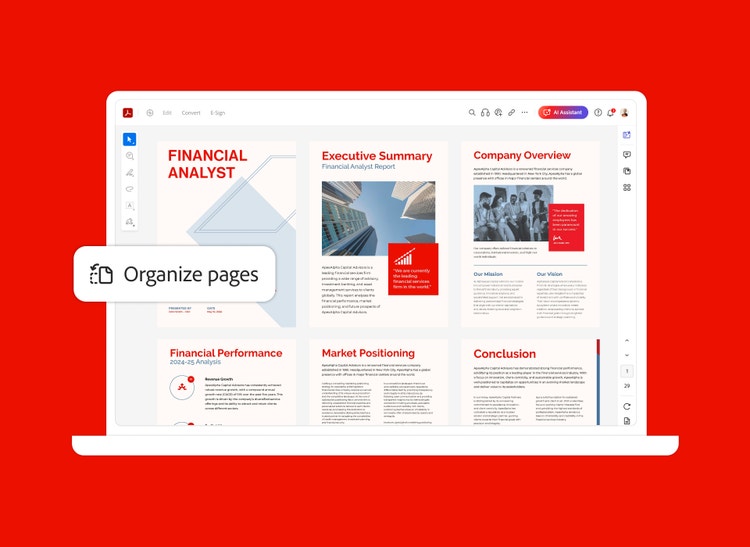


If you only need part of that long PDF, you can easily split it into individual chapters, separate pages or remove them. That way, you're free to mark up, save or send only what you need.


If you only need part of that long PDF, you can easily split it into individual chapters, separate pages or remove them. That way, you're free to mark up, save or send only what you need.

You can extract PDF pages. Or you can reorder, replace or delete them until your specific pages are organised exactly how you want them.

Use the PDF splitter to separate one or more PDFs into multiple documents by simply specifying the number of pages, file size or top-level bookmarks.

Mix and match, reuse pages from multiple PDF documents or separate PDF pages to customise your file with all the form fields, comments and links included. Leave unwanted content in your original file or just delete it.

With the Acrobat Reader mobile app, you’ve got a PDF tool that can reorder, delete, insert or rotate PDF pages right from your mobile device.
Get more out of Adobe Acrobat with these tips:

Use our online tool to split and organise longer PDFs so they’re easier to send and share. Try splitting a PDF right now from your browser.
£14.99/mo
incl. VATFee applies of half your remaining annual commitment if you cancel after 14 days.The simple PDF tool for editing and converting documents.
Fee applies of half your remaining annual commitment if you cancel after 14 days.
£19.97/mo
incl. VATOur most comprehensive PDF solution with full convert and edit capabilities, advanced protection, and powerful e-signature features.
Filters
Sort
Popularity
Alphabetically
coll-no-results-text
Categories
REFINE YOUR RESULTS
Close
Special Offers – opens in a new window
filter by category
RESOURCES
1 result in
results in
coll-result-mobile-text
results in
1 result in
results for
1 result in
results in
Your search for returned no results
Your search for returned no results
View more
coll-all-filters-text
coll-filters-category-text
coll-filters-applied-text
coll-filters-results-text
coll-filters-reset-text
countdown-timer-text
Discover what's included
License|Licenses

At Adobe, we’re serious about protecting your personal information. To ensure your account details are safe, we use Secure Sockets Layer (SSL), an industry standard for encrypting private data over the internet.


