ACROBAT FOR BUSINESS | 6-MINUTE READ
How to add a digital signature to PDF.
Use digital signatures for the highest level of identity verification.


ACROBAT FOR BUSINESS | 6-MINUTE READ
Use digital signatures for the highest level of identity verification.
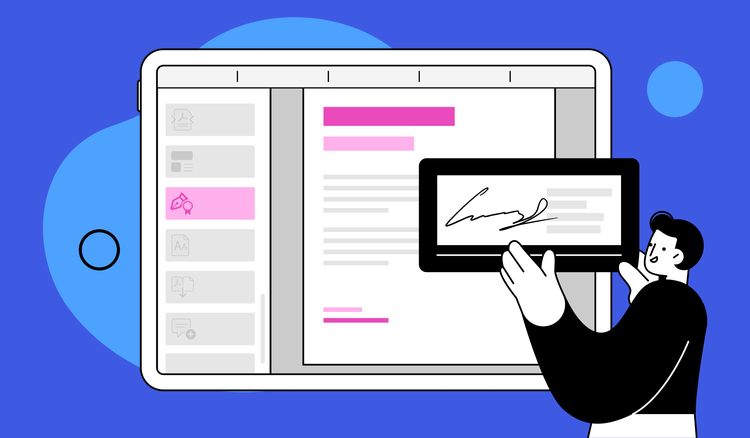
All e-signatures are not created equal. The term e-signature refers to any time you electronically sign a document instead of using pen and paper. However, digital signatures are e-signatures that are backed by a digital certificate. This certificate provides proof of your identity and cryptographically binds your digital signature with the document, securing it with a tamper-evident seal.
When you use a digital signature PDF, you ensure that your signed document is almost impossible to spoof and that it complies with international regulations.
Before you can add a digital signature to PDF, you must obtain a digital identity (or digital ID). Think of a digital ID as an electronic passport. Your digital ID is unique to you and certifies that you are who you say you are.
Digital IDs are issued by trusted third-party providers who are responsible for a thorough vetting process that verifies your identity. These providers include governments, banks, Trust Service Providers (TSPs), and Identity Providers (IdPs). Your business and industry may have specific regulation requirements that necessitate using certifications through specific TSPs or IdPs.
When you sign PDF documents with Adobe Acrobat for business, you can add a digital ID obtained through one of these providers or create a self-signed digital ID within Acrobat itself. With your digital ID ready, it’s time to learn how to add a digital signature to PDF.
View the tools menu by clicking the See All Tools link from the Acrobat home screen or the All Tools link while viewing your document. Then click Use a certificate.
Click Digitally Sign. A pop-up dialog box will appear with instructions for selecting where in the document you would like the digital signature to appear. Click OK.
Using your mouse, click and drag to draw the area where you would like the signature to appear. Once you finish dragging out the desired area, you will be taken to the next step of the signing process.
If you haven’t used a digital ID to sign documents in Acrobat before, you will need to create one. A pop-up box will appear to ask you if you would like to configure a digital signature identity. In the window, click the Configure Digital ID.
A window with three options will appear. Select the option that best describes your digital ID status:
If you select the Use a Signature Creation Device option or Use a Digital ID from a File option, you will be taken to a new screen to add your existing digital ID information.
To configure a smart card or token, you’ll need physical signature device hardware and to have downloaded and installed the corresponding drivers on your computer. If you do not have a signature device, Acrobat will direct you to partner pages where you can order the hardware.
To import a digital ID file, select Browse. Find the saved file on your computer. Enter your digital ID password and click Continue.
To create a new digital ID, continue to follow the steps below.

To save the digital ID to a file on your computer, use the Save to File option.
To save the digital ID to the Apple Keychain so it can be shared with other applications, use the Save to Apple Keychain option.
Enter the identity information required in the form.
The default selection for Key Algorithm is 2048-bit RSA, which offers higher security than the 1024-bit RSA option. However, 1024-bit RSA is more universally compatible. If you are unsure which option to pick, Acrobat recommends 2048-bit RSA.
If you are saving your digital ID to your Apple Keychain, click Save.
If you are saving the digital ID to a file on your computer, select the location on your hard drive by clicking Browse.
Add a password to protect the private key of the digital ID. You will need this password anytime you wish to use the digital ID for signing, so don’t forget it. Click Save.
A window will list the digital ID you created and any other digital IDs available for signing. (In the future, this window will now display by default after selecting All Tools > Use a certificate > Digitally Sign.) Choose the digital ID you want to use. Click Continue.
In the pop-up window, view a visual preview of your digital signature. Click Create. Customize the text, draw your signature, add images, and choose what additional information you want to be listed alongside your name, like a timestamp.
You can save many different preset versions of your digital signature for quick use in the future. Type a label for your digital signature in the Preset Name box. Select Save.
Type your digital ID password in the Enter the Digital ID PIN or Password… box. Then, click Sign.
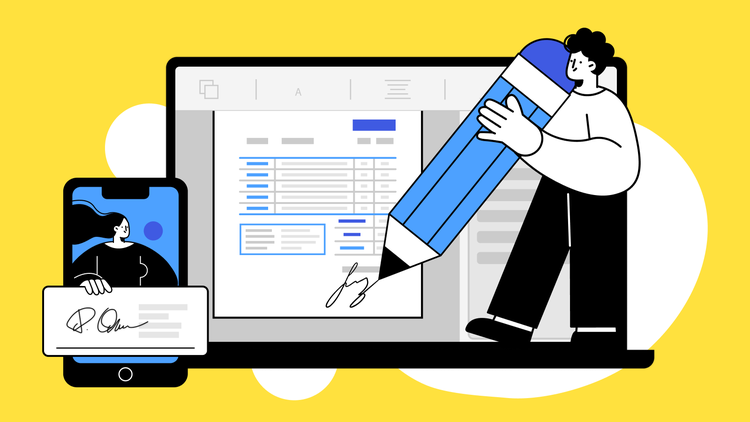
Once you have mastered how to add a digital signature to a PDF, learn how to add a digital signature on different devices, operating systems, and platforms.
Acrobat allows you to use a digital signature from your computer. Once you open a document link, opt to sign PDFs digitally. Click Click here to review and sign, then click Click to digitally sign. Choose to sign with a cloud signature using your digital ID certificate provider.
If you don’t have a digital ID certificate, sign up for one. To create this certificate, if you do not have a digital ID certificate, visit the provided link to get one. From here, you can preview your signature and make any edits. Lastly, click Click to Sign and type your digital ID provider’s pin and one-time passcode to authenticate the digital signature. Send or download a copy of your document.
You can place a digital signature in Google Docs with a bit of help from Acrobat. Download your Google Doc to your computer as a PDF. Open the PDF in Acrobat. Select All Tools > Use a certificate > Digitally Sign. When you are done signing, download the signed document. Upload the newly signed document to your Google Drive as a Google Doc.
The Preview app comes pre-installed on all Mac devices. Open your PDF document in Preview, click Markup Toolbar, and select Sign. Follow the instructions to insert a digital signature in the document.
For many documents, a simple e-signature is enough to be binding. Still, you may need to add digital signature to PDF documents for extra security or to meet compliance standards.

Digital signatures paired with message encryption protect your personal information anytime you send it to someone online. Signatures can be part of signing legal documents, conducting clinical research, submitting loan applications, or completing credit card agreements.

If you use an online pharmacy to fill and ship prescriptions, the pharmacy may require you to use a digital signature to comply with the SAFE BioPharma industry standard.

When money is exchanged online, digital signatures can provide a paper trail to protect both parties. From banking to animal adoptions, signing with digital signatures can make these transactions quicker and more secure.
An electronic signature, or e-signature, is an all-encompassing term for the process of electronically accepting an agreement. It can be as simple as checking a box to accept terms and conditions or typing your name into a text box. A digital signature offers more security by using a digital certificate and cryptographically binding a signature to a document. This security protects your signed documents from being tampered with and provides positive proof of your identity.
E-signatures, in general, are recognized and accepted in courts and on legal documents. However, digital signatures can provide a higher level of validity to digital documents, and certain documents may only be considered binding with a digital signature. Because digital signatures are uniquely tied to the signer’s identity, they are typically granted the same status as a signature written by hand with pen and paper. Always consult a legal expert to determine if your digital signature suits the documents you intend to sign.
Digital Signature Standards (DSS) are a set of algorithms used by e-signature applications. They set the rules for verifying a signer’s identity and tracking the signature through the signing process. A digital signature must meet all DSS regulations to be certified authentic.


