ACROBAT | 7-MINUTE READ
How to add an image to a PDF.
Learn how to add engaging visuals and images to your PDF documents.


ACROBAT | 7-MINUTE READ
Learn how to add engaging visuals and images to your PDF documents.
PDFs are incredibly useful for keeping documents looking consistent on any device, but sometimes, only having plain text just can’t tell the whole story. Perhaps you have a report that would benefit from a visual chart or graphic, a resume that needs your headshot, or a marketing flyer that will pop with the right product photo.
These examples show the value of adding images. Adding photos to a PDF can help make the information you are trying to convey clearer, more engaging — and often — more professional, especially in branding. Think about a product catalog without images, or a do-it-yourself guide with no diagrams. They just aren’t as effective, are they? Adding a few visuals can completely change a static document into something dynamic and far more useful.
Sometimes, when you’re working with documents and images, you might also need to turn a PDF to JPG image or turn a JPG to PDF. These kinds of conversions are often helpful for different sharing or editing needs.
But how exactly do you add an image to a PDF? This guide will show you exactly how to do it. You’ll learn the steps if you use a desktop program designed for PDFs. Then, you’ll learn easy ways to add photos to PDFs using online tools, which is really helpful if you don’t have that desktop software.
If you have a PDF program on your computer, you’ve got strong tools for editing PDFs. Adding an image to a PDF is pretty straightforward once you know where to look. Here’s how to do it.
First, you’ll want to open your preferred PDF program. Then, open the PDF file where you want to put an image. You can do this by going to File and then Open or just by dragging the PDF file right into the program window.
With your PDF file open, look at the list of tools on the right side of your screen. Click Edit PDF, and the menu bar will display new options for editing. This menu is also where you’ll find tools for drawing directly on your PDF for notes or sketches.
In the menu bar, find and click Add Image. This button looks like a small image of mountains with a plus sign.
In the image window, locate the image file on your computer. Most PDF programs work well with common image types like JPEG, PNG, BMP, GIF, and TIFF. Pick your image and click Open.
After you select your image, your mouse pointer will look like a crosshair or a tiny preview of your image. This symbol means you’re ready to place the image in your PDF page. Place the image in one of two ways:
Once the image is in the PDF, it will be surrounded by a box with handles. Now you can make it perfect:
When everything looks good, don’t forget to save your PDF. Go to File > Save or Save As.
What if you don’t have a desktop PDF program on your computer or you’re using a public computer or a tablet? No problem. Online tools give you an easy way to put images into your PDFs right in your web browser. This technique is handy for quick changes or when you need to work on a document without specific software.
First, open your web browser and locate an online PDF tool, such as Adobe Acrobat.
Once you’re on the site, look for something that says Edit PDF or a similar button for changing PDF content. Many online PDF editors group all their editing features under one main Edit section.
The website will then ask you to upload your PDF document. Here are some easy ways to do it:
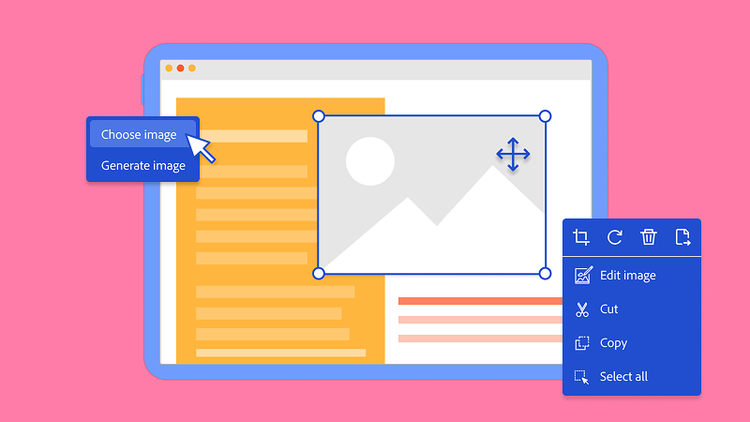
After your PDF loads in your browser, look for a bar or menu that has an Add image or Image button. You’ll use this option to add images to your document.
Just like with the desktop program, you’ll then pick the image file from your device. Click Upload, select the image on your computer, and click Open.
Once the image is uploaded, it will display in your PDF. Most online tools make it simple to move and change the image size:
When your image placement is complete, find and click an option that says Apply, Save, or Download. The online tool will prepare your PDF, and you can usually download the updated file to your computer. Some online tools also let you save the file back to your cloud storage or share it directly.


