Adobe Acrobat
How to sign documents on an iPad.
Learn how to sign a PDF on iPad with ease to speed up your work.


Adobe Acrobat
Learn how to sign a PDF on iPad with ease to speed up your work.

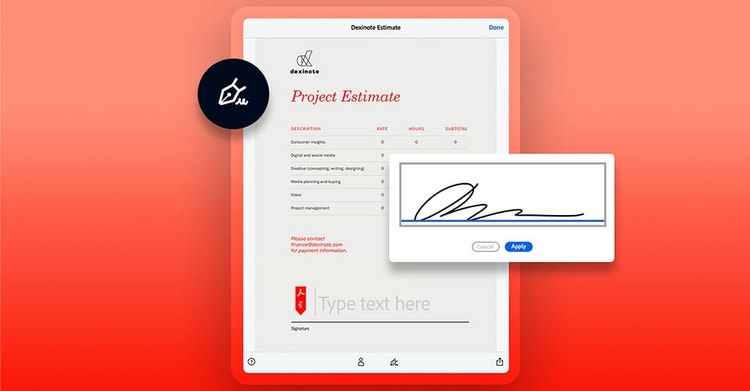
With the steps below, you can learn how to sign a PDF on your iPad with Adobe Acrobat, if you have the software downloaded and installed on your device.
1. Open the PDF document in Acrobat.
2. Click Fill & Sign in the toolbar on the right, or Sign in the All Tools menu on the left hand side, or E-sign in the toolbar at the top left of the page.
3. Draw, type, or choose an image file to fill the signature box. Then click Apply to place your new signature on the form.
If you don't have Acrobat software installed on your iPad, you can still easily sign documents on your device, using an online version of the tool. Follow the steps below to sign your document on iPad online:
1. Navigate to Fill & Sign online tool
2. Drag and drop your PDF into the designated area or click Select a file to upload it from your device.
3. Sign in or create a free account to fill, sign, and add comments to your document.
4. Download your signed PDF or share with others for signatures if needed.
iPads and mobile devices excel when it comes to digital signatures. Signing documents on a touchscreen iOS device like an iPad, iPhone, or iPod touch gives you the closest approximation of a physical signature. Instead of tracing with your trackpad or cursor, you can simply use an Apple pencil, other stylus, or your finger to write out your signature just like you would with a pen and paper.

Signing documents on an iPad offers a convenient and efficient alternative to traditional methods, making it an ideal tool for both personal and professional use. With its portability and user-friendly interface, an iPad simplifies the document signing process while enhancing productivity. Here are a few of the key benefits:
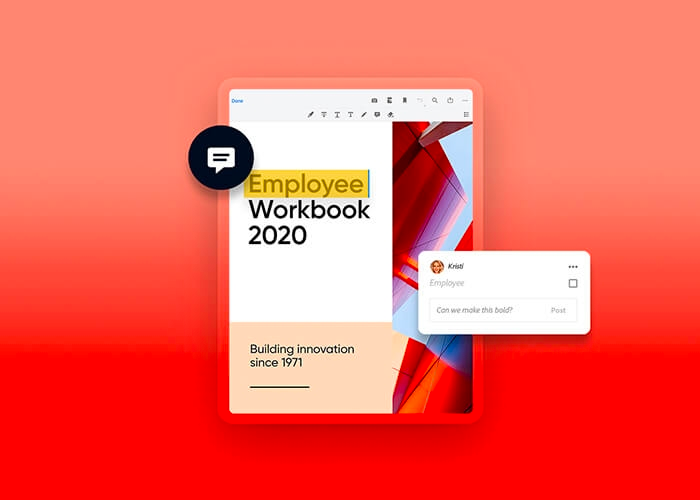
Signatures are just the start. In Acrobat, in the tools menu on the left, you’ll find all the markup tools you need to make revisions, update drafts, or give feedback on documents. Place a sticky note comment, edit text or images, or highlight certain areas you want to revisit.
In addition to markup features, Acrobat has all you need to digitally collaborate on your document workflow. Once you’ve made your changes, you can easily share the document with others or send it for signature.
Yes, electronic signatures are binding signatures, so when you use an app like Acrobat to electronically sign a document, it is valid.
Yes, if you have a PDF editing software like Acrobat or use Acrobat's online tools, you can do more than just sign a document, you can add text or annotations and more.
You can fill out PDF forms on an iPad, by following the steps on how to sign a document online. Use Acrobat Fill & Sign tool for quick and easy access.