#000
Adobe Photoshop
Guide to AI image cleaning.
Pixel perfect: AI-powered clarity at your fingertips.
#F8F8F8
How to denoise images with AI.
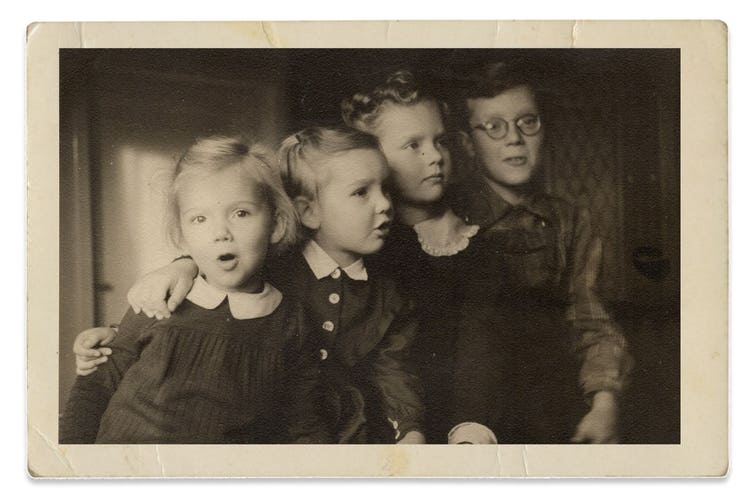
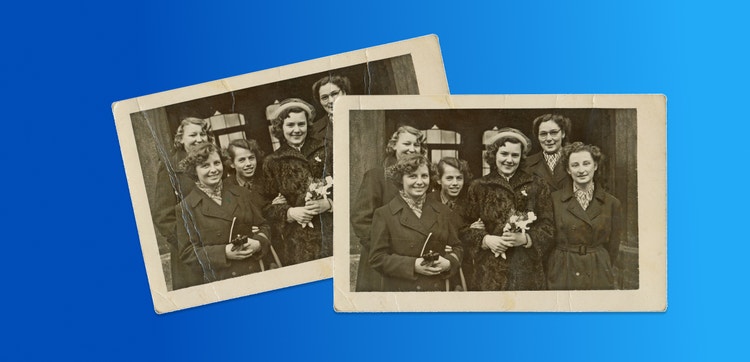
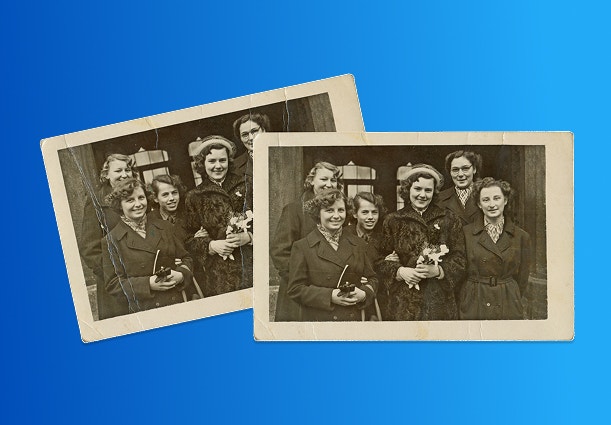
AI image cleaning is changing the way we restore and preserve photos. Using machine learning, AI can automatically clean up old or damaged images, removing unwanted noise while preserving delicate details. AI denoising is faster, more accurate, and less labor-intensive than traditional methods.
Transform image restoration with AI.
One example of AI image cleaning is the Generative Fill feature in Adobe Photoshop. This tool uses advanced AI to analyze image patterns and intelligently remove noise, and other imperfections.
Generative Fill understands image context and can generate pixel replacements that fit seamlessly into the picture. The result is a clean, restored image that retains its original essence.
The use of AI in digital design expands creative possibilities and redefines the meaning of authenticity by making powerful tools accessible to professionals and beginners alike.
Balancing AI and artistic control.
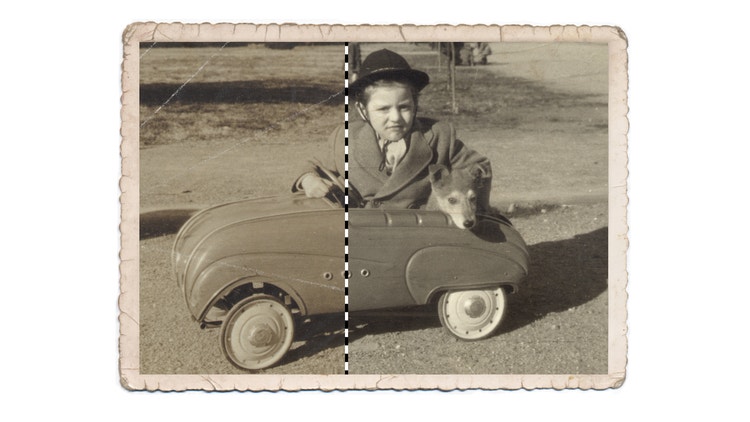
You can fine-tune AI-generated results In Photoshop by modifying various parameters, such as the strength and style of the AI output, to match your creative vision. These customizable options let you control how much AI generation is applied, making it easier to harmonize technology with your artistic direction.
Exploring advanced AI cleaning techniques.
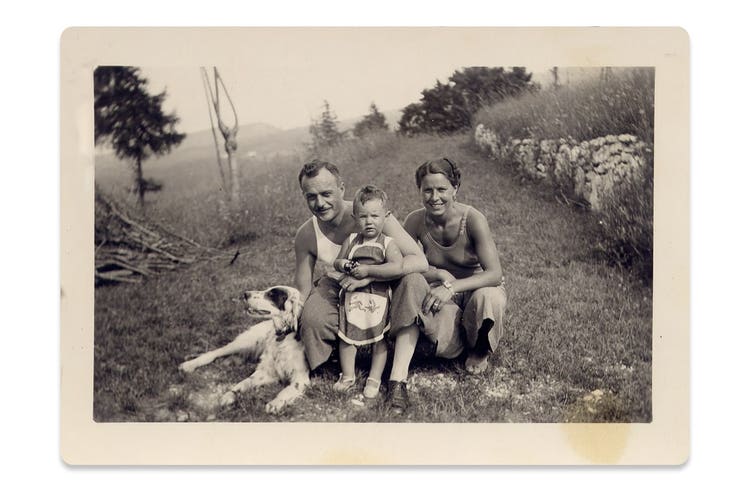
From repairing old, damaged photos to enhancing the quality of low-light images, AI tools have become invaluable for both professionals and amateur photo restorationists. Powered by AI, tools like Adobe Photoshop can seamlessly remove noise and imperfections and improve texture details in various types of photography, like product images, portraits, and landscapes.
One key advantage of AI image cleaning is its ability to precisely handle specialized projects like correcting underexposed areas in a photo. AI can brighten and restore clarity while differentiating between unwanted noise and intentional elements like grain or texture. This is especially useful when preservation is crucial, such as in vintage photo restoration or artistic photography where grain adds character. By using these advanced techniques, you can improve image quality without sacrificing the details that make your work unique.
Silence the noise with Generative Fill.
A step-by-step guide to denoising an image using Generative Fill.
- Open your image in Photoshop.
Start by opening the image that needs denoising in Adobe Photoshop. - Select the areas to clean.
Use the Lasso or Marquee Tool to select an area of the image, focusing on sections with noticeable noise or imperfections. Be sure to deselect any areas that don’t need adjustment. - Activate Generative Fill.
With your working area selected, go to the Edit menu and choose Generative Fill.
A dialogue box will ask you to confirm the type of content to fill in. Since this is for denoising, leave the prompt blank. AI will analyze the image and remove any noise. - Adjust the fill settings.
Photoshop combines inpainting (replacing pixels within the selection) and outpainting (blending the fill into surrounding areas) to remove noise seamlessly.
You can adjust the strength of the Generative Fill in the settings. Use a lower strength for subtle noise to retain a more natural texture. For heavier noise, increase the strength. - Review and fine-tune the details.
Once Generative Fill is complete, review the results to check for areas the AI may have missed or where important textures or details were removed.
You can undo or reapply the fill by selecting smaller sections until you’re satisfied with the overall look. - Preserve texture with selective cleaning.
If the image intentionally includes grain or texture, like in vintage photos or product details, you can use the Masking Tool to apply Generative Fill to only the necessary sections. - Add the final touches.
After cleaning, you can adjust the overall brightness, contrast, or sharpness to enhance the final image further and ensure the cleaned areas look natural and blend perfectly.
Questions? We have answers.
How to use AI to clean up an image?
Use the AI tools in Photoshop to remove blemishes, enhance clarity, and restore image quality.
How does an AI image denoiser work?
AI denoisers reduce image noise by analyzing and smoothing pixels while preserving detail and sharpness.
What are the different applications of AI image cleaning?
AI cleaning is used for photo restoration, enhancing low-light images, and improving visual quality in media.
How can AI image-cleaning tools like Generative Fill enhance creative expression in digital art?
AI allows digital artists to focus more on fulfilling their vision while spending less time on manual editing. Artists can easily explore new creative possibilities by using Generative Fill to experiment with adding or replacing image elements.
title
AI image cleaner: How to denoise images with AI
ContentType
Features
tags
caas:content-type/features,caas:products/photoshop,caas:product-categories/photo,caas:features/add-or-remove-objects
description
Discover the power of AI image cleaning in photo editing and learn more about using Generative Fill as an AI image denoiser tool in Adobe Photoshop.
cardImage
cardImageAltText
AI image cleaner: How to denoise images with AI