Introduction
For certain animations, like web banners, it may be necessary to inject certain snippets of code or even entire code libraries within your publish HTML, in order to support various publishing platforms.
Here we have a basic web banner.
So, what we want to do is actually add to our publish HTML a little bit of JavaScript code.
In order to do this, we'll use HTML5 Canvas templates.
Using HTML5 Canvas templates to add custom code
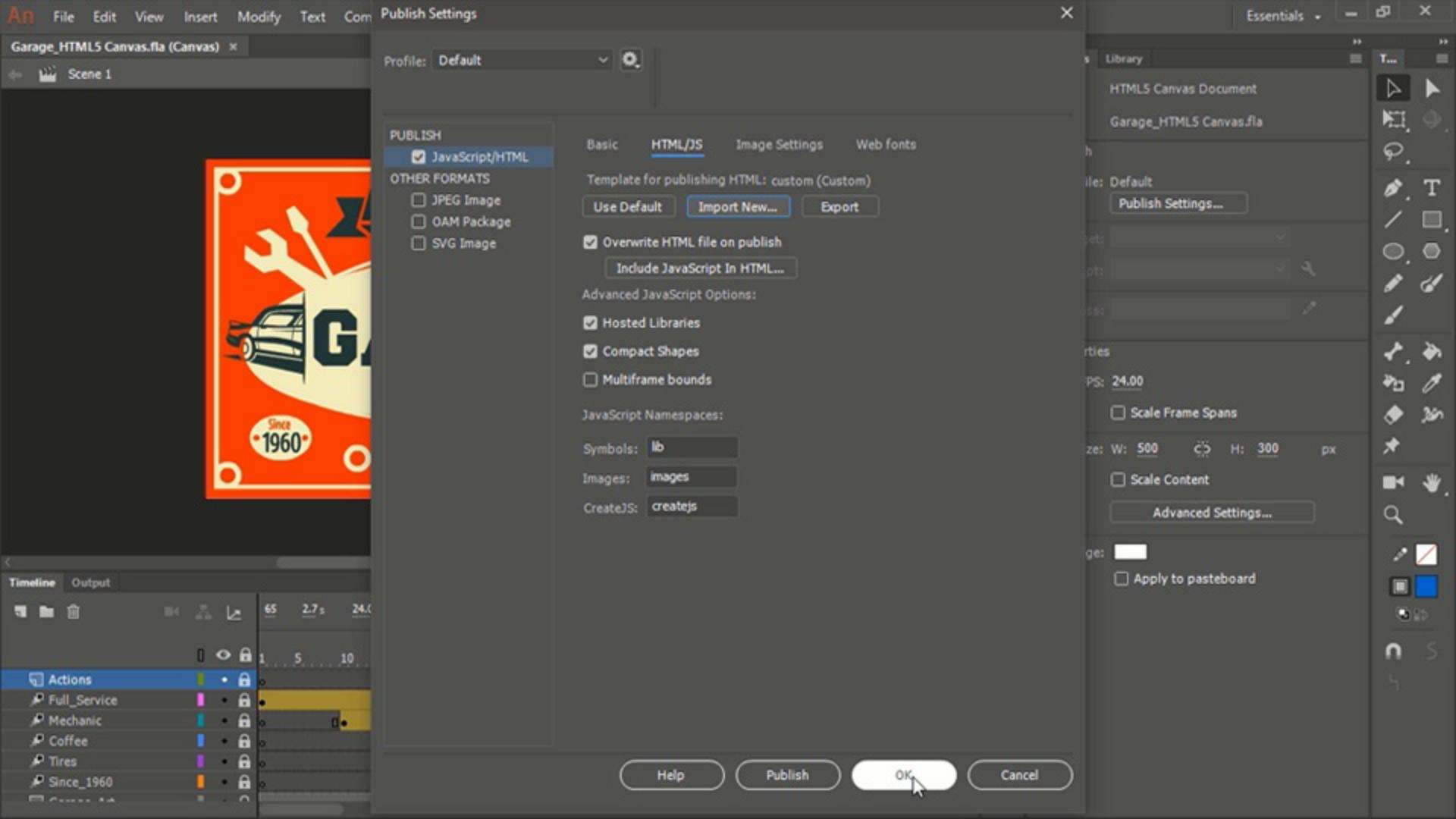
These can be found within the Publish Settings... for the document.
So, under JavaScript/HTML.
If we go to the HTML/JS tab We can see Template for publishing HTML is now set to the Default Template.
However, we are able to import a new template.
This would be a custom template that would have a bit of code inserted within the rest of the HTML, in order to comply with whatever specific ad network you are working with.
Now, of course, you're going to need somewhere to start and that's where this Export button comes in.
Exporting the default HTML template
If we click Export, we will be able to find an export destination here and give it a specific file name.
This is going to export as HTML.
And just click Save when you have located the desired destination If you then go ahead and locate that HTML from the destination and open it up in a code editor, you will be able to view and edit the content of that template.
Editing the HTML template and understanding tokens
So, as you can see in the notes, you have a number of different tokens here that are represented with the dollar sign.
You should only write your custom code wherever it is mentioned in comments So, for instance, on line 16 here.
Write your code here.
There is a note that all occurences of existing tokens are replaced by their appropriate values.
So, for instance, here is where the Create JS Library scripts are output - at line 18.
Blank lines are removed automatically, and you should remove any unnecessary comments before creating the template.
And if we scroll down, we can see that here is where the head ends, and the body begins.
Usually, you will need to place your code some place before the head ends especially if it is some sort of custom JavaScript library.
Once you have prepared your HTML5 template, using the instructions provided by your ad network you can then save this template
Importing and using a custom publish template
and going back to Animate, you can Import a new custom template.
So, here is our custom.html Let's go ahead and Open that.
So, now we see Template for publishing HTML is using a custom template.
Alright, now, whenever we publish it is going to use the custom template with our specific code, given to us by the ad network, in order to make our HTML5 ads compatible with their platform.