Introduction
Adobe Fresco on iPhone lets you illustrate wherever you are.
You can keep your work as is or finish up on your tablet or desktop.
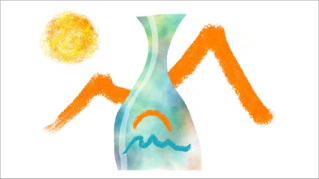
I'll show you how I use selections with Fresco's gorgeous brushes to create an organic landscape.
I've already created a new document
Setting up document and creating initial selections
and filled in the background with a little texture.
To start, add a new layer, then tap the selected layer preview to hide the Layers panel, and give yourself more room to work.
Grab the Lasso and drag to create a selection.
I like to make selections, then draw inside them, especially when I'm working with my phone when there’s not that much real estate.
I love to use Fresco's live watercolor brushes to create subtle variations in here.
Notice that the color is confined to the selection area.
I'll add some extra details with the rough pencil brush in a slightly darker shade.
Okay.
Let's de-select so we can make a new selection and add a new layer.
Using advanced selection tools and layering techniques
Long press on the Lasso to access other tools like the Brush Selection Tool, which lets you paint to select, rather than drawing the perimeter of the selection like you do with the Lasso.
Repeat the process of selecting and painting on new layers to build up your illustration.
Creating geometric shapes and enabling touch shortcuts
Next, I want to create a more geometric shape.
Back in the Selection Tools, choose the Ellipse marquee.
If you've tried Fresco on a tablet, you may be familiar with the Touch shortcut, which lets you easily modify how tools behave.
In Fresco on iPhone, the Touch shortcut is turned off by default.
So, I'll go into my Settings to turn it on.
Now I can use the Touch shortcut to constrain my selection to a perfect circle.
Let's add a crescent to this moon.
Tap Transform selection in the bottom bar to reposition the marquee.
Refining layers, transformations, and composition
With an active selection, we can access layer actions if we tap the layer thumbnail.
Tap More to lock Transparency so we only paint over pixels that already have color.
Now that I have several layers, I can adjust their size and composition to get the balance just right.
With the layer selected, tap the Transform Tool to select it and drag and pinch to put the layer where you want it.
You can also drag a handle to transform a layer disproportionately.
I think this looks pretty good.
My illustration will be waiting for me in my Cloud Documents if I want to continue working in Fresco on my iPad, or in Photoshop on the desktop.
I like to use the Timelapse feature
Exporting, sharing, and finalizing the illustration
to create a video I can share on Instagram.
Of course, I can also save the image right to my phone.
I'm using my illustration as a fresh wallpaper.
I hope you're inspired to make something new in Fresco on iPhone.