#F5F5F5

PHOTOSHOP FEATURES

How to adjust skin tones in Adobe Photoshop.

Fix colour casts and match skin tone colour across photos.
Get free app | Get free app Photoshop View plans and pricing | View plans and pricing Photoshop

https://main--cc--adobecom.hlx.page/cc-shared/fragments/merch/products/photoshop/sticky-banner/default

Do right by your subjects.

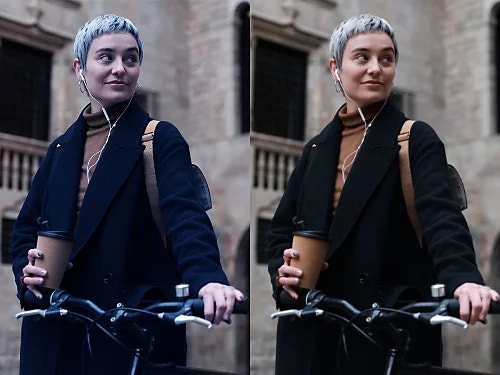
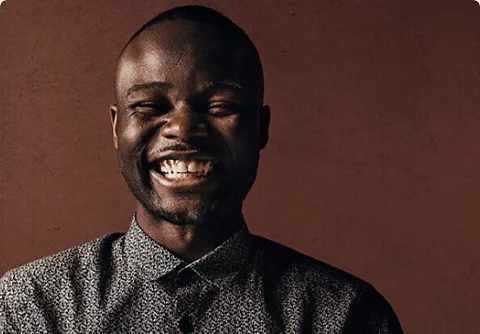
Whether you’re doing a fashion shoot, taking candid photos or capturing people on the street, you may get back to your computer and find that the skin tones are a little off from how they looked in real life. Easily adjust skin tones with some quick colour enhancements in Photoshop and show people in the best light.

What is a colour cast?

Colour casts or colour contamination can happen when coloured light bouncing off of other objects distorts the colour of your subject’s face. Yellow or blue casts can also happen based on the type of lighting used to create your photo.

Correct white balance.

To see if your image has a colour cast, find an area that should be neutral like a white or grey wall and see if it actually looks neutral in your image. If it doesn’t, making manual adjustments to white balance will not only fix this but it will also help correct all of the colours in a photo, including the skin tones.
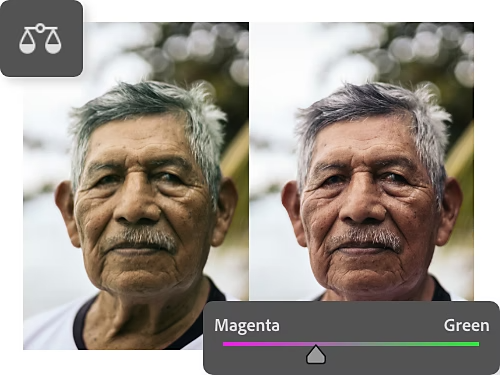
Undo colour contamination.

If you still notice some colour contamination you want to counteract, even after fixing your white balance, use the Colour Balance sliders. Choose Layer › New Adjustment Layer › Colour Balance. Adjust the sliders to balance the hues in your photo.

https://main--cc--adobecom.hlx.page/cc-shared/fragments/products/photoshop/do-more-with-adobe-photoshop

Correct skin tones and other colours with the Camera Raw Filter.

Another great feature to use for tonal adjustments is the Camera Raw Filter in Photoshop. To open this workspace, go to Filter › Camera Raw Filter.

Make basic adjustments.

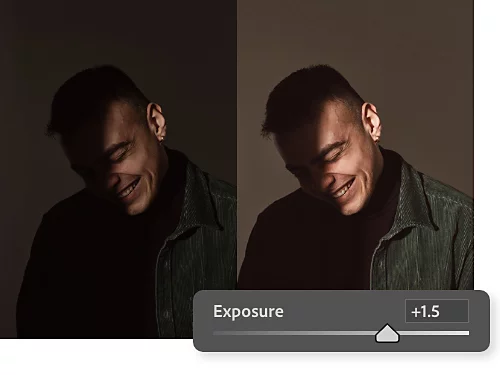
Under the Camera Raw Filter drop-down labelled Basic, use the sliders to tweak things like white balance, exposure, shadows and colour saturation. These edits will affect your entire image, including skin tones.

Adjust the hue and intensity of skin tones.

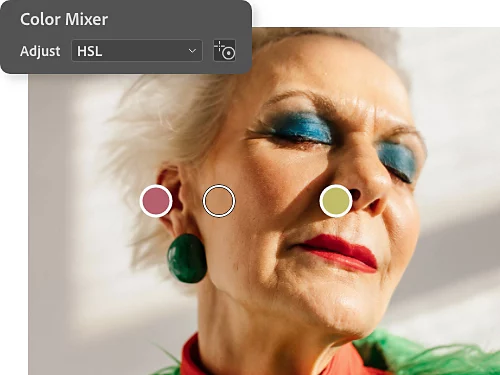
Open the Colour Mixer drop-down to change the hue, saturation and luminance of individual colours. To target the colours in a skin tone, choose the Targeted Adjustment tool to the right of the drop-down and click and drag directly on the face of your subject.
How to match skin tones across photos.

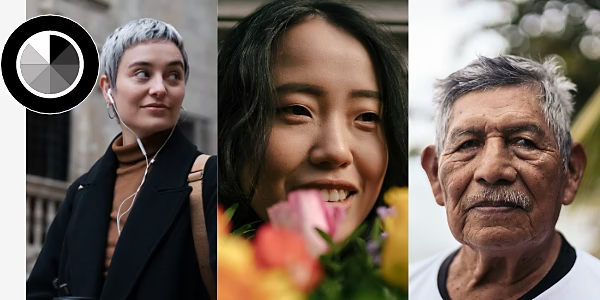
Replicating a skin tone across multiple photos is a little more advanced, but if you take it one step at a time, you can get an exact skin tone match. Follow the steps below or watch this video tutorial from Photoshop expert Jesus Ramirez.

  • Bring the images together.
    With the Move tool, drag the image you want to sample (let’s call it “the sample image”) onto the tab of the image you want to edit (your “project image”). Place the sample image where you can see the skin tones in both images.
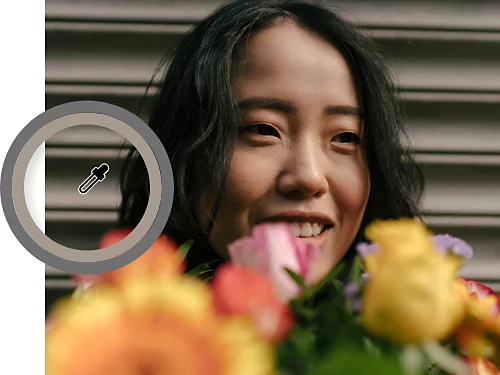
  • Use the Eyedropper tool to sample the colour from the sample image.
    Select the Eyedropper and adjust the sample size in the top menu to 5 by 5 Average so you’re sampling more than a single pixel. In the sample image, sample the skin tone in an area that’s not too highlighted or too shadowed.
  • Use the Brush tool to paint a colour swatch.
    Create a new layer. Enlarge the Brush size and set the Hardness to 100 and just paint a swatch with your sampled colour near the edge of the project image canvas.
  • Sample the skin tone in the project image.
    With the Brush tool still selected, you can hold down Alt on Windows or Option on Mac to enable the Eyedropper tool. Take your midtone sample from the subject’s skin in the project image, release the Alt or Option key and paint a swatch next to the swatch from the sample image.
  • Select the face of the subject you want to edit.
    In the project image, use the Lasso tool and draw a circle around the face to create a layer mask. This will help you to see how your edits will affect the skin tone without your adjustments affecting the original colours in the layer below.
  • Create a Curves adjustment layer.
    With the layer mask selected, create a Curves adjustment layer by clicking Layer › New Adjustment Layer › Curves.
  • Use the Colour Sampler tool to retrieve the colour information.
    Find the Colour Sampler nested under the Eyedropper tool. Click it on the sample image’s colour swatch and then on the project image’s colour swatch. In the Info panel you’ll see all of the RGB colour information for each sample. (Select Window › Info if you don’t see it.)
  • Create a midtone point in the Red, Green and Blue graphs.
    Enable the On-image adjustment tool in the Curves panel. (It’s the pointing finger at the top left.) Hold Ctrl+Shift on Windows or Command+Shift on Mac and click the project image’s skin tone swatch. Nothing will happen on the RGB graph in the Curves panel, but when you open each individual channel in the drop-down menu, you’ll see a new point somewhere in the middle of the graph.
  • Match the RGB values of the sample image to the image you’re editing.
    With that point selected in the Red channel, match the Output value to the value in the info box for the sample skin tone. Press Enter or Return and do the same with the Green and Blue channels. The skin tones in the layer mask should now look much more like the ones in the sample image. You can add a slight S curve to the RGB graph to increase contrast.
  • Ensure your edits affect only the skin tones in your project image.
    You can delete the layers with the sample swatches and the sample image. Then select the layer mask and fill with black. If black is set as your background colour, just select Ctrl+Backspace on Windows or Command+Delete on Mac. Then select your Brush tool and reduce the Hardness to zero. Now you can paint on the effect with white to make the sample skin tone show up exactly where you want it on your image.

Learn more about colour and light with Photoshop tutorials.

Take your skills to the next level with expert advice on how to play with colour and light.
Explore colour correction.

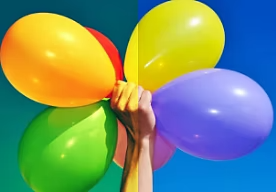
Learn how to use the Hue/Saturation adjustment tools to get a more accurate colour temperature in your photo or create a specific mood.
Change colours|Change colours

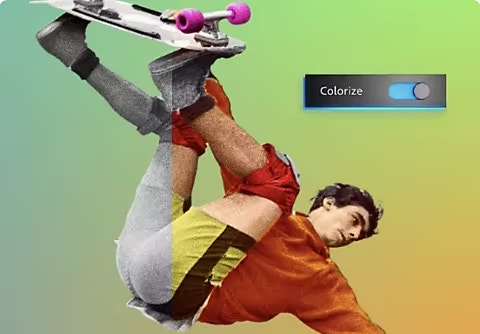
Add colour to a black-and-white photo.

Use the Colourise tool to automatically add colour to a photo. Then fine-tune your adjustments with sliders.
Colourise a photo|Colourise a photo

Learn how to light a portrait.

Get the light just right during your photoshoot so you can spend less time photo editing.

Explore portrait lighting|Explore portrait lighting

Take contrast to the extreme.

Take high-contrast photos that balance bright light and deep shadows.

Try high-contrast photography|Try high-contrast photography

https://main--cc--adobecom.hlx.page/cc-shared/fragments/merch/products/photoshop/merch-card/segment-blade