Ein Rahmen verleiht einem Foto eine völlig neue Wirkung. Das gilt auch für digitale Bilder, die du mit Photoshop bearbeitest. Falls du vorhast, ein Foto zu drucken und in einen echten Bilderrahmen einzusetzen, kannst du den Rahmen vorher in Photoshop simulieren.
Veröffentlicht am
1 Eine Hintergrundebene als Ausgangsbasis verwenden.
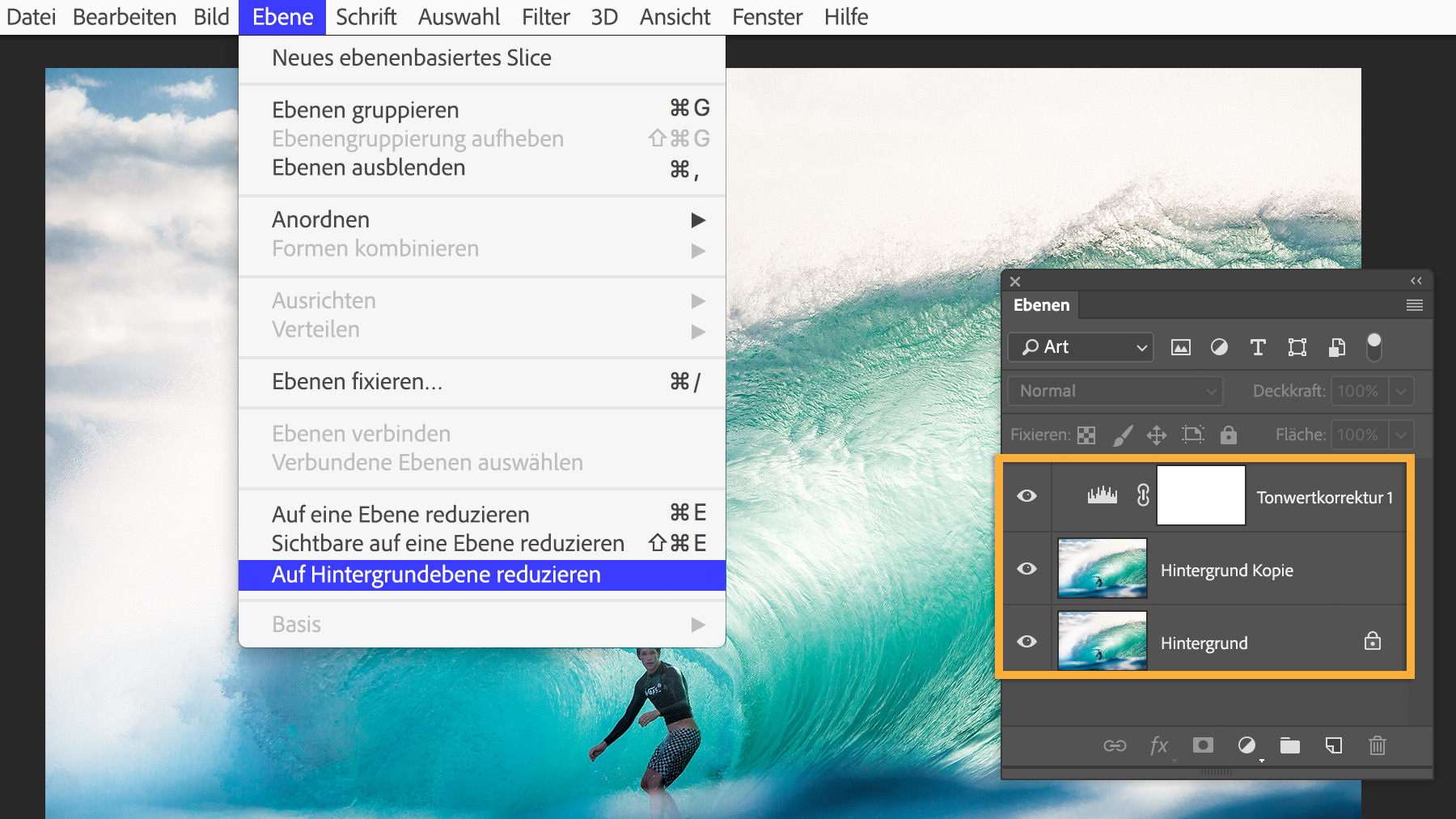
Öffne dein Foto in Photoshop. Rufe das Bedienfeld „Ebenen“ auf. Wenn mehrere Ebenen vorhanden sind (z. B. wenn du das Foto bereits bearbeitet hast), wähle „Ebene > Auf Hintergrundebene reduzieren“, um alle Ebenen zu einer Hintergrundebene zusammenzuführen (mit Schlosssymbol gekennzeichnet). Wenn die Ebene bereits eine Hintergrundebene ist, gehe zum nächsten Schritt über.
2 Die Hintergrundebene in eine editierbare Ebene umwandeln.
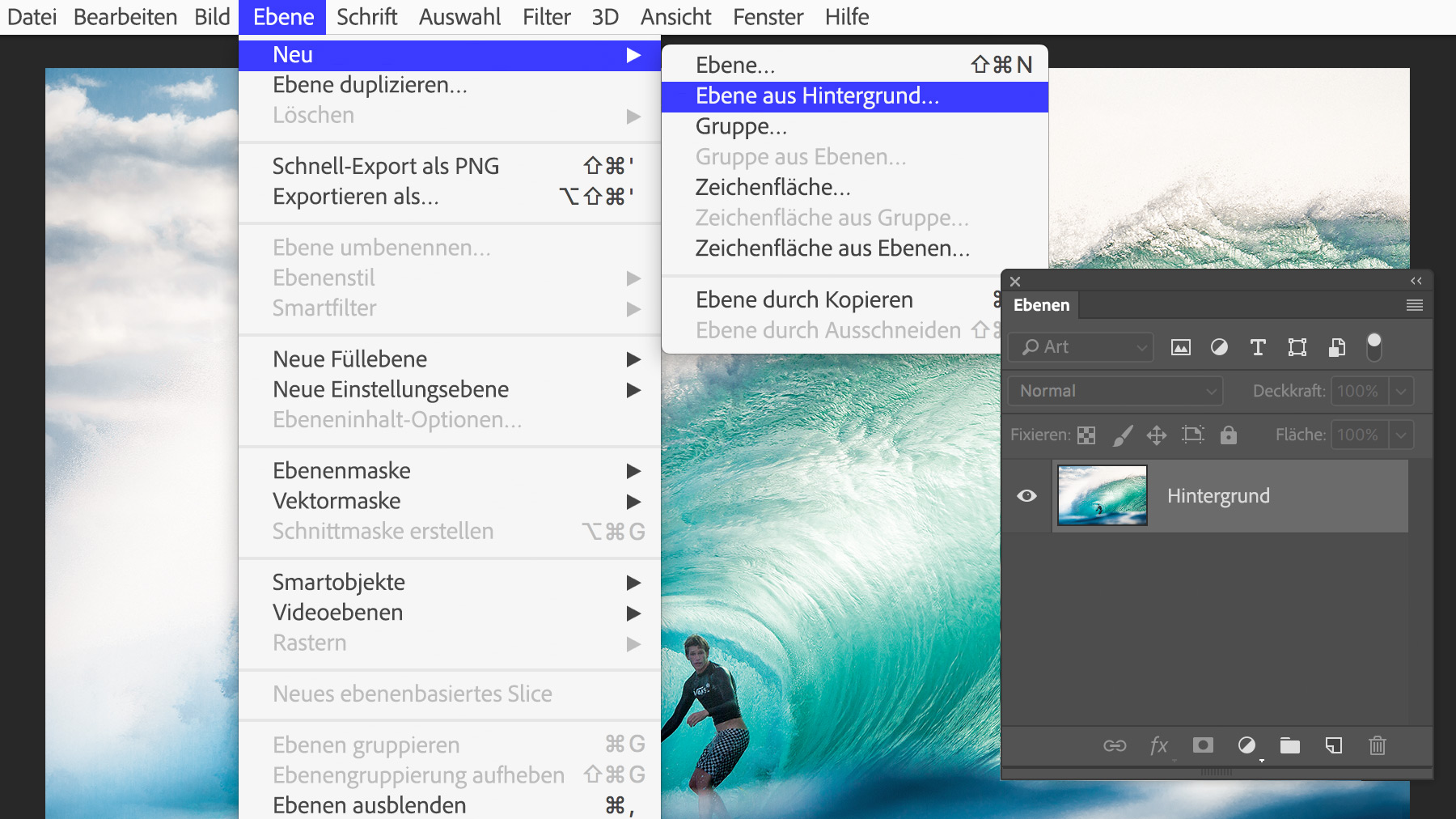
Wähle „Ebene > Neu > Ebene aus Hintergrund“. Klicke im nächsten Dialogfeld auf „OK“. Jetzt kannst du die Rahmenfarbe leichter anpassen.
3 Die Arbeitsfläche vergrößern.
Wähle „Bild > Arbeitsfläche“. Stelle sicher, dass das Kontrollkästchen „Relativ“ ausgewählt ist. Gib die Anzahl der Pixel an, die um das Bild herum hinzugefügt werden sollen. Jeder Wert wird auf die jeweils gegenüberliegenden Kanten verteilt. Das heißt, wenn du in jedes Feld „200 Pixel“ eingibst, erhältst du einen 100 Pixel breiten Rahmen auf allen Seiten. Achte darauf, dass die Ausrichtung für „Anker“ mittig ist, und klicke auf „OK“.
4 Einen farbigen Rahmen erstellen.
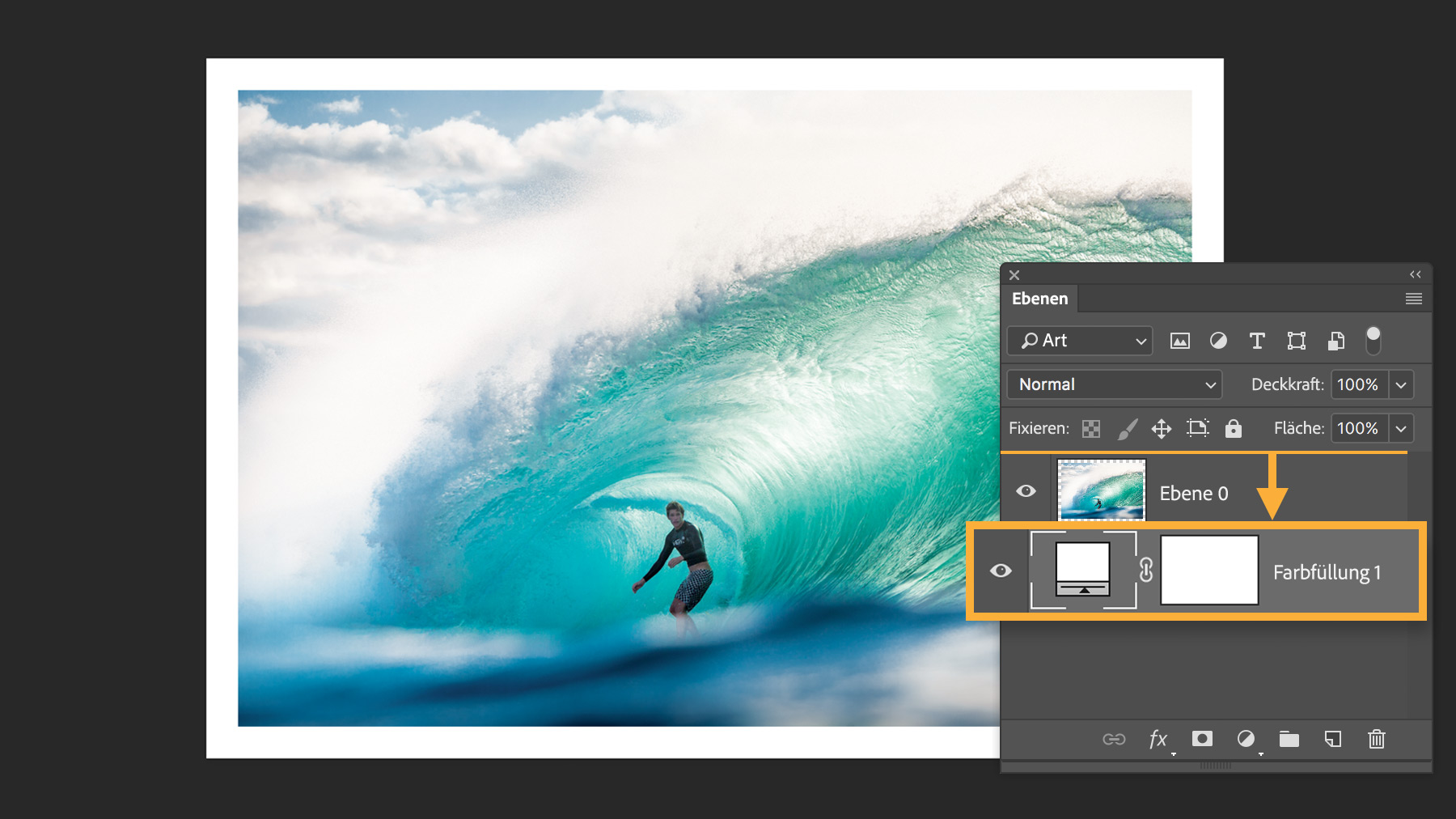
Um den Rahmen zu erstellen, klicke im Bedienfeld „Ebenen“ auf das Symbol für „Neue Misch- oder Einstellungsebene erstellen“. Wähle „Farbfläche“ aus. Lege im nächsten Dialogfeld die Farbe Weiß fest (falls sie nicht schon ausgewählt ist). Klicke auf „OK“.
5 Die Rahmenfarbe in den Hintergrund verschieben.
Ziehe im Bedienfeld „Ebenen“ die neue Ebene für die Flächenfarbe unter die Bildebene.
6 Mit verschiedenen Looks experimentieren.
Um die Rahmenfarbe zu ändern, doppelklicke in der Einstellungsebene auf das Farbfeld, und wähle eine neue Farbe aus.
Experimentiere im Dialogfeld „Arbeitsfläche“ auch mit verschiedenen Werten für die Rahmenbreite und -höhe. Durch die Eingabe von positiven Zahlen wird der Rahmen breiter, durch negative Zahlen wird er schmaler. Da es sich bei der Rahmenfarbe um eine Füllebene handelt, wird sie automatisch an die neue Form angepasst.
7 Flexibel bleiben.
Bei einem echten Bilderrahmen legst du das Foto wahrscheinlich nur ein, anstatt es festzukleben – für den Fall, dass du deine Meinung später änderst. Dieselbe Flexibilität bietet auch dein digitaler Rahmen. Wähle „Datei > Speichern unter“, um eine neue Version deiner Bilddatei zu speichern. Nun kannst du jederzeit auf die Originalversion ohne Rahmen zurückgreifen.
Probiere diese Tutorials mit Photoshop aus
Fotos bearbeiten, um neue Bilder und Grafiken zu schaffen
You can control how Adobe websites use cookies and similar technologies by making choices below. But note that if you disable cookies and similar technologies entirely, Adobe websites may not function properly.
Cookies are small text files stored by your web browser when you use websites. There are also other technologies that can be used for similar purposes like HTML5 Local Storage and local shared objects, web beacons, and embedded scripts. These technologies help us do things like remembering you and your preferences when you return to our sites, measure how you use the website, conduct market research, and gather information about the ads you see and interact with.
You can make choices in the menu below about what cookies and other technologies you want us to use on Adobe sites when you visit them from this browser. You can always change those choices later by clicking on the Cookie Preferences link at the bottom of the page.
If enabled:
We can improve your experience by tailoring the site and the content to things we think might be of interest
We can better keep track of your preferences — like what language you prefer to use
We will better understand your likely interests so we can provide you more relevant Adobe ads and content on non-Adobe websites and in non-Adobe apps
It will help us improve the performance of our website and those of our partners who use the Adobe Experience Cloud
If disabled:
We won’t be able to remember you from session to session so the experience may not be tailored to your interests
You’ll still have access to the content of the site but certain features that depend on cookies may not function
You’ll still see ads, they just may not be as relevant to you
General information
You can control how Adobe websites use cookies and similar technologies by making choices below. But note that if you disable cookies and similar technologies entirely, Adobe websites may not function properly.
Cookies are small text files stored by your web browser when you use websites. There are also other technologies that can be used for similar purposes like HTML5 Local Storage, web beacons, and embedded scripts. These technologies help us do things like remembering you and your preferences when you return to our sites, measure how you use the website, conduct market research, and gather information about the ads you see and interact with.
You can make choices in the menu below about what cookies and other technologies you want us to use on Adobe sites when you visit them from this browser. You can always change those choices later by clicking on the Cookie Preferences link at the bottom of the page.
If enabled:
We can improve your experience by tailoring the site and the content to things we think might be of interest
We can better keep track of your preferences — like what language you prefer to use
We will better understand your likely interests so we can provide you more relevant Adobe ads and content on non-Adobe websites and in non-Adobe apps
It will help us improve the performance of our website and those of our partners who use the Adobe Experience Cloud
If disabled:
We won’t be able to remember you from session to session so the experience may not be tailored to your interests
We’ll still count your use of our site and services
You’ll still have access to the content of the site but certain features that depend on cookies may not function
You’ll still see ads, they just may not be as relevant to you
Operate the site and core servicesOperate site and measure engagement
Always active
These cookies are required, and they are used to enable the site and related services core functionality. Without them the site could not operate, so they cannot be disabled.
These cookies enable the site and related services’ core functionality and collect statistics about user engagement, such as counting active use to help us understand trends. These cookies cannot be disabled.
Measure performance
These cookies are used to analyze site usage to measure and improve performance. Without them Adobe cannot know what content is most valued and how often unique visitors return to the site, making it hard to improve information we offer to you.
These cookies are used to analyze site usage to measure and improve performance. Without them Adobe cannot know what content is most valued, making it hard to improve information we offer to you.
Extend functionality
These cookies are used to enhance the functionality of Adobe sites such as remembering your settings and preferences to deliver a personalized experience; for example, your username, your repeated visits, preferred language, your country, or any other saved preference.
Personalize advertising
These cookies are used to enable Adobe and our partners to serve ads more relevant to your interests. Without them you will still see ads, but they might not be as relevant to you.
Personalize advertising
These cookies are used to enable Adobe and our partners to serve ads more relevant to your interests. Without them you will still see ads, but they might not be as relevant to you.