Colour mix and match.
Learn to do realistic colour matching that works for product photography and other retail applications. Easily undo and change your decisions as well.
PHOTOSHOP FEATURES
A foundational skill for graphic design and photo editing is adjusting colours and colour ranges. Discover how Adobe Photoshop lets you paint with all the colours of the rainbow.
Get free app | Get free app Photoshop View plans and pricing | View plans and pricing Photoshop
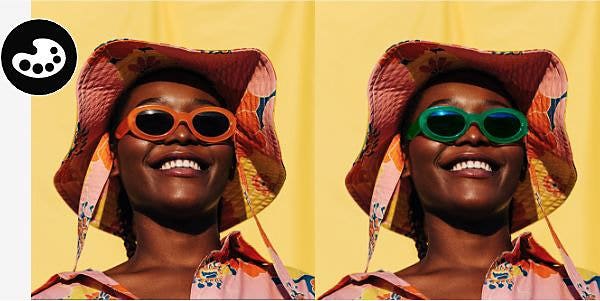
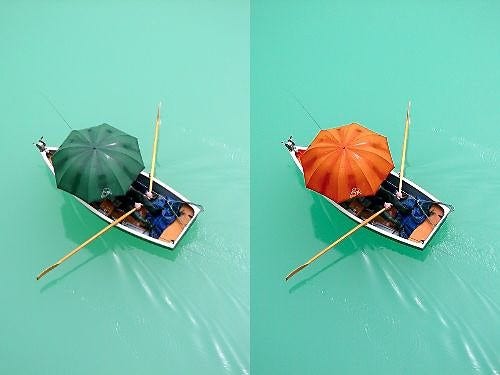
You might want to make the object match other areas of your photo. Or maybe you want to create different colorways of a product that’s for sale. Perhaps you simply want to make an object “pop” or complement other colours in an image.
Edit down to the pixel. Photoshop makes changing hue sliders, saturation levels, brightness and other colour adjustments precise so you can change colours with a high degree of detail.
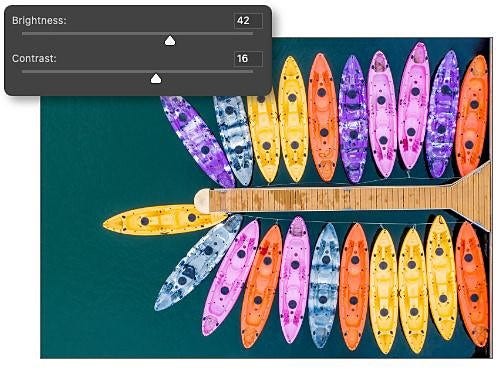
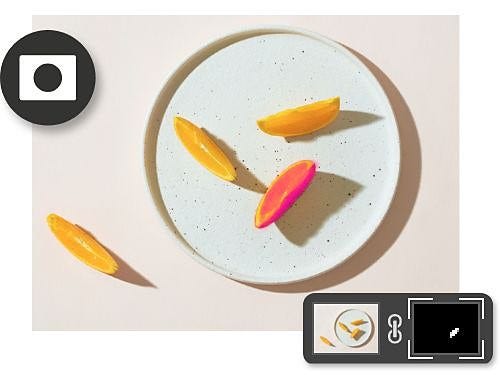
Non-destructive editing tools like adjustment layers, layer masks and blending modes help you to see how things might look in a different colour, without changing the pixel data in the image. Easy creation, easy undo.
It doesn’t matter whether you want to work in RGB, CMYK or grayscale. You can use any colour palette or colour mode you need for your designs or create your own. The Eyedropper tool makes colour matching easy. There are also dozens of other ways to grab the precise colours you need.

Follow these four steps to create a newly hued object. Or explore the full breadth of ways to adjust colour.
These Photoshop tutorials show you how to achieve colour matching as well as advanced techniques for swapping background colours, foreground colours and other colour options. Controlling and modifying the colours of your work is easier than ever before.
Learn to do realistic colour matching that works for product photography and other retail applications. Easily undo and change your decisions as well.
Modifying colour is one of the more challenging aspects of design. Discover the different ways Photoshop allows you to paint with and capture all the colours of the rainbow.