Introduction
Adobe Animate introduces a way for us to create VR content.
To create VR content,
Creating a VR panorama document
go to start a new document like you normally would, but now, click all the way down here on the far right the Advanced tab.
And this will bring up a whole new set of documents that you can choose from and the one we want to select is the VR Panorama document type.
My document happens to be set up so that it is 6000 pixels wide by 600 pixels tall.
Understanding layers and texture wrapping in VR scenes
Now I'm going to hide all these layers and just kind of walk you through what each layer does and what they contain.
So, the very bottom layer is the sky layer.
It's just a simple linear gradient.
You'll notice in this type of document here in the Timeline panel that there's a new button called Create texture wrapping for layer.
You want to convert a layer to a texture layer if it contains artwork that is not animated.
These are just clouds artwork that was drawn inside of Animate.
This layer contains the buildings that are furthest in the background and that has been converted to a texture layer, a mid ground layer has more buildings just with a little bit more detail, a little bit bigger.
And here are more buildings and structures with more detail, but a little bit closer to us, as you can see again another texture layer.
These are the buildings in the very, very foreground.
So now, the animated content.
Adding animated content and depth to the panorama
I'm going to start with these birds, and you can see if I pan over and zoom in a little bit.
And so, what this is, is a movie clip that contains an animation of just a looping bird flying. and on the main Timeline, I'm using a classic tween to send that bird across the entire scene.
And so, I duplicated this layer and scaled the bird up a little bit, placed it more in the foreground in front of some buildings to get a little bit of a sense of depth between the two birds.
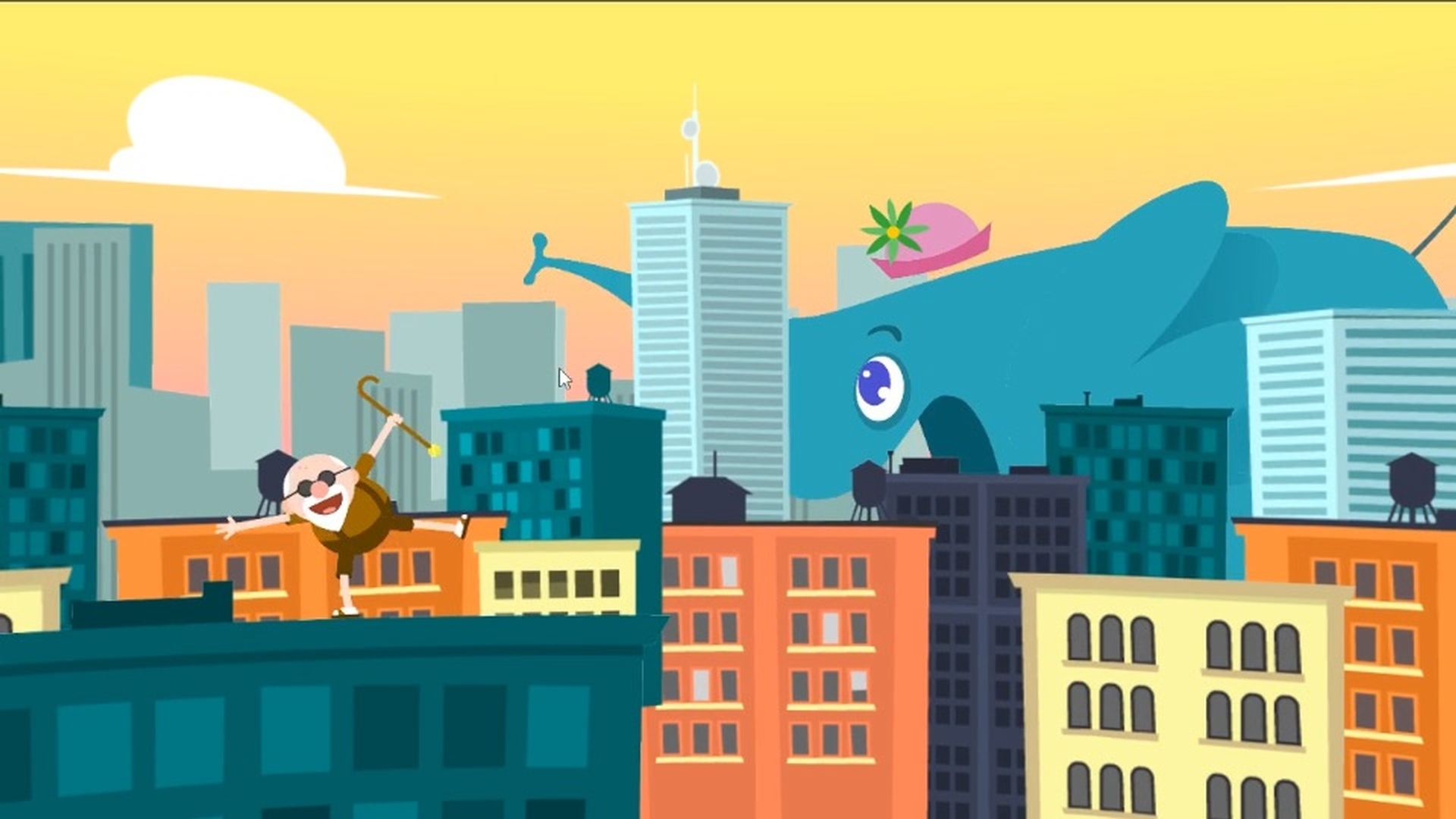
And here is our main character our elephant.
And again, just another movie clip with a walk cycle loop.
I'm just using a classic tween to move that movie clip through the scene from right to left in the opposite direction of the birds.
And the reason for this building that was added very, very large and close up in the foreground is to add this dancing Man character on the roof.
And again, just another movie clip with this animation that's happening.
Testing and viewing the VR experience in a browser
And so, then the last thing to do is go to Control, Test Movie, In Browser.
So now, Animate is exporting the WebGL VR content and opening it up in an HTML page in your default browser.
The neat thing is the viewer can now click and drag to explore this content.
So yet, another great new feature of Animate the ability to create engaging and interactive VR content.