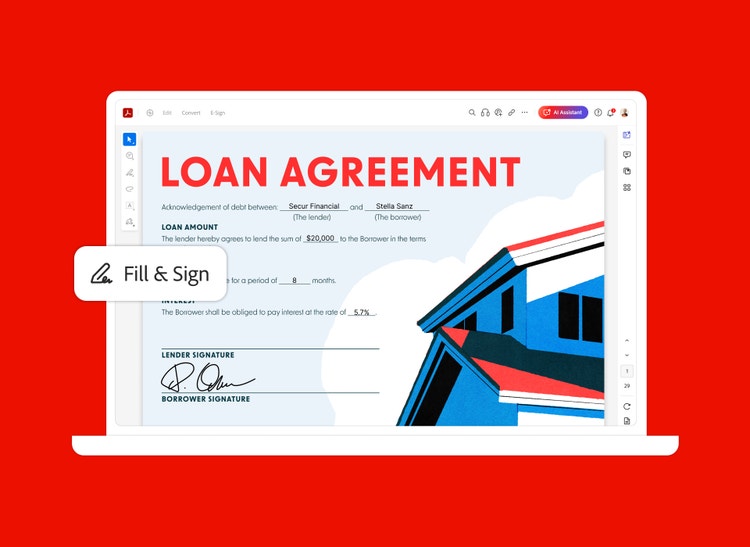
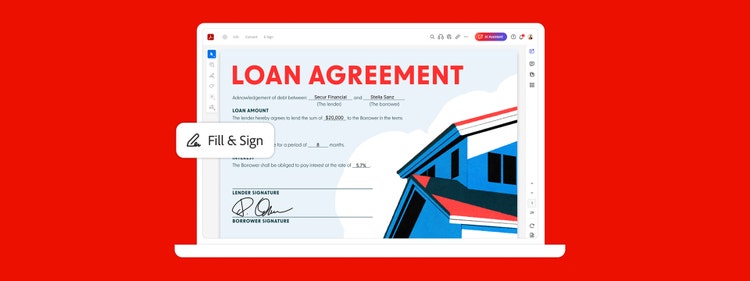

Laptop showing a fillable PDF loan agreement with fill and sign options in Adobe Acrobat
con-block-row-bgcolor
#F8F8F8
con-block-row-lockup (s-lockup)
https://main--dc--adobecom.hlx.page/dc-shared/assets/images/product-icons/svg/acrobat-pro-40.svg Adobe Acrobat

Turn PDFs into fillable forms.

The fillable PDF creator breathes new life into old forms and paper documents by turning them into digital, fillable PDF forms that you can share or sign easily.

Laptop showing a fillable PDF loan agreement with fill and sign options in Adobe Acrobat
con-block-row-text (l-button)
Start free trial

https://main--dc--adobecom.aem.page/dc-shared/fragments/acrobat/how-to/sticky-banner

Whether it’s a scan or a simple form made with Microsoft Word, Excel or any other application, Adobe Acrobat gives you a simple way to create fillable PDFs with signature fields, calculations and much more.

It’s smart.

It’s smart.

Acrobat automatically recognises static form fields and converts them to fillable text fields when you convert your scanned paper forms or digital files. This saves time by reducing the need for manual formatting and ensures greater accuracy.
See a sample ›

It’s dynamic.

It’s dynamic.

Move text fields around. Change headings. Insert buttons. Add, delete and drag and drop form fields or enable fields for e-signatures. You can even add calculations and data validation rules to your form. This flexibility gives you full control over the layout and functionality of your PDF form.

It’s convenient.

It’s convenient.

You can easily email forms with fillable fields using a shared link, so you can view the status of replies and send reminders to people who haven’t responded. Built-in tracking ensures that responses are organised and easy to manage.

It’s interactive.

It’s interactive.

Use JavaScript to enhance your PDF documents even more by adding calculations, validations and assigned action buttons to your forms. Interactive elements improve usability and create a seamless form-filling experience.

How to create fillable PDF files:

Convert a PDF to a fillable form or learn how to make a PDF fillable step by step. Here’s how.

  1. Open Acrobat:
    Click the “Tools” tab and select “Prepare Form.”
  2. Select a file or scan a document:
    Acrobat will automatically analyse your document and add form fields.
  3. Add new form fields:
    Use the top toolbar and adjust the layout using tools in the right pane.
  4. Save your fillable PDF:
    You can also share it with others or click Distribute to collect responses automatically.
    Read more

Tips for creating fillable PDFs effectively.

While Adobe Acrobat makes it simple to create fillable PDFs, following best practices ensures your forms are easy to use and free of errors.

Best practices to make your fillable PDFs work smoothly:

  • Keep labels clear and simple:
    Avoid long or confusing field names that may frustrate users.
  • Check field alignment:
    Misaligned text boxes or buttons can make the form look unprofessional.
  • Use the right field type:
    Drop-downs for multiple choice, checkboxes for yes/no, and text fields for free responses.
  • Test before sharing:
    Preview the form to ensure all fields work as expected and data can be saved.
  • Enable accessibility features:
    Make sure screen readers can recognise form fields for inclusive access.

By avoiding common mistakes and applying these tips, your fillable PDFs will be professional, user-friendly and ready for any audience.

Choose the Acrobat plan that works for you.

https://main--dc--adobecom.hlx.page/dc-shared/fragments/shared-fragments/pricing-pods/standard-pro-know

Frequently asked questions about fillable PDFs.

What is a fillable PDF form?
A fillable PDF form is a PDF document that includes interactive fields, such as text boxes, checkboxes, drop-down lists or signature areas, which users can complete electronically.
What is the difference between a PDF and a fillable PDF?
A standard PDF is usually read-only, while a fillable PDF allows users to type into fields, select options and submit information digitally.
What is a PDF form creator in Adobe Acrobat?
The PDF form creator in Adobe Acrobat is a feature that lets you add interactive fields, buttons and signature areas to your document, turning it into a fillable PDF.
How do I create a fillable PDF in Adobe Acrobat?
You can create a fillable PDF in Adobe Acrobat by selecting “Prepare Form” from the Tools menu, choosing a document and adding interactive fields.
Why fillable PDFs are valuable across industries?

Fillable PDFs are useful across many fields, offering efficiency, accuracy and secure sharing for both individuals and organisations.

  • Businesses: streamline contracts, invoices and HR forms with digital fields and e-signatures, reducing paperwork and errors.
  • Educators and Students: create assignments, feedback forms and admissions paperwork that can be filled and submitted electronically.
  • Government and Public Services: convert paper-based applications and declarations into digital forms for faster processing.
  • Healthcare Professionals: capture patient information securely with fillable forms that reduce handwriting errors and improve record-keeping.
  • Freelancers and Creatives: build professional agreements or client questionnaires that are simple to distribute and easy to complete.

No matter your profession, fillable PDFs in Adobe Acrobat help you save time, reduce mistakes and make every document easier to manage.

Can I convert an existing PDF into a fillable form?
Yes, Adobe Acrobat can automatically detect fields in an existing PDF and convert them into interactive, fillable fields that you can edit and customise.
Can I make a scanned paper form fillable?
Yes, by scanning your paper form and importing it into Adobe Acrobat, the software recognises static fields and converts them into fillable fields.
Can I create a fillable PDF for free?
You can try creating a fillable PDF free with Adobe Acrobat during the trial period. After that, continued use requires a subscription.
Do people filling in the PDF need Adobe Acrobat?
No, anyone can open and fill in the form using free PDF readers, including Adobe Acrobat Reader, and then save or return the completed document.
Can I add digital signatures to fillable PDFs?
Yes, you can enable fields for e-signatures in your fillable PDFs so that recipients can sign securely and return the form electronically.
How secure are fillable PDFs?
Fillable PDFs created in Adobe Acrobat can be password-protected and encrypted, ensuring that sensitive information remains secure.