Acrobat
How to convert PDFs to QR codes for easy marketing and sharing.
Turn your PDFs into instant, scannable experiences with QR codes. They’re easy to share, track, and update anytime.


Acrobat
Turn your PDFs into instant, scannable experiences with QR codes. They’re easy to share, track, and update anytime.
Published by Adobe Acrobat India on 14 January 2026
QR codes are changing the way marketers are engaging and connecting with audiences. By making content instantly accessible instead of relying on bulky attachments or printed materials, businesses are now able to turn any PDF file into a simple, scannable code. This can include product catalogues, restaurant menus, promotional offers, business cards, deals and coupons, customer surveys, and more.
With the combined functionality of Adobe Acrobat and Adobe Express, you can generate secure shareable, and custom QR codes that align with your brand’s look and feel. Together, these tools empower you to deliver professional, trackable, and mobile-friendly marketing experiences that are as engaging as they are efficient.
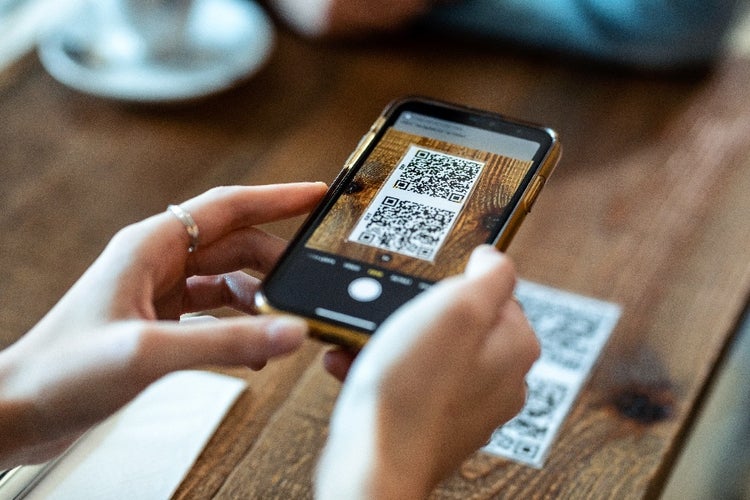
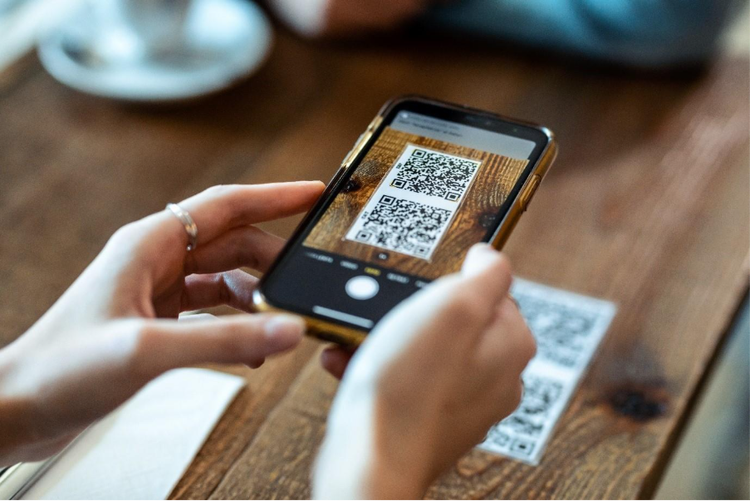
A QR code (Quick Response code) is a 2D scannable square barcode that instantly links users to digital content. This can be in the form of a website, video, or file. When you scan a QR code with your smartphone camera, it opens the linked content immediately, without the need to type or search anything.
Many businesses in India have already adopted QR codes for various applications: payments, ticketing, access control, logistics and supply chain management, and more. Over the years, the usage of QR codes in the country has grown, and one of the sectors that is seeing more and more use cases for them is marketing and advertising.
Because adopting QR codes makes content instantly accessible to the audience, a PDF-to-QR-code approach is especially useful for marketers who want to:
Unsure how to make a QR code of your PDF file? Don’t worry because it’s not complicated. Just follow these simple steps:
While there are many free online PDF to QR code converters, not all of them guarantee privacy or secure file handling. Using Adobe can give you the peace of mind in knowing that your documents are processed through reliable tools designed for professional and data-secure workflows.
QR codes make it easier than ever for businesses to share information instantly. By turning your PDF into a QR code, you can enhance customer engagement and simplify access to key documents, whether printed or digital. Here are some practical ways to use it:
Instead of printing thick catalogues, create a PDF to QR code that links to your digital product guide. Customers can scan it from packaging, posters, or store displays to view specs, pricing, or new arrivals.
For conferences, trade shows, or workshops, print a QR code on invitations or banners that links to a PDF event schedule, floor plan, or registration form. It keeps your guests informed and reduces paper use.
Customers scan the code from the table to open a clean, updated menu instantly. It’s hygienic, cost-efficient, and easy to update.
Agents can print a QR code linked to a PDF brochure on “For Sale” boards or flyers. Interested buyers can scan to view photos, pricing, and location details right away.
Businesses can include a QR code to PDF user manuals or quick-start guides in packaging. Customers scan to get instructions, troubleshooting steps, or warranty information.
Beyond functionality, presentation matters too. You can use Adobe Acrobat to make sure your PDFs look professional. Polished layouts, clear text, and consistent formatting all make a better impression when someone scans your QR code and views your file.

Easily update text, images, and links in your PDF.

Combine multiple PDFs into one seamless file.

Rearrange pages into the right sequence.

Add page numbers for clarity and order.
caas:business-unit/document-cloud,
caas:products/acrobat,
caas:content-type/article,
caas:topic/convert-pdf,
caas:topic/marketing-strategy,
caas:topic/advertising,
caas:topic/content-management