Adobe Acrobat
How to convert PDF to black and white.
Converting a colour PDF to black and white or greyscale makes your documents lighter, printer-friendly, and easier to manage. Follow simple steps to convert, optimise, edit, and share PDFs efficiently with Adobe Acrobat.
Published by Adobe Acrobat India on 16 March 2026
Sometimes colour doesn’t really matter for viewing and submitting documents. During these instances when appearance is less important than efficiency, converting a colour PDF to black and white is a practical solution. This significantly reduces file size and makes PDFs easier to email, upload, or store. This is especially useful for image-heavy documents.
In this guide, you’ll learn how to convert a PDF to black and white or greyscale using simple, easy-to-follow methods and powerful tools like Adobe Acrobat. Let’s get right to it.
How to convert a colour PDF to black and white online.
Converting a colour PDF to black and white is easier than you might think. Whether you want to save ink, reduce file size, or meet submission requirements, you can quickly create a monochrome version of your PDF. Here’s how:
Convert using the Print Function in Adobe Acrobat Reader.
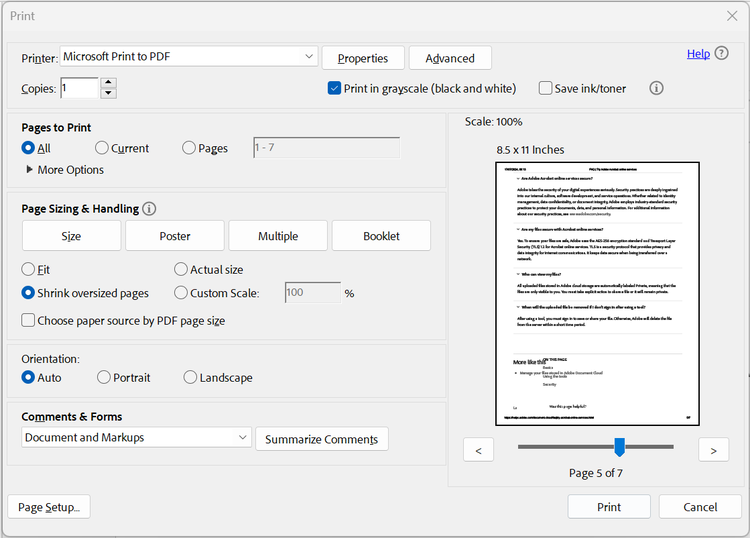
- Open your PDF in Adobe Acrobat Reader.
- Press CTRL + P (Windows) or Cmd + P (Mac) to open the print menu.
- From the Printer dropdown, select Microsoft Print to PDF.
- Check the box for Print in grayscale (black and white), which appears below the printer selection.
- Click on Printer destination and choose Save as PDF.
- Enter a file name, select a save location, and click Save.
Convert using Adobe Acrobat Pro.
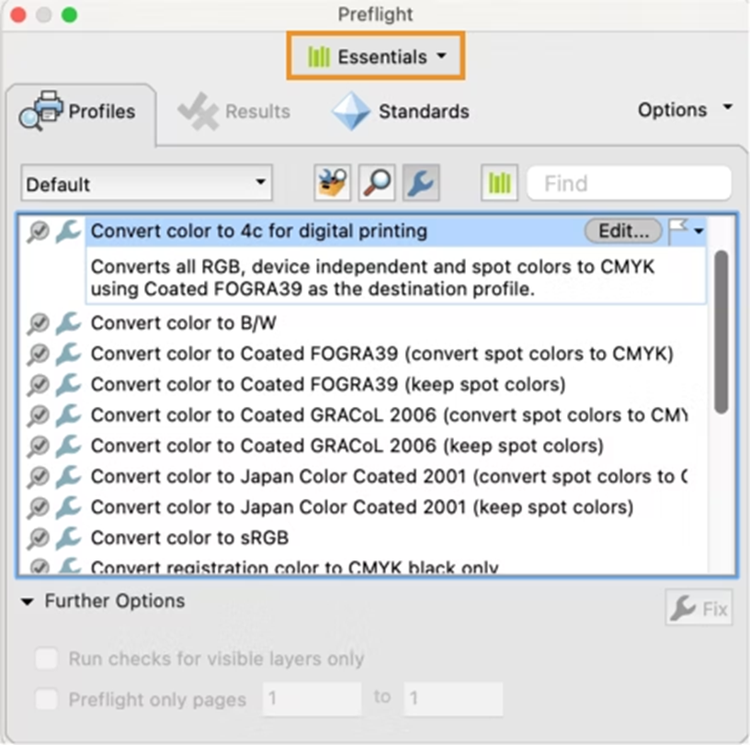
- Open your PDF in Adobe Acrobat Pro.
- Go to the Advanced tab and select Preflight.
- In the Preflight dialog, expand PDF Fixups.
- Choose Convert to Greyscale.
- Click Analyze and Fix to apply the conversion.
Tip: In older versions of Acrobat, the Preflight option can be found under Tools > Print Production.
Why convert a PDF to black and white?
There are several practical reasons why users choose to convert colour PDFs to black and white or greyscale. While colour documents look visually appealing, they are not always the most efficient or suitable format for every use case.
Some of the most common reasons include:
- Saving printer ink.
Printing colour PDFs can be costly, particularly for long documents or those with multiple images, charts, and graphics. By converting your PDF to black and white, you can significantly reduce ink consumption without having to remove pages or content from your files. Black and white printing not only saves money but also speeds up the printing process, as printers can handle monochrome documents more quickly than full-colour files. - Reducing file size.
Colour images, tables, and infographics naturally increase the size of PDF files, which can make them harder to share via email, messaging apps, or cloud storage. Making PDFs black and white often results to substantially reduced PDFs. Smaller files also improve performance when opening or editing PDFs on mobile devices, laptops, or tablets to ensure a smoother workflow for users who regularly work with large documents. - Improving readability.
Removing colour distractions helps readers focus on the text itself, while higher contrast between black text and a white background makes content easier to read on both screens and printed pages. This is especially helpful for scanned documents, where colour backgrounds or highlights can reduce clarity. - Meeting submission requirements.
Some offices, schools, and government institutions in India require documents to be submitted in black and white or greyscale formats. These standards help ensure consistency and simplify document processing. Converting your PDF to black and white before submission can help you meet these requirements and avoid delays caused by formatting issues or rejections. - Archiving documents.
Black and white PDFs are widely used for long-term document storage and archiving because without colour data, these files are typically smaller, easier to store, and less likely to suffer from colour degradation over time. This makes them ideal for preserving important records such as legal documents, financial statements, and official correspondence in a clear, stable format.
Already an existing Acrobat customer?
If you already have an Acrobat Reader, Standard or Pro plan, simply sign in on your Acrobat or Acrobat Reader app and try AI Assistant today.
Editing your PDF after converting it to black and white.
Once you’ve converted a PDF to black and white or greyscale, you may want to make additional edits to ensure the document meets your needs. This extra step helps improve readability, correct errors, or adjust formatting before sharing, printing, or archiving.
Beyond converting PDFs to black and white, Adobe Acrobat is also useful for:
- Adding or updating text: Insert, delete, or modify text without affecting the layout.
- Annotating or highlighting: Add comments, notes, or highlights to emphasise important sections.
- Reorganising pages: Rearrange, delete, or insert pages to create a streamlined, well-structured document.
- Adjusting images and graphics: Resize, crop, or replace images that may have lost clarity during the black and white conversion.
- Adding signatures or filling forms: Request official signatures or completed forms.
Additional AI-powered features also enable you to review content with the help of AI Assistants, summarise long PDFs, and work more efficiently with your documents—all from one platform.
Try our online tools to enhance your PDF.
https://main--da-dc--adobecom.aem.page/in/dc-shared/fragments/roc/blog/online-tools/edit-pdf
https://main--da-dc--adobecom.aem.page/in/dc-shared/fragments/roc/blog/online-tools/merge-pdf
https://main--da-dc--adobecom.aem.page/in/dc-shared/fragments/roc/blog/online-tools/compress-pdf
Tips and best practices before converting a PDF to black and white.
Converting a PDF to black and white is usually straightforward, but taking a few preparation steps beforehand can help ensure that your final document is clear, professional, and easy to read. Proper preparation also helps prevent loss of important details, especially in image-heavy or scanned PDFs.
- Save a copy of the original PDF.
Before making any changes, always save a separate copy of your original PDF. This allows you to retain the full-colour version in case you need it later for printing, presentations, or editing. Having a backup ensures you won’t lose any data during the conversion process. - Check image quality.
High-resolution images in your PDF can sometimes lose detail when converted to black and white. Review your images and graphics before converting to ensure important visual elements remain clear. If needed, enhance or adjust images beforehand to maintain readability and visual impact. - Adjust contrast settings if available.
Increasing contrast slightly before converting can help text and images stand out better in black and white. This is particularly useful for scanned documents or PDFs with coloured backgrounds that might make text harder to read. - Review scanned PDFs carefully.
Scanned PDFs can present unique challenges during conversion, as colours and shades may not translate perfectly to black and white. Check for text legibility, image clarity, and any unintended artefacts after conversion. Scanned documents often benefit from using greyscale instead of pure black and white to preserve more detail.
Frequently asked questions.
More resources