Acrobat
Smarter, faster PDF editing with Acrobat AI Assistant.
Edit, enhance, and format PDFs efficiently using Acrobat’s AI Assistant, built to support clear, consistent, professional results.

JUMP TO SECTION
What makes AI Assistant a smarter way to edit PDFs
Summarising key insights using AI Assistant
Getting insights across multiple files with Acrobat AI Assistant
Using AI Assistant prompts for faster edits
Getting smarter, personalised assistance
Acrobat AI Assistant makes working with PDFs more intuitive. Whether you’re reviewing a proposal, adjusting internal documents, or preparing presentations, Acrobat AI Assistant helps you get results faster.
You can give natural prompts like “summarise this section” or “edit this paragraph for clarity,” and Acrobat AI Assistant will deliver intelligent suggestions that you can then apply to your document. It understands your intent and makes smart suggestions to support your goals.
What makes AI Assistant a smarter way to edit PDFs.
Acrobat AI Assistant introduces intelligent features that take the complexity out of editing and reviewing PDFs. Rather than navigating multiple manual tools, you can simply enter a natural prompt like “summarise this section” or “rephrase for clarity” to see instant results. While the AI Assistant does not directly edit your PDF, it provides intelligent suggestions you can quickly review and apply to your document.
No matter if you are working on desktop, web or mobile, the experience is designed to be fast, accurate and consistent.
Key benefits of Acrobat AI Assistant include:
- Prompt-based suggestions that allow users to type questions or instructions and receive instant output
- Smart summarisation to extract key points from long contracts, reports or forms
- Document Comparison using the insights feature to help identify important terms and compare differences
- Cross-file search and insights to find patterns and takeaways without switching tabs
- Voice chat support in mobile apps for editing and preparing on the go
Acrobat AI Assistant helps improve focus, reduce editing time, and support better decision-making in daily workflows.
Tip: For the most accurate results, keep instructions clear and specific when using Acrobat AI Assistant, especially when editing names, formatting, or tone across a document. Explore our extensive prompt guide and sample prompts to get started.
Summarising key insights using AI Assistant.
If you need a clear overview of a long document, the summarise feature can quickly extract key ideas. You can also ask specific questions about the content.
Examples include:
- “Give me a summary of this agreement”
- “List the key deadlines from this file”
- “What are the main deliverables in this project?”
It’s a great way to stay informed and confident when reviewing detailed or technical files.
Tip: For documents that cover multiple topics or sections, start with a broad summary prompt, then ask more specific questions for each part. This approach helps surface more context-specific insights tailored to each section’s content.
Getting insights across multiple files with Acrobat AI Assistant.
When working with multiple documents, it can be difficult to stay on top of everything. Acrobat AI Assistant helps you cut through the noise by letting you ask questions across several PDFs at once, so you can uncover insights faster without switching between tabs or rereading each file.
Instead of searching through each document individually, you can bring them together in one view using PDF Spaces, then use natural prompts to:
- Summarise key points from related files
- Compare terms, timelines, or deliverables
- Find recurring themes or answers across documents
- Get quick overviews to support faster decision-making
Whether you are reviewing drafts, editing client documents, or fine-tuning internal reports, Acrobat AI Assistant helps your files work together to save time, cut down on busywork, and keep you focused on what matters most, with content you can easily refine and apply to your PDFs.
Tip: Use the clickable citations in AI Assistant responses to trace answers back to the original documents. This helps you verify key points, jump to relevant sections, and share accurate, trusted information with others.
Using AI Assistant prompts for faster edits.
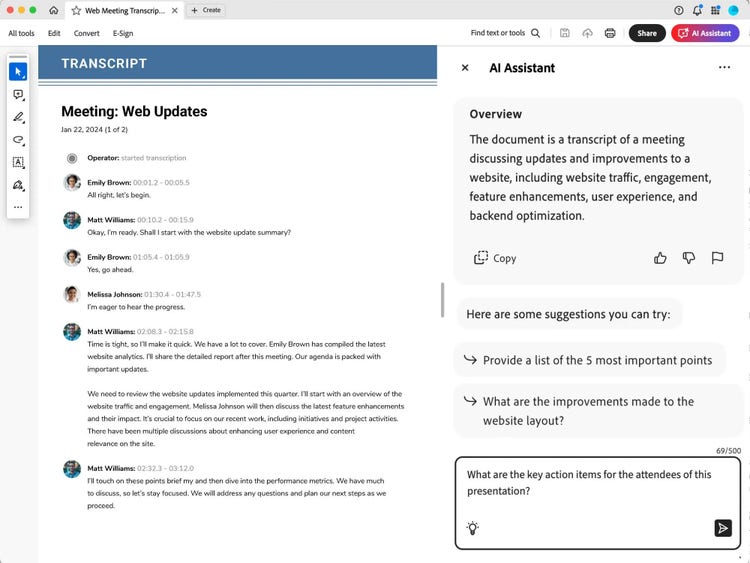
Acrobat AI Assistant includes ready-to-use prompts that help guide edits, summaries, and content improvements. These are especially helpful for users who want to speed up their workflow without starting from scratch.
Here’s how to use them:
- Select a sample prompt to copy it automatically
- Open your PDF in Adobe Acrobat (web or desktop)
- Click the AI Assistant tool
- Paste the prompt directly into the chat box
- Review the tool’s output and apply the text or suggestions to your PDF as needed
These prompts take the guesswork out of editing and help unlock the full potential of AI-driven productivity, while you remain in full control of what changes are made.
Getting smarter, personalised assistance.
Different tasks call for different types of support. Whether you are comparing reports, explaining a process, or preparing a summary, Acrobat AI Assistant can be adapted to better suit your workflow.
You can choose from a range of prebuilt assistants designed for specific roles and document types:
- Default Assistant – for general-purpose tasks
- Analyst – suited for analysing data or summarising research
- Instructor – helpful for explaining concepts or breaking down complex topics
- Entertainer – ideal for creative storytelling or more engaging content
You can also create a personalised assistant to help you get responses that are more relevant to your task, whether you are working through technical material or preparing content to share.
Tip: The more clearly you define your AI Assistant’s role and purpose, the more relevant and focused its responses will be. For example: “You are a sales expert. You help refine concepts, brainstorm ideas, and turn insights into clear recommendations with the purpose of supporting strategic decision-making.”
Supporting professionals with efficient AI-powered editing.
Acrobat’s AI-powered tools are designed to support a wide range of professionals and industries across India from legal advisors and finance teams to small business owners and freelancers.
Whether you are working on client proposals, compliance documents, reports, or vendor contracts, AI Assistant helps users work more efficiently by streamlining tasks and reducing manual reviews and analysis - all while keeping data private and secure. Files are managed with robust security measures throughout the process, and your content is never used to train Adobe’s generative AI models.
- Speeding up routine edits such as correcting grammar, updating details, or refining tone ideal for documents prepared in-house without external support
- Creating well-structured, polished content that’s easier to share with clients, partners, or government bodies
- Reducing manual errors that often slow down processes in paperwork-heavy sectors like logistics, legal services, education, and real estate
- Allowing users to simply type a prompt (e.g., "summarise this invoice" or "rephrase this contract clause") and receive instant AI-driven support
Acrobat AI Assistant is available across both desktop and online versions of Adobe Acrobat, making it easy for professionals to edit and improve PDFs whether you are working from an office, a co-working space, or on the move.
Users in India can explore these capabilities risk-free with the Adobe Acrobat free trial.
Try Acrobat AI Assistant with these sample prompts.
Frequently asked questions.
Can AI Assistant help with rewriting dense or technical sections for easier understanding?
How does Acrobat AI Assistant handle long documents when generating summaries?
Can AI suggestions be tracked or reviewed later?
Is there a file size limit for using Acrobat AI Assistant?
Can Acrobat AI Assistant be used with password-protected PDFs?
Is Acrobat AI Assistant secure to use with sensitive documents?
Does Adobe store any of my data?
Already an existing Acrobat customer?
If you already have an Acrobat Reader, Standard or Pro plan, simply sign in on your Acrobat or Acrobat Reader app and try AI Assistant today.
More resources

caas:business-unit/document-cloud,
caas:products/acrobat,
caas:content-type/article,
caas:topic/edit-pdf,
caas:topic/ai-prompts,
caas:topic/generative-ai