
Photography
How to swap faces in Photoshop.
Give social media and family pics a fun new look with Photoshop face swaps.


Photography
Give social media and family pics a fun new look with Photoshop face swaps.
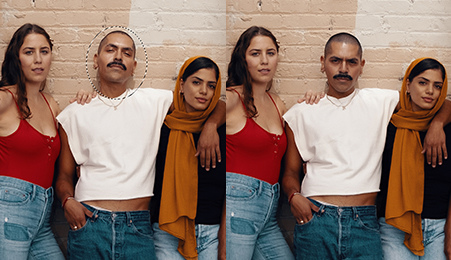
The Object Selection tool and Layer Masks are essential for learning how to swap a face in Photoshop, letting you do everything from removing objects with pinpoint precision to making a fast basic swap for fun. Whether you’re creating something subtle or over the top, Photoshop’s Match Colour feature, Blur tool, Auto-Blend Layers and more will give you amazing-looking face swaps in minutes.
Sometimes a photo is perfect, except for that one friend’s face. They might be blinking or making a funny expression, ruining an otherwise amazing shot. But if you have another photo of them, you can swap a blinking face for a warm smile using Photoshop’s face swap tools. For example, fixing group photos of friends and family with a face swap is an edit that photographers make all the time. And even if you’re not a huge social media follower, we’re pretty sure you’ve seen at least a few selfie face swap pics or face-swapping memes.
Novelty face swap apps are a dime a dozen on Android and iOS, but for a more realistic look, you’re going to need to have more control over your edits. With Photoshop tools, no one is going to know that your bestie wasn’t smiling in that trip pic. So, how’s it done? Well, here are several methods for doing seamless face swaps with Adobe products.
If you have photos of similar size and composition, it’s easy to layer them on top of each other in Photoshop for a basic face swap. Just follow these steps:
1. Import your images: Start by bringing in two images — the main photo and the one with the new face you want to use. Place the new face as your bottom layer and the main image as your top layer.
2. Align the faces: Line up the faces in the two pictures. Use Photoshop’s Auto-Align feature and make sure that the two figures roughly align.
3. Add a layer mask: Add a layer mask onto the top layer with your main image. Set the opacity to 100%.
4. Use the brush tool: Select the Brush tool. Set the opacity to 100%. A softer brush style tends to work well for this kind of work.
5. Reveal the new face: Using the black brush, paint over the face you want to swap on the layer mask. As you paint over the layer mask, the face beneath it will show through in real-time.
Photoshop’s Object Selection tool lets you grab whatever you like from a photo. You can use it to grab a single feature, like an eye, a nose or an entire face or head. Using the Object Selection tool you can cut out the face you want to swap into an image. When you do, save it as its own layer.
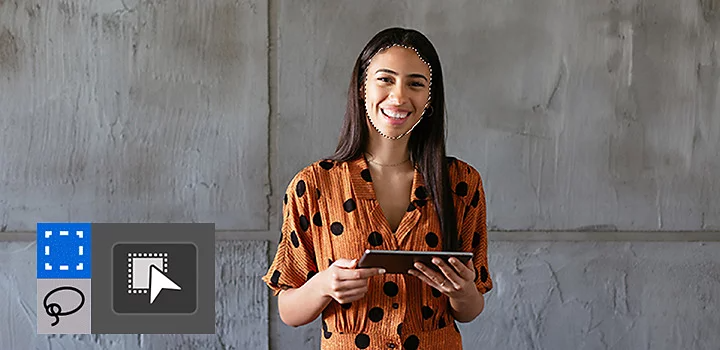
It’s a good idea to work with a face that’s larger than the face you’re trying to swap. It’s easier to fit a large face over a small one. When you increase resolution in Photoshop or Lightroom, you can create a higher-resolution face, so you won’t have to deal with distortions from pixelation as a result of resizing.
Drag the face from the new image and place it over the face on your main photo, Then, you can gradually resize and align the features. Turn down the opacity in the face layer so you can see the original features underneath the face you’re using. Match the eyes, nose and mouth and gradually move the new face over the original. Once you have it placed to your liking, adjust the opacity back to 100%. The new face should be placed as naturally as possible over the old one.
The lighting and skin tones of people’s faces can vary wildly and sometimes one person’s look can change across different photos. You’ll almost certainly have to correct for subtle differences between the two photos if you want your realistic face swap to look professional.
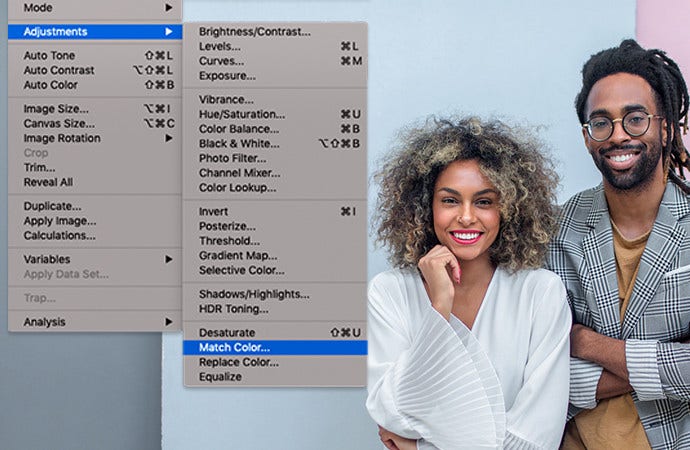
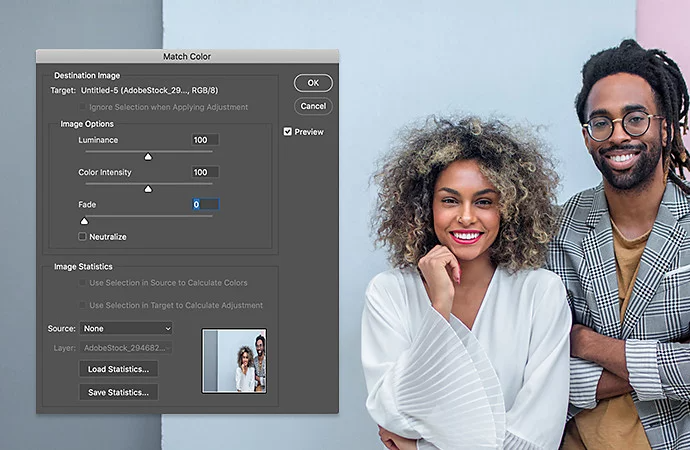
Match the multiple skin tones with Photoshop's Match Colour feature (Image › Adjustments › Match Colour), using whichever image you want to match colours from. Gradually adjust colours to match the skin tones together. Use the Blur tool to match the amount of blur on the head and face and use Auto-Blend Layers with Seamless Tones and Colours selected to merge the face and body layer together.
Based on your location, we think you may prefer the United States website, where you'll get regional content, offerings, and pricing.


