DESIGN
How to create dripping effect in Photoshop.
Learn how to create paint-like dripping effects in Adobe Photoshop using Liquify, custom brushes, and layer masks. Whether you are working on campaign graphics, product photography, or social media content, this guide shows you how to add surreal detail and stylised movement to your designs plus tips for enhancing your images with Generative Fill and Remove Background.
JUMP TO SECTION
How to create the paint dripping effect with Photoshop
How to use the paint dripping effect
How to further enhance your images in Photoshop
Take creative control with stylised drip effects
What is the dripping effect?
The dripping effect is a visual technique that mimics the appearance of liquid such as paint, water, or ink flowing or melting down from an object or surface. This stylistic approach adds movement, texture, and surrealism to otherwise static visuals.
It is commonly used across digital design and content creation, appearing in campaign visuals, event posters, editorial artwork, and promotional assets. Whether the effect is applied to type, illustrations, or product photography, this helps bring a sense of motion, boldness, or visual intrigue to the image.
How to create the paint dripping effect with Photoshop.
This step-by-step guide outlines two ways to achieve the paint dripping effect using Adobe Photoshop.
Method 1: Create realistic drips using the Liquify Tool.
This method is ideal for portraits, product shots, or stylised photo edits where a melting or fluid-like appearance is desired.
Step 1: Isolate the subject.
- Open your image and duplicate the background layer.
- Use the Object Selection Tool, Pen Tool, or any preferred method to isolate your subject.
- Convert the selected layer to a Smart Object via Layer > Smart Objects > Convert to Smart Object.
Step 2: Apply the Liquify Filter.
- Go to Filter > Liquify.
- Select the Forward Warp Tool and adjust the brush size based on your subject.
- Click and drag downward from the base of the subject to simulate the flow of paint or liquid.
- Create multiple drips with varied spacing and tapering to maintain an organic look.
- Click OK to apply the changes.
Step 3: Add depth with shadows and masks.
- Add a new layer beneath the liquified subject.
- Use a soft black brush to paint subtle shadows under each drip.
- Apply a layer mask to the subject layer if further blending is needed to smooth transitions into the background.
Method 2: Design graphic drips using custom brushes.
This method is best suited for text, logos, and brand assets where you want full control over stylised drips.
Step 1: Create a custom drip brush.
- Find or draw a drip shape. Use the Rectangular Marquee Tool to select it.
- Go to Edit > Define Brush Preset and save it as a new brush.
- Repeat the process to create a variety of shapes for different drip styles.
Step 2: Prepare your design.
- Open a new document with your background of choice.
- Use the Type Tool to create your headline or logo.
- Choose a bold font and convert the text layer to a Smart Object for easy adjustments later.
Step 3: Apply and refine the drips.
- Create a new layer above the text or logo.
- Select your custom brush and apply drips to the lower edges of the characters or shape.
- Use the Eraser Tool or a soft-edged brush on a layer mask to refine the placement and flow of the drips.
- To add texture, you can apply a mask to the entire group and lightly paint over edges with a textured brush to roughen or blend areas.
How to use the paint dripping effect.
When used with intention, the paint dripping effect becomes more than just a style, it becomes a tool for emphasis, motion, and brand personality. It can be especially effective across platforms like Instagram, YouTube, and product landing pages, where strong visuals are critical to performance.
For content creators and marketers.

Use the drip effect to elevate promotional assets or call attention to new releases. For example, add dripping paint to the bottom edge of a logo, or apply it to featured product images to create a melting transition into a background colour.
For music and event posters.
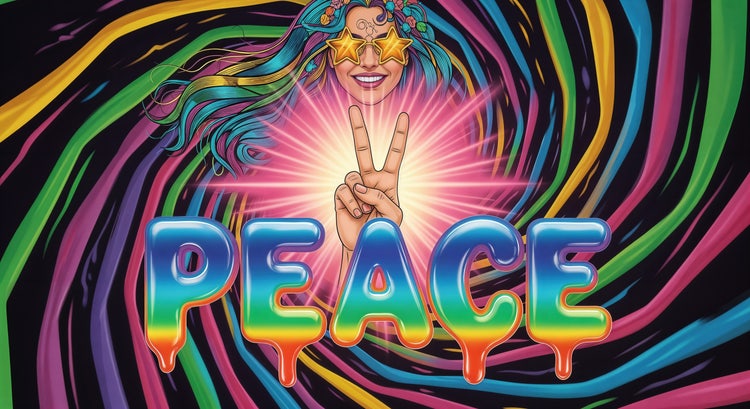
Incorporate drips beneath artist names, date headers, or illustrated elements to reinforce a bold or streetstyle aesthetic. The texture and visual weight of the drips help draw focus to specific areas of your design.
For YouTube thumbnails or Instagram reels.
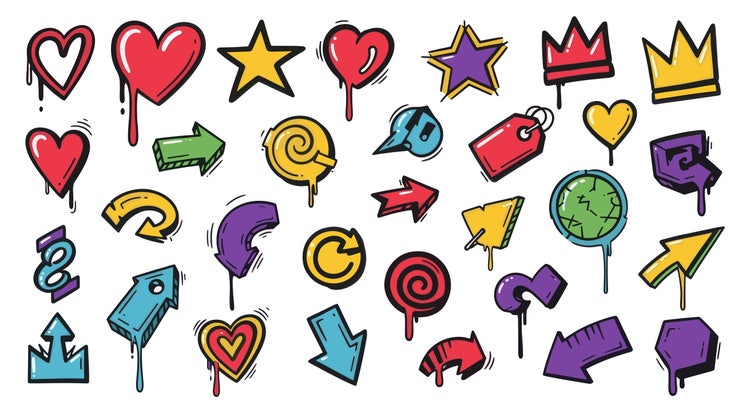
Apply the effect to stylised avatars, typography, or sticker-style illustrations to introduce movement and texture. This is especially effective for creative or tutorial content, where a distinct visual identity supports engagement.
For food and product photography.
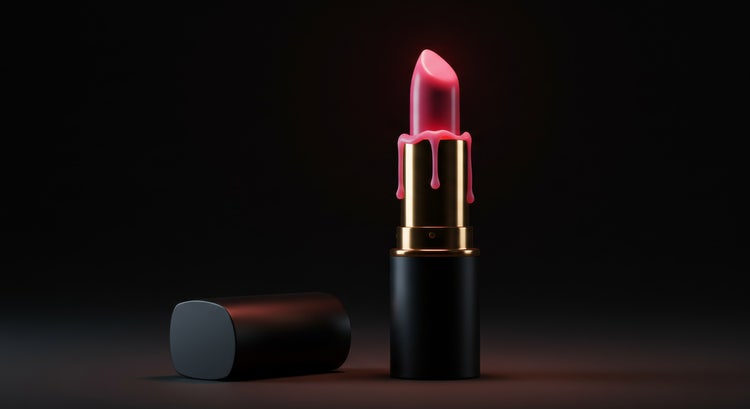
The drip effect can be applied to specific features of a dish or item, such as melted cheese on a pizza, sauce on a burger, or syrup on a dessert, to exaggerate texture and create a sense of motion or indulgence. You can also apply subtle, ink-like drips to makeup or accessory elements for high-concept editorials or product ads.
How to further enhance your images in Photoshop.
To maximise the impact of the paint dripping effect, combine it with Photoshop’s AI-powered tools that simplify subject isolation and expand your creative options.
Remove background tool.
Before applying the effect, use Remove Background tool to cleanly separate your subject. This gives you a clear, distraction-free foundation for applying drips or layering graphic elements.
Generate background tool.
Once the dripping effect is in place, use Generative Fill > Generate Background to create a supporting environment that enhances your composition.
These Photoshop AI tools allow you to quickly create rich imagery without the need for manual compositing or sourcing additional assets. For time-sensitive campaigns or multi-platform content production, this capability can significantly streamline your workflow.
Take creative control with stylised drip effects.
When used thoughtfully, the paint dripping effect becomes a versatile design element that supports both storytelling and brand differentiation. Whether you are creating visuals for social campaigns, editorial layouts, or product promotions, this effect can introduce a dynamic sense of motion and texture to help your work stand out.
Combined with Photoshop’s tools, the drip effect can be executed quickly and non-destructively, giving you full control over both the technical and creative direction of your visuals.
Frequently asked questions.
Can I control how subtle or exaggerated the effect looks?
Is the drip effect reversible?
Can I animate the drip effect for motion graphics?
Can I re-use drip brushes across multiple projects?
You may also like
Content as a Service v3 - file-type photo collection - Tuesday, 9 December 2025 at 14:46