DESIGN
Raster vs. vector: Which one should you use for your projects.
Learn when to use raster or vector images to ensure your designs look sharp and professional across any size or platform.
Raster vs. vector: Choosing the right format.
Understanding the difference between raster and vector images is key to making the right design choices and ensuring your projects look their best, whether they’re viewed on a screen or printed at large scale. Both raster and vector formats serve different purposes, and knowing when to use each can greatly impact the quality and flexibility of your final work.
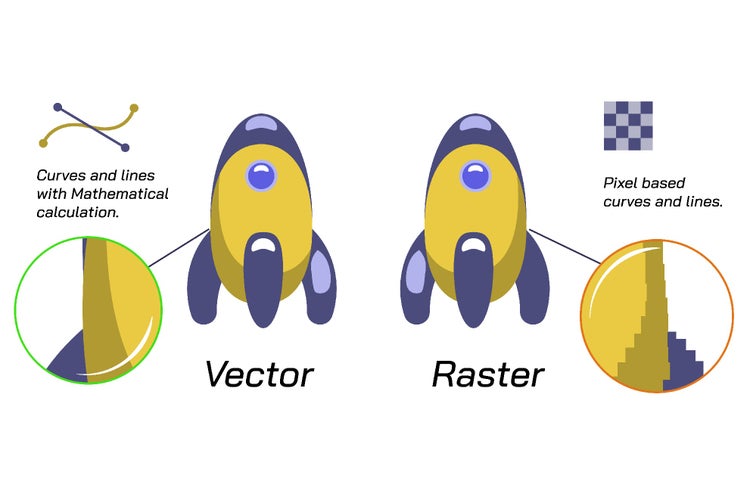
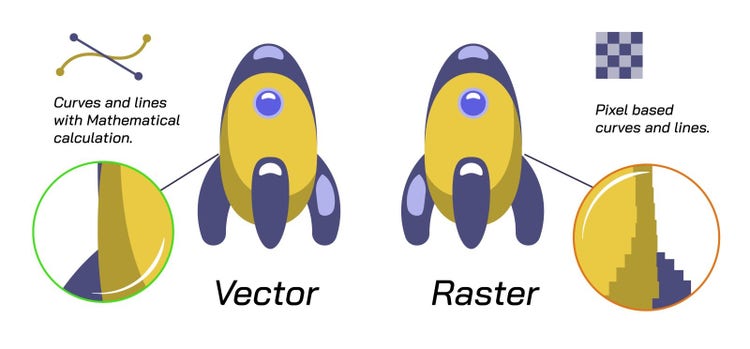
Raster images, made up of individual pixels, excel in capturing detailed photographs and complex textures but can lose quality when resized. Vector images, on the other hand, are built using mathematical paths, allowing them to scale infinitely without losing sharpness, making them ideal for logos, icons, and graphics that need versatility.
This article breaks down the characteristics, strengths, and limitations of each format, helping you confidently decide which to use based on your creative needs. By mastering both raster and vector, you can elevate your designs and optimise your workflow for any project.
If you’re just getting started with image formats, explore this guide to image file types to understand the various file formats used in design and photography.
Understanding raster images.
Raster images are made up of pixels, tiny squares of colour that form a complete picture. Each pixel contributes to the overall image, meaning that the quality and detail depend on the number of pixels (resolution).
Key characteristics of raster images:
- Made up of pixels (bitmap images).
- Resolution-dependent (measured in DPI or PPI).
- Detailed and realistic visuals.
- Common formats: JPEG, PNG, BMP, TIFF, PSD.
- File types explained: Learn more about raster file types like BMP, PNG, and TIFF.
When to use raster images:
- Photographs: Raster images excel at capturing complex details, colours, and gradients.
- Digital artwork: Suitable for projects that require fine shading and intricate details.
- Web graphics: Raster files like JPEGs and PNGs are standard for online visuals.
- Print work: High-resolution raster images can be used for detailed printing, but resizing can reduce quality.
How to work with raster files effectively:
- Start with high-resolution images to avoid pixelation.
- Use Photoshop, the industry-standard raster editing tool.
- Explore: Adobe Photoshop tools can help you edit raster images with precision.
- Save in the appropriate format depending on your output (e.g., PNG for web, TIFF for print).
Understanding vector images.
Vector images use mathematical equations to create lines, shapes, and colours. Unlike raster graphics, vectors are not made of pixels. This allows them to scale infinitely without losing quality.
Key characteristics of vector images:
- Made from mathematical paths (not pixels).
- Scalable without losing clarity.
- Clean and crisp lines.
- Common formats: SVG, AI, EPS, PDF.
- File types explained: Learn more about vector file types like SVG, EPS, and AI.
When to use vector images:
- Logos: Vectors ensure your logo looks sharp at any size, from a business card to a billboard.
- Illustrations: Clean line art and flat graphics are best created in vector format.
- Icons: Vectors maintain clarity on screens and in print.
- Print materials: Vector files guarantee crisp results for text and graphics in brochures, business cards, and posters.
How to work with vector files effectively:
- Create and edit vector graphics in Adobe Illustrator.
- Learn more: Adobe Illustrator is the leading tool for vector design.
- Use SVG format for web graphics to ensure scalability and sharpness.
- Convert to raster when needed for detailed textures or photographic elements.
Comparing raster vs. vector: Key differences.
Resolution:
- Raster images are resolution-dependent; enlarging them results in pixelation.
- Vector images are resolution-independent; they stay sharp at any size.
Detail and complexity:
- Raster excels at complex images like photographs with shading and gradients.
- Vector is ideal for simple, clean graphics like logos and icons.
File size:
- Raster files can be large, especially at high resolutions.
- Vector files are generally smaller and more efficient.
Software compatibility:
- Raster: Best edited in Photoshop.
- Vector: Best created and edited in Illustrator.
Explore a detailed comparison of raster vs. vector formats to see examples and more in-depth technical differences.
Optimising images for your project.
Combining raster and vector graphics is often necessary to achieve professional results. For instance, a brochure design might combine a raster photograph with vector text and icons.
Tips for optimising image formats:
- Use vectors for logos, icons, and illustrations.
- Use high-resolution raster images for photos and textures.
- Convert raster to vector for scalability when necessary (e.g., using Illustrator's Image Trace tool).
Learn how to convert raster images into vectors for scalability and clean lines.
- Export raster images in web-friendly formats (e.g., JPEG, PNG) for online use.
- Save vectors as SVG or EPS for print and scalable graphics.
Combining Raster and Vector Workflows:
- Start with vectors for branding elements like logos and text-based graphics.
- Incorporate raster images for detailed photos or artistic backgrounds.
- Bring everything together in a final composition using Photoshop for layout or InDesign for print materials.
See how to create professional brochure designs using both raster and vector elements.