
#1e1e1e

PHOTOGRAPHY

How to edit hundreds of photos at once.

Streamline your post-production with AI-powered tools in Adobe Lightroom and Photoshop to save time and energy without sacrificing quality.

Explore Lightroom

https://youtu.be/r647OB_J7kw?si=9RAv9ddNVwmLp29Y
#FFFFFF

The challenge of managing massive photo shoots.

Whether you’re a wedding photographer, a fashion creator, or an e-commerce editor, working with hundreds or even thousands of images after a shoot can be overwhelming. It can take days to manually sort, rate, and edit each image, which can eat up your time and potentially delay client delivery schedules.

That’s where batch editing comes in. With Adobe Lightroom and Photoshop, you can now use automation tools like AI culling, smart presets, and action recording to edit multiple photos at once. These features handle repetitive adjustments for you, letting you focus on perfecting the final look.

In this guide, we’ll explore how to use batch editing and AI automation to save time on photo editing.

A photographer using Adobe Lightroom to batch edit photos on her laptop at a cafe.

What is batch editing?

Batch editing, or bulk photo editing, means applying the same or adaptive adjustments to many images at once. Instead of correcting exposure or white balance on each photo, you can sync edits across an entire set with one click.

Why do creatives love batch editing?

For creatives in India and the rest of the world, batch editing is a game-changer:
  • It ensures consistent colour and tone across all images.
  • It saves hours of manual editing time.
  • It speeds up delivery to clients.
  • It reduces fatigue and frees you to focus on creativity.

Bulk photo editing: A step-by-step guide.

Step 1: Cull and organise photos faster with AI.

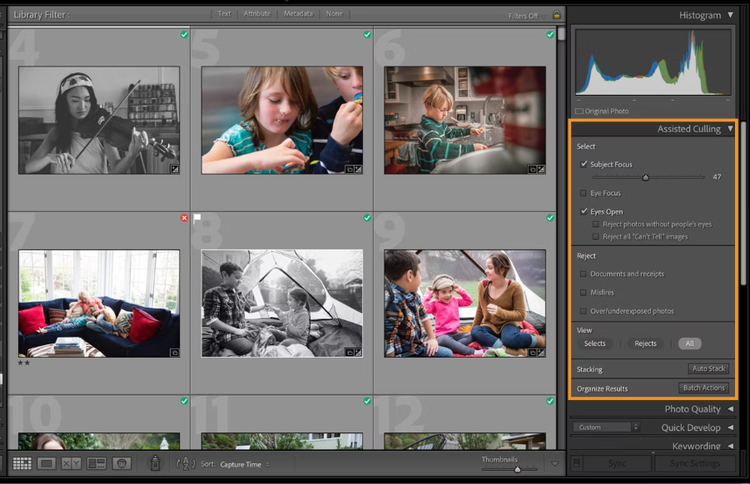
Assisted Culling menu in Adobe Lightroom.

The first step to working in batches starts before any kind of actual photo editing is done. This is called AI culling: the process of automatically analysing a large number of photos to select the best ones.

With AI-powered Assisted Culling in Lightroom, you can efficiently organise your photo collections and folders according to specific criteria, such as subject focus, eye focus, and eyes open. You can manage settings to automatically reject misfires, accidental images, photos of documents or receipts, or images that are over or underexposed.

Here’s how you can do this:

  1. Select your photos. In the Library module, open the folder or collection you want to cull.
  2. Run Assisted Culling and wait for the scan to complete.
  3. Choose what to keep. In the Assisted Culling panel, pick your selection method and adjust sliders to control how strict the filter is.
  • Subject Focus: keeps shots with the subject in focus
  • Eye Focus: prioritises sharp eyes
  • Eyes Open: selects photos where eyes are open
  1. Set reject options. Tick boxes to remove unwanted images (no visible eyes or “Can’t Tell” cases, documents, misfires, or exposure issues).
  2. Review results. Use Selects, Rejects, or All view buttons to check Lightroom’s choices.
  3. Hover over icons to see the reasoning or right-click to Mark as Select/Reject manually.
  4. Organise and stack. Use Auto Stack to group similar images, then flag, rate, or label in bulk.
  5. Finalise your selects. Apply presets or edits to selected images, and export when ready.

Step 2: Apply presets and sync edits across images in Lightroom.

A side by side photo showing a sample preset in Adobe Lightroom applied.

Once your top shots are ready, it’s time to edit them efficiently. Lightroom presets are ready-made editing settings that instantly adjust your photo’s look, including exposure, contrast, colour, and tone. You can choose from Recommended, Premium, or Your Presets to apply a consistent style with one click.

Here’s how:
  1. Open an album in the Grid view and select Presets.
  2. Select all the photos to which you wish to apply a preset, and then select the desired preset from the menu.
  3. Choose a preset category:
  • Recommended: AI-suggested presets based on your photo (e.g., Subtle, Strong, B&W).
  • Premium: Curated categories like Travel, Cinematic, Portrait, Sky, Landscape, and Seasonal.
  • Yours: Your saved presets and Lightroom’s default presets.
  1. In the Apply Preset dialog box, select Apply.

Step 3: Record actions in Photoshop.

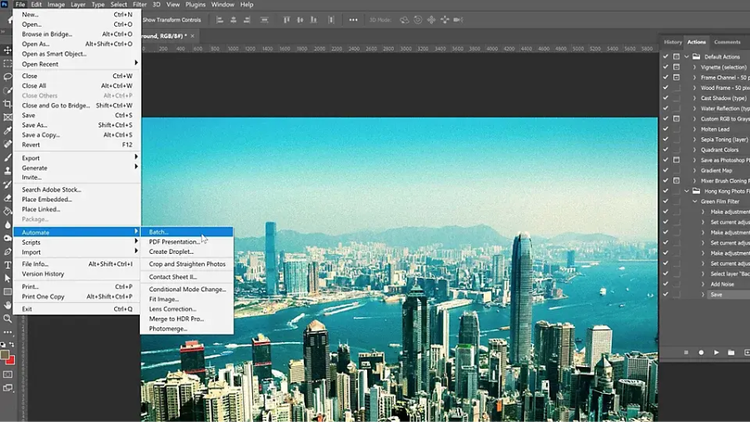
Interface of Adobe Photoshop showing how to access batch edit settings from the menu.

With batch editing in Photoshop, you can record your editing steps as an Action and apply them to multiple images at once. This makes it easy to give all your photos a consistent look or match your brand. You can batch edit a variety of adjustments, such as resizing, cropping, colour correction, straightening, and file format conversion.

Here’s how:

  1. Open a file on Photoshop.
  2. Select Windows > Action.
  3. Select New Action from the Actions panel menu.
  4. Type the name of the action.
  5. Select Record.
  6. Perform the commands and operations you want to capture. For nonrecordable tasks, insert commands from the Actions panel menu.
  7. Select Stop Playing/Recording to finish.
  8. Run the Action for batch edits:

a. Go to File > Automate > Batch.

b. In the Play section, choose the Set and Action you recorded.

c . Choose source (the folder with the images you want to edit) and destination (the folder where edited images will be saved).

d. Select “Override Action Save As Commands” to save each image individually.

e. Click OK to apply the action to all images.
Step 4: Export and deliver efficiently.

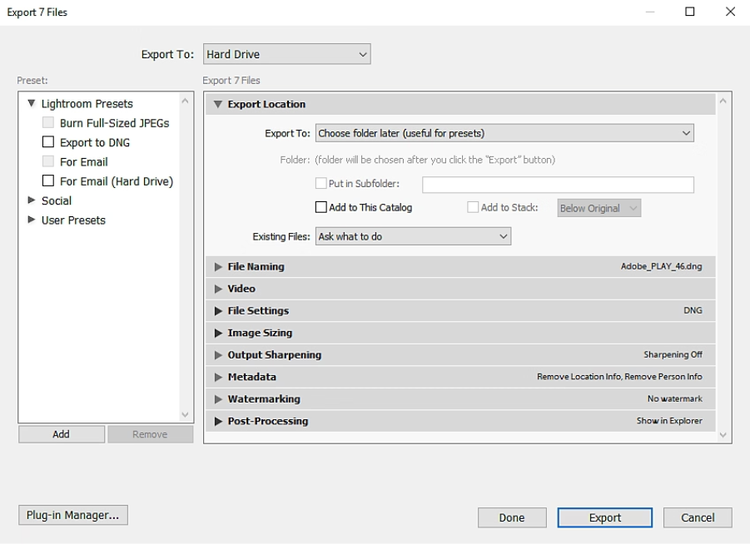
Popup menu in Adobe Lightroom showing options for export.

After editing, exporting hundreds of photos manually can also take a lot of time. Lightroom’s batch export makes this process simple and customizable.

Here’s how to export in bulk:

  1. Select all edited photos.
  2. Choose File > Export, or click the Export button in the Library module. Then, choose Export To > Hard Drive in the pop-up menu at the top of the Export dialog box.
  3. Specify a destination folder, naming conventions, and other options in the various Export dialog box panels.
  4. Click Export.

Why is learning how to edit multiple photos at once important?

Editing hundreds of photos one by one is exhausting, but it doesn’t have to be. Batch editing lets you automate repetitive tasks, keep a consistent look across all images, and save hours of valuable time. No matter what your niche is, mastering batch editing is a game-changer for your workflow.

  • Save time. Automate repetitive tasks like colour correction, cropping, or background adjustments so you can focus on creativity instead of repetitive edits.
  • Maintain consistency. Ensure all your images share the same style, tone, and branding.
  • Increase productivity. Finish projects faster, deliver to clients sooner, and take on more work without compromising quality.
  • Reduce errors. By applying edits automatically, you minimise the risk of missing steps or creating inconsistencies across large sets of images.
  • Leverage AI tools. With AI, batch editing is made smarter: selecting the best images, suggesting corrections, and adjusting effects based on each photo’s content.

Frequently asked questions.

Can I edit multiple photos at once in Lightroom?

Yes. You can apply edits to a single photo, copy your settings, and manually paste the settings to other photos in your collection. You can also use presets to edit the photos in batches.

What’s the best way to bulk edit photos in Photoshop?

Use Actions and the Batch command under File > Automate > Batch to process multiple files.

Can I change the background in multiple photos at once?

Yes. Use Photoshop’s Remove Background tool or create an Action to apply the same background change to all images.

What is AI culling?

AI culling automatically analyses your photos to pick the sharpest, best-composed, and most expressive shots to save you hours of manual sorting.

Can I edit multiple photos at once without losing quality?

Yes. Both Lightroom and Photoshop let you apply edits, presets, and actions to multiple images while preserving the original files.
Can I undo a batch edit in Lightroom?
Yes. The simplest way to do so is to undo the last synced edit by using the Ctrl+Z (Windows) or Cmd+Z (Mac) shortcut. For individual images, you can always use the “Reset” button.

https://www.adobe.com/cc-shared/fragments/creativecloud/photography/icon-block-3-up

You may also like

Content as a Service v3 - file-type photo collection - Tuesday 9 December 2025 at 15:32

https://main--cc--adobecom.aem.page/cc-shared/fragments/seo-articles/do-more-lightroom-color-blade