VIDEO
How to edit videos fast: Time-saving tips & batch workflows in Premiere.
Discover how to edit videos faster in Premiere. From auto captions to batch exporting and generative AI tools, streamline your workflow and create content efficiently.
Why quick editing matters in modern video production.
In today’s fast-paced creator economy, speed is everything. Whether you’re editing YouTube videos, daily vlogs, or Instagram Reels, the ability to produce polished content quickly can make or break your consistency.
That’s where Adobe Premiere’s AI-powered features come in. With tools like text-based editing, auto captioning, batch exports, and more, creators can save hours of manual effort and focus more on what truly matters: storytelling, not timelines.
Batch workflows in Premiere for fast video editing.
Text-based editing.
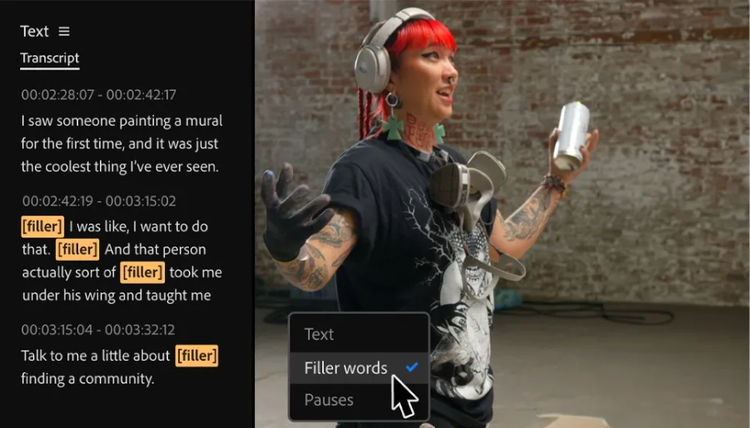
Working with several media files, long footages, and multiple shots can be tedious. With Premiere’s text-based editing, you can significantly trim down your editing time. Text-based editing means that the software automatically transcribes your video’s dialogue and lets you edit directly from the transcript, without the need to manually scrub through the timeline to find a soundbite.
For example, when editing a 10-minute vlog for YouTube, you can simply delete unwanted lines from the transcript, and Premiere will remove the corresponding video clips automatically.
Here’s how:
- Open Premiere.
- Import footage and make a new sequence.
- Open Window > Text > Transcript.
- Click Create Transcription, pick your audio track and language, then Transcribe.
- When the transcript appears, highlight any sentence you don’t want and press Delete. Premiere automatically removes that portion of the video on the timeline.
- Drag lines of text to reorder moments if needed.
- Play back the result and fine-tune cuts.
Auto captioning.
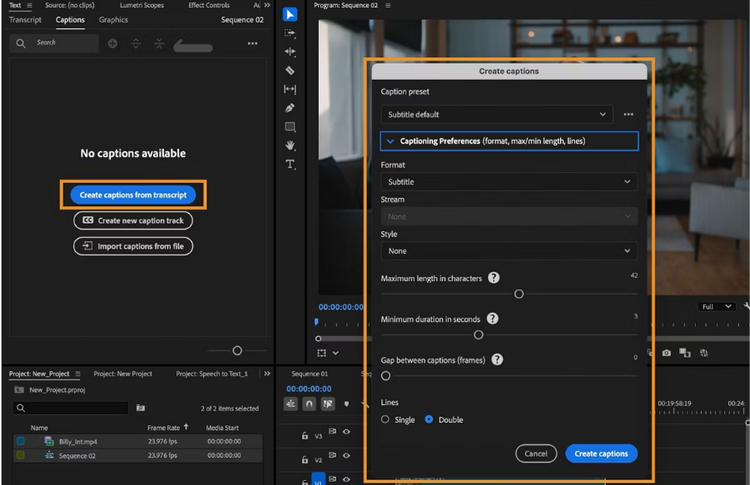
Captions aren’t just an accessibility feature. They’re an engagement booster. With auto captioning in Premiere, you can instantly generate subtitles through speech-to-text transcriptions. AI automatically detects speech and syncs captions with perfect timing. You can then style them using branded templates to maintain a consistent look across your YouTube, Instagram, and other social media channels.
Here’s how:
- Import your media into Premiere.
- In the top menu, select Captions > Create Captions from Transcript.
- In the Create Captions dialog box, customise your settings:
- Caption Preset: Choose a ready-made style or use Subtitle (Default).
- Format: Pick your caption format (e.g., Subtitles or Broadcast).
- Style: Apply a saved caption style for consistent fonts and colours.
- Length, Duration, Gap: Adjust how long each caption appears and the spacing between them.
- Lines: Choose single-line or two-line captions.
- Click Create Captions. Premiere automatically generates captions aligned with your dialogue.
Once your captions are created, Premiere also lets you auto translate them into multiple languages. This is perfect for reaching audiences across India and worldwide. With just a few clicks, your subtitles can appear in the language of your choice, helping boost engagement, accessibility, and viewer retention without manually retyping translations.
Batch export.
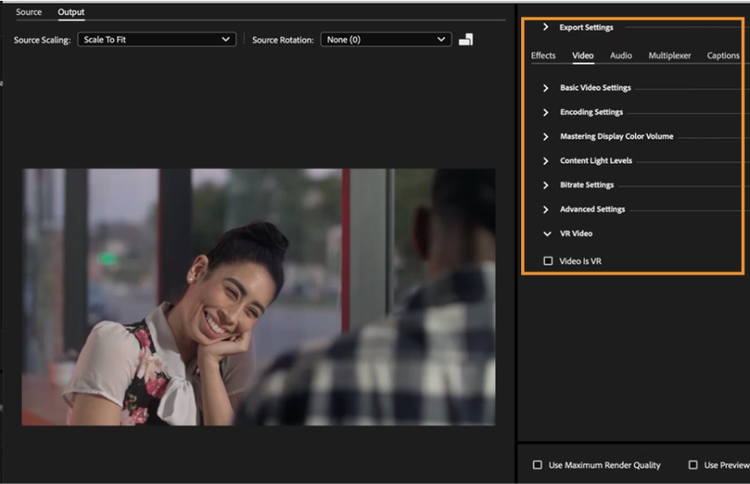
If you’re publishing content to multiple platforms, exporting and resizing each version manually can take hours. Instead, use Adobe Media Encoder to batch export different formats at once.
Here’s how:
- Finish your edit.
- Go to File > Export > Media.
- In the Create Captions dialog box, customise your settings:
- YouTube: 16:9 (1920×1080)
- Instagram Reels: 9:16 (1080×1920)
- Instagram Feed: 1:1 (1080×1080)
- Instead of clicking Export, click Queue. The file now launches Media Encoder.
- If you are happy with the settings, click the green Start Queue button.
- Media Encoder will render all versions automatically.
Additional AI-powered tools in Premiere for smarter video editing.
Premiere’s AI-powered features make editing faster, easier, and more creative. Here’s a quick look at the tools that help you work smarter, not harder:
- Generative Extend: Click, drag, and stretch any clip beyond its original start or end, and Premiere will automatically add extra 4K frames to give you room for transitions, sound insertions, or just additional edits.
- Media Intelligence and Search panel: Type what you’re looking for, and Premiere instantly finds it. No more digging through hours of footage or relying on memory, just enter natural language terms, and matching clips appear in seconds.
- Colour Management: Premiere automatically converts your raw or log footage to SDR or HDR, no LUTs required. As soon as you import most camera formats, your clips are ready to edit.
- Scene Edit Detection: Automatically get cut points without having to go through the footage manually. Just right-click a clip, choose Scene Edit Detection, and decide whether to add cuts, create sub-clip bins, or place markers at each transition.
- Remix: Leverage AI to automatically retime and rearrange your music without the hours of manual fading, cutting, and previewing. Remix finds the perfect cut points and loops to keep your soundtrack aligned with your scenes almost instantly.
Quick tips to make video editing easier.
Even small workflow tweaks can add up to big time savings. Try these:
- Eliminate bottlenecks and make sure your system runs smoothly.
- Know your footage and organise your project bins by shoot day or camera type for easier navigation.
- Customise keyboard shortcuts for your most-used tools.
- Create adjustment layers for quick, non-destructive colour grading.
- Use LUTs and effect presets for consistent visuals across vlogs or branded content.
- Get the first draft done and do the nitpicking later.
Frequently asked questions.
What languages does the auto translate feature support?
How do proxy files help with faster editing?
What keyboard shortcuts improve editing speed in Premiere?
Here are some of the most used keyboard shortcuts for streamlined editing:
- Ripple Delete: Shift + Delete
- Add Edit: Ctrl + K
- Edit Original: Ctrl + E
- Duplicate: Ctrl + Shift + /
- Zoom In: =
- Zoom Out: -
- Play: Space
What are the minimum requirements needed to install and run Adobe Premiere?
To get the best Premiere experience, your equipment needs to meet the following technical requirements:
- Processor: Intel® 6th Generation or newer CPU – or AMD Ryzen™ 1000 Series or newer CPU
- Operating system: Windows 10 (64-bit)
- Memory: 8 GB RAM
- GPU: 2 GB GPU memory
- Storage: 8 GB of available hard disk space, plus additional free space during installation.
- Display: 1920x1080 pixels
Does Adobe Premiere require a subscription?
You may also like
Content as a Service v3 - file-type photo collection - Tuesday 9 December 2025 at 13:47
caas:business-unit/creative-cloud,
caas:products/premiere-pro,
caas:content-type/article,
caas:product-categories/video,
caas:topic/video-production,
caas:topic/artificial-intelligence,
caas:topic/creativity-design,
caas:topic/process-and-scale,
caas:topic/business-impact