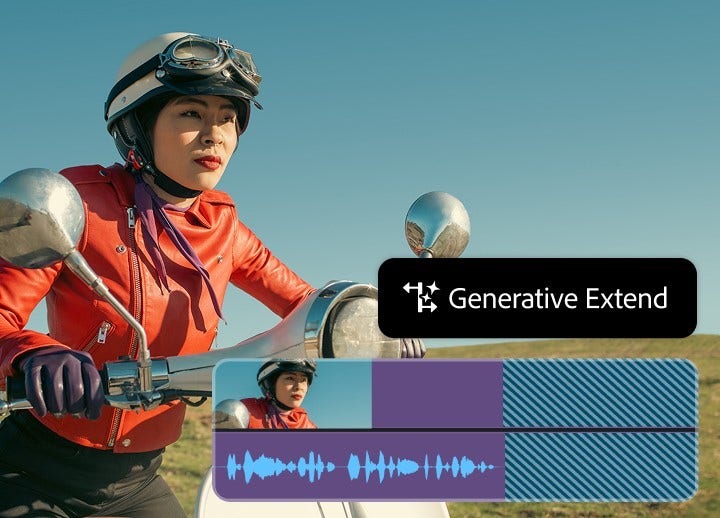
Generative Extend allows you to extend video and audio clips beyond their original length, but the practical limit depends on clip duration and complexity. Very short clips may only be extended slightly, while longer clips can be extended more. Always review AI-generated frames to ensure quality and smooth transitions.
Please visit
this page to learn more about the latest capabilities.
Generative Extend is a premium generative AI
feature in Premiere that requires the use of generative credits. Premium generative AI features are more computationally intensive (currently, audio and video generative features) and are accessible through Adobe Firefly stand-alone plans and select
Creative Cloud plans. You can try Generative Extend with a limited number of complimentary generations.
Yes, AI can extend the length of a video by generating additional frames that match the style, motion, and content of the original footage, creating a seamless longer version.
You can extend audio clips in Premiere by selecting the clip in your timeline, choosing the Generative Extend Tool, and dragging the edge to the desired length. The AI will generate new audio seamlessly, helping you maintain background ambience or dialogue without manually editing.
Generative Extend works best with clips that are at least 2 seconds for video and 3 seconds for audio. Very short or fast-paced clips may be extended only slightly, as the AI needs enough frames to generate smooth, natural transitions.
No, Generative Extend creates additional frames while preserving the quality and resolution of your original footage. AI-generated content is non-destructive, and you can always revert to your original clips if needed.
Generative Extend is available in
Premiere across Windows and macOS. It works within the
iPhone app itself. Currently, the feature is not available on Android. Performance may vary depending on system specifications, but the workflow is consistent across supported iPhone models.
Generative Extend uses Adobe Firefly AI trained on licensed and public domain content to create new frames. Original footage remains untouched, and generated frames are clearly labelled in the timeline, allowing you to extend video length or audio safely and confidently.
Yes, Generative Extend is suitable for both short social media clips and longer video projects. You can extend shots or audio tracks as needed to improve pacing, storytelling, or transitions without affecting the rest of your project.