
Creativity for all
Photography, video, graphic design, illustration and so much more. Everything you need, wherever your imagination takes you.



TABLE OF CONTENTS
What is keyframe animation in video editing
How AI improves your keyframe animation workflow
Why this matters for editors and creators in India?
Real-world uses: How editors in India are improving animations with AI
Best practices for using keyframes with AI
Challenges and ethical considerations of using AI in video editing
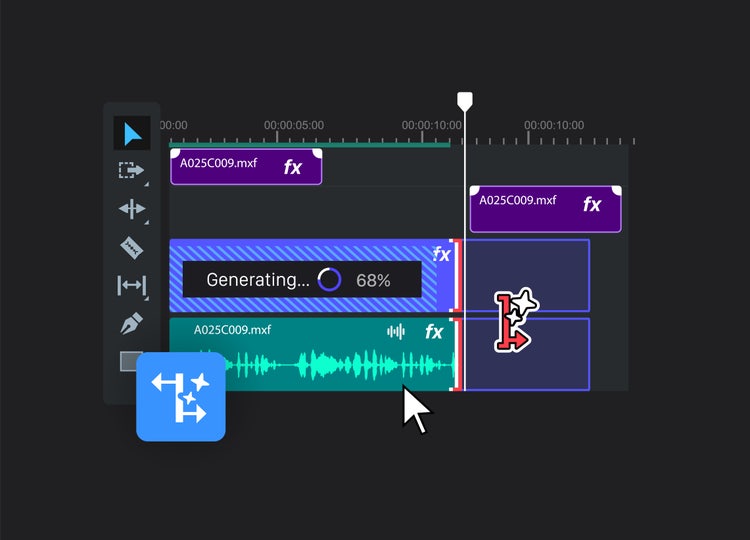
The fastest way to improve your keyframe animation is by blending manual precision with intelligent automation. Tools like Creative Cloud’s AI Storyboard, Audio Fix, and Auto Colour Grading help video editors spend less time on repetitive adjustments and more time on storytelling. Whether you’re working on a wedding highlight reel, a branded short, or a cinematic showreel, AI-powered features can handle the heavy lifting so you can focus on emotion, timing, and overall flow.
Instead of manually setting dozens of keyframes for every transition or colour shift, AI tools let you establish broad creative direction and automate the rest.
Keyframe animation is a technique used in video editing to define the start and end points of any motion or effect. These 'keyframes' mark specific values at a certain time, such as position, scale, opacity, or colour, and the software fills in the in-between steps, creating smooth transitions.
For example, you can use keyframes to animate a logo moving across the screen, fade audio in and out, or zoom into a subject for dramatic effect. Wedding videographers often keyframe slow pans to highlight emotional moments, while YouTube creators use them to animate text callouts or product highlights. Whether you’re crafting brand content or short films, keyframes give you precise control over the look and feel of each scene.
Find out more about keyframing.
Here’s how editors and filmmakers are using Creative Cloud’s AI tools to simplify their keyframe animation process and achieve professional, client-ready output:
AI Storyboard helps you structure your edit by automatically suggesting shot sequences, transitions, and scene groupings. It reduces the time spent arranging clips and lets you focus on refining keyframes where they matter most like emotional beats or high-action moments.
Unbalanced sound can ruin the pacing of your edit. Instead of manually syncing and levelling each audio clip, use Audio Fix to clean up dialogue, reduce background noise, and auto-sync key beats to visuals. This reduces reliance on frame-by-frame sound alignment.
Grading every clip manually requires dozens of keyframes across exposure, saturation, and contrast. Auto Colour Grading uses AI to apply cohesive looks across your timeline - you can still refine keyframes, but you’re starting from a polished base.
With AI tools handling broader structure and technical fixes, you can invest your energy in the details that elevate the final product. Use keyframes to emphasise specific transitions, animate motion graphics, or fine-tune emotional pacing.
Creative Cloud’s AI tools reduce repetitive labour, helping freelancers and production teams cut edit cycles and deliver polished work faster. More speed = more output = more income potential.
Try a tutorial on how to create an animation with keyframe.
If you’re editing wedding films, brand stories, or documentary-style videos, working efficiently is key. AI-powered keyframe workflows help you:
Unlike basic tools or template-only platforms, Creative Cloud gives you:

Creative Cloud’s AI tools are helping video editors across India bring motion projects to life faster and with more impact:
1. Wedding videographers
Create smoother transitions and cinematic pacing using AI Storyboard to pre-plan sequences, then fine-tune keyframes for personalised emotion.
2. Short film creators
Use Auto Colour Grading to instantly set the tone for a scene, then enhance with animated title sequences using keyframe presets.
3. Content creators for YouTube
Combine AI-generated cut suggestions with keyframe-controlled callouts or motion overlays for engaging, scroll-stopping videos.
4. Freelance motion designers
Save time on client animations by using Audio Fix to clean tracks before syncing visuals, then export multiple versions for different platforms.
5. Social media video editors
Turn simple interviews or tutorials into stylised, animated content with colour transitions and zoom effects – controlled by keyframes, assisted by AI.
If you’ve already begun using AI tools like Audio Fix and Auto Colour Grading, here are some lesser-known ways to fine-tune your workflow and get more from every project:
Blend linear and eased motion
Use keyframes to add natural motion curves (easing) to text, transitions or graphics. AI tools help you get the base timing right, but easing adds that human polish.
Isolate movement with masks
Pair keyframes with masking tools in After Effects to animate specific elements (like logos or facial highlights) independently. Great for nuanced storytelling.
Use expressions to link properties
For repeat animations (like pulsing text or looping elements), use expressions in After Effects to reduce the number of manual keyframes you need especially handy when scaling delivery.
Save your audio mix before syncing
After using Audio Fix, export a clean version of the track and re-import it for keyframe syncing. This keeps your timeline organised and helps avoid real-time lag during editing.
Experiment with hybrid motion
Try combining static imagery with subtle motion (like animated text or visual accents). It’s a lightweight but effective way to bring quiet scenes to life with just a few keyframes.
As AI becomes more integrated into creative workflows, it brings a range of practical and ethical challenges that need to be considered:
For guidance on responsible AI use, see Adobe’s Generative AI User Guidelines.
Photography, video, graphic design, illustration and so much more. Everything you need, wherever your imagination takes you.

caas:business-unit/creative-cloud, caas:products/premiere-pro, caas:content-type/article, caas:product-categories/video,
caas:topic/video-production,
caas:topic/animation,
caas:topic/creativity-design,
caas:product-categories/graphic-design

Based on your location, we think you may prefer the United States website, where you'll get regional content, offerings, and pricing.


