PHOTOSHOP FEATURES
How to invert a selection in Adobe Photoshop.
Discover how you can use the Selection tool to isolate everything outside a selection’s border.
Get free app | Get free app Photoshop View plans and pricing | View plans and pricing Photoshop
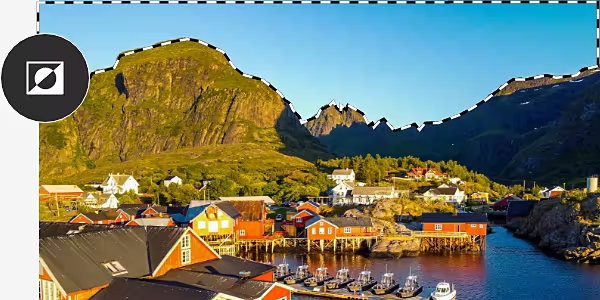
What does it mean to invert a selection in Photoshop?
In Photoshop, you can use the Selection tool to choose a portion of your image that you want to edit. But if you want to modify your entire image except for the pixels inside the selected area, you need to invert your selection.
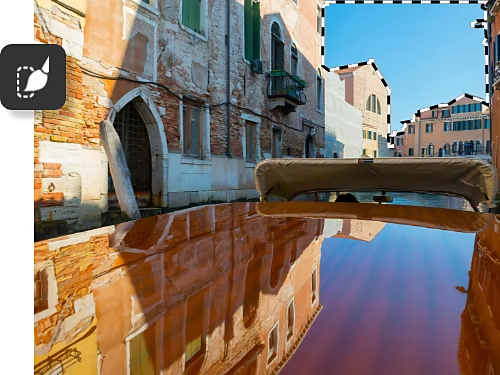
Make edits to everything outside a selection.
It can be easier to select what you don’t want to change instead of what you do, especially if the area you want to edit is large. Then, all you have to do is invert to make sure you’ve made the perfect selection.
Precisely select larger areas.
Say you want to change the background in a portrait. It can be challenging to select everything but the subject. Instead, select that person and then invert it. The same goes for if you want to change the colour range for all but one small segment of a graphic design.
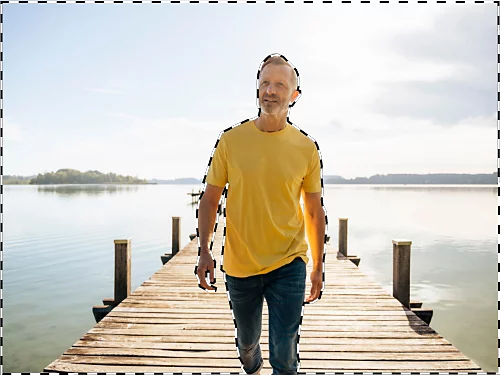
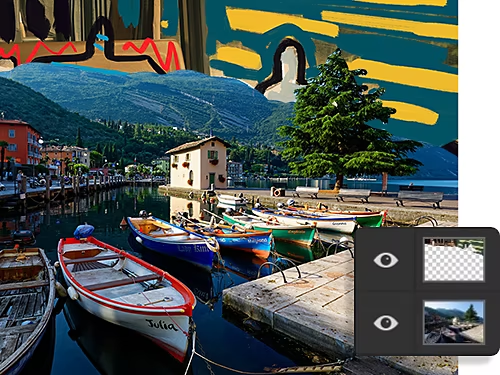
Prep for background adjustments.
Use an inverse selection to separate the background of your image and replace it with colourful artwork.
Set up a massive mask.
Turn an inverted selection into a layer mask to hide or show different portions of your image.
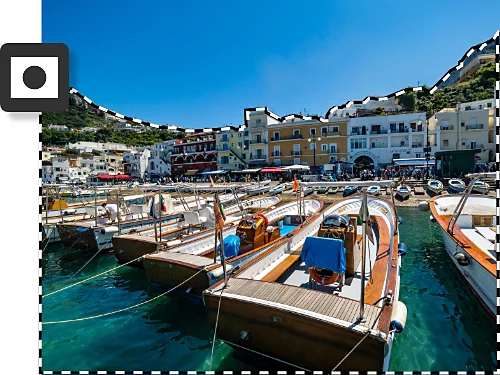
How do you invert a selection in Photoshop?
- Choose it:
Pick a selection tool from the toolbar at the right. The Marquee tool, Lasso tool or Magic Wand tool will all work, but the Select Object, Select Subject or Quick Selection tools are simplest. - Select it:
Use the selection tool to create a border around the portion of your image that you don’t want to change. - Invert it:
Right-click your selection and choose the Select Inverse option. Alternatively, choose Select › Inverse from the menu bar at the top of the window.
FAQs about inverting selections in Photoshop.
What is the keyboard shortcut for “invert selection” in Photoshop?
How do I undo a selection?
How do I add and subtract from a selection’s border?
How do I make sure my selection has inverted?
See what else you can do with inverted selections.
Explore tutorials to walk you through some of things you can do now that you know how to make an inverted selection.

Create a layer mask.
Learn how easy it is to create a mask using the Select and Mask workspace.
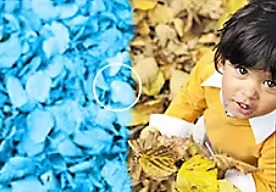
Change colours.
Fine-tune a specific hue or invert colours altogether. See how simple colour swapping can be.