[Angelo Montilla]: Have you ever found yourself managing dozens of PDFs, drowning in research and unsure of how to make sense of all the information?
Whether you're working on a client proposal or marketing campaign, parsing through multiple PDF documents can become overwhelming.
Well, those days are over with Acrobat Spaces.
Hi everyone, my name is Angelo Montilla from montilladesign.com.
In this video, you'll get a better understanding of how to get around Acrobat Spaces, an AI-powered workspace that helps you transform multiple PDFs and other document formats into meaningful insights.
Let's jump in and learn more about Acrobat Spaces.
To create a project in Acrobat Spaces, from the home page,
Creating a project and uploading files in Acrobat Spaces
I'll choose PDF Spaces from the left-side menu, and then I'll click Create PDF Space.
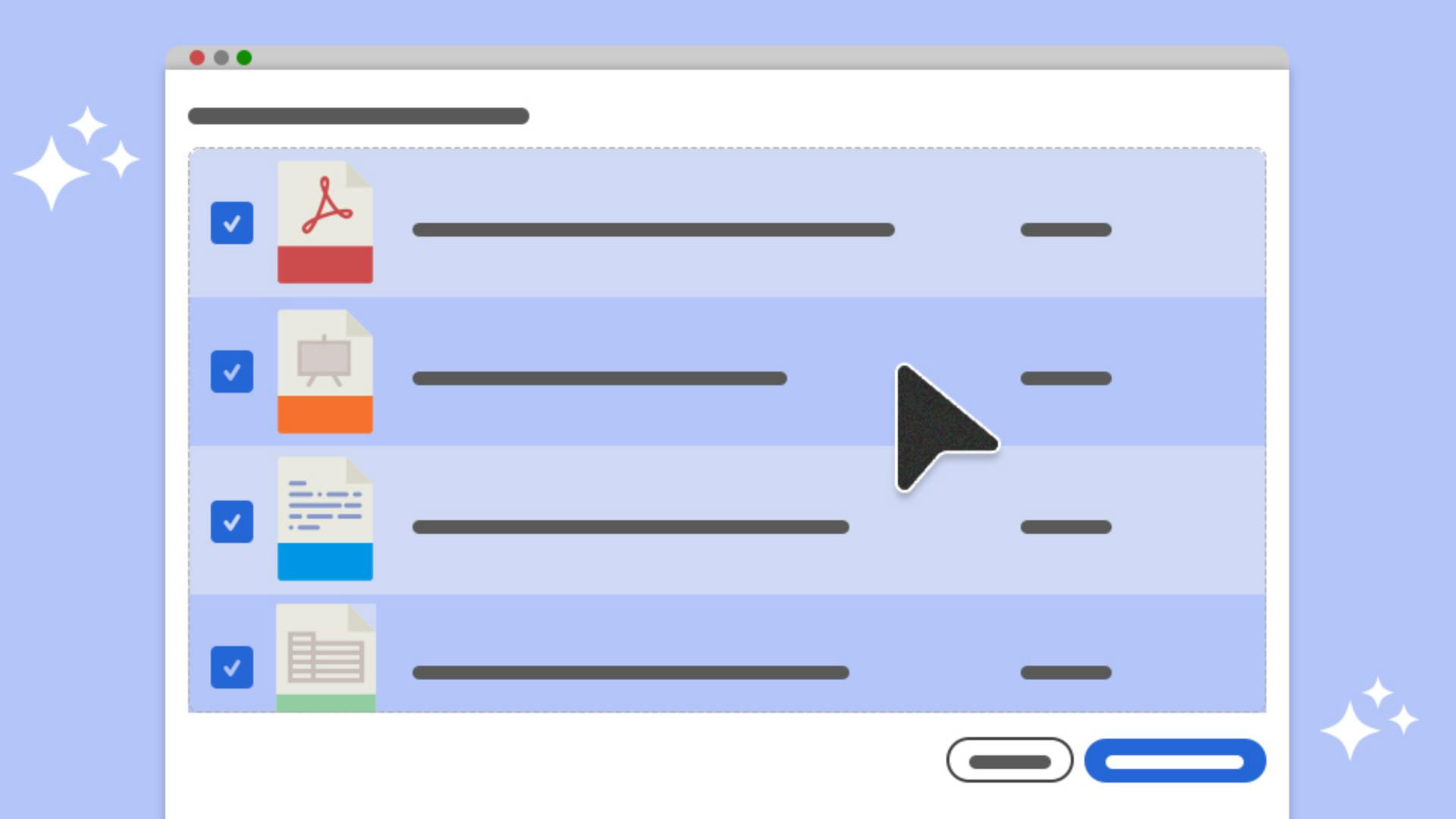
Once you create a project, you can drag and drop up to 100 files into the Upload window.
Acrobat allows you to upload various file formats from PDFs, DOCX, PowerPoint presentations, and text files.
You can also choose from cloud storage platforms and web links.
In this specific case, let's imagine I'm a social media marketer, and I'd like to generate insights for a digital marketing strategy using AI.
I have three PDF documents that I'll just drag and drop right into the Download window.
Once I have all my files, I can click Create PDF Space.
This will add all your source files to the project, and you can see them displayed in the left-side window by clicking the Files icon.
I can click on each one of the sources to preview them at larger scale.
You can see all three of my PDFs are displayed here in the Files section.
Exploring files, insights, and citations
Acrobat Spaces will suggest goals and insights with citations based on the documents you initially uploaded.
For example, if I click one of the citations, it'll take me to the specific document that I uploaded.
This is perfect for gathering information or researching topics like in my case, AI-driven social media strategies.
I can also save insights as notes.
For example, I really like this insight, "The Future of Social Media Marketing," and I want to save it as a reference.
I'll click Save to notes.
Acrobat Spaces alerts me that the note has been saved, and if I click the Notes icon, I can see the reference note here.
I can click on the note to preview it, and I can also add a title to my note.
Saving and organizing notes
For example, I could add the title, "AI in social media marketing."
I can also explore insights using one of the three preset ideas generated from my sources, or simply start chatting with AI Assistant if you already have a goal in mind.
Using AI Assistant and specialist modes for insights
In the AI Assistant Prompt Bar, you can choose from one of four specialist options: the default AI Assistant, Analyst, Entertainer, and Instructor.
In this example, I'll leave the setting on AI Assistant and ask it to generate an overview of social media marketing trends with AI.
I have my text prompt in place, and I'll click Generate to generate a response.
The AI Assistant does an excellent job outlining the key trends, which I can now save to my notes to reference for other projects.
I'll click Save to notes and use those insights in another project, or share them with team members.
Navigating projects and continuing your workflow
From the left menu, I can jump from Insights and back to Chat for a seamless workflow.
And I can always access my project by going back to the Acrobat home page, clicking on PDF Spaces and then choosing the Spaces project from the list.
From there, you can continue working on your Spaces project.
You should now have a better understanding of how to get started with Acrobat Spaces.
Use this AI-powered workspace tool on your next project and transform your PDF documents into meaningful insights.
Again, my name is Angelo Montilla, and I'll see you in the next video.
Note: Stock assets provided are for practice purposes only. See terms.
What you’ll learn
Add and organize multiple documents
Start a new workspace and upload PDFs, documents, or links.
Generate AI insights
Use the AI Assistant’s suggestions to define goals and insights based on your documents.
Save notes with citations
Capture insights with citations to reuse in future projects.
You can control how Adobe websites use cookies and similar technologies by making choices below. But note that if you disable cookies and similar technologies entirely, Adobe websites may not function properly.
Cookies are small text files stored by your web browser when you use websites. There are also other technologies that can be used for similar purposes like HTML5 Local Storage and local shared objects, web beacons, and embedded scripts. These technologies help us do things like remembering you and your preferences when you return to our sites, measure how you use the website, conduct market research, and gather information about the ads you see and interact with.
You can make choices in the menu below about what cookies and other technologies you want us to use on Adobe sites when you visit them from this browser. You can always change those choices later by clicking on the Cookie Preferences link at the bottom of the page.
If enabled:
We can improve your experience by tailoring the site and the content to things we think might be of interest
We can better keep track of your preferences — like what language you prefer to use
We will better understand your likely interests so we can provide you more relevant Adobe ads and content on non-Adobe websites and in non-Adobe apps
It will help us improve the performance of our website and those of our partners who use the Adobe Experience Cloud
If disabled:
We won’t be able to remember you from session to session so the experience may not be tailored to your interests
You’ll still have access to the content of the site but certain features that depend on cookies may not function
You’ll still see ads, they just may not be as relevant to you
General information
You can control how Adobe websites use cookies and similar technologies by making choices below. But note that if you disable cookies and similar technologies entirely, Adobe websites may not function properly.
Cookies are small text files stored by your web browser when you use websites. There are also other technologies that can be used for similar purposes like HTML5 Local Storage, web beacons, and embedded scripts. These technologies help us do things like remembering you and your preferences when you return to our sites, measure how you use the website, conduct market research, and gather information about the ads you see and interact with.
You can make choices in the menu below about what cookies and other technologies you want us to use on Adobe sites when you visit them from this browser. You can always change those choices later by clicking on the Cookie Preferences link at the bottom of the page.
If enabled:
We can improve your experience by tailoring the site and the content to things we think might be of interest
We can better keep track of your preferences — like what language you prefer to use
We will better understand your likely interests so we can provide you more relevant Adobe ads and content on non-Adobe websites and in non-Adobe apps
It will help us improve the performance of our website and those of our partners who use the Adobe Experience Cloud
If disabled:
We won’t be able to remember you from session to session so the experience may not be tailored to your interests
We’ll still count your use of our site and services
You’ll still have access to the content of the site but certain features that depend on cookies may not function
You’ll still see ads, they just may not be as relevant to you
Operate the site and core servicesOperate site and measure engagement
Always active
These cookies are required, and they are used to enable the site and related services core functionality. Without them the site could not operate, so they cannot be disabled.
These cookies enable the site and related services’ core functionality and collect statistics about user engagement, such as counting active use to help us understand trends. These cookies cannot be disabled.
Measure performance
These cookies are used to analyze site usage to measure and improve performance. Without them Adobe cannot know what content is most valued and how often unique visitors return to the site, making it hard to improve information we offer to you.
These cookies are used to analyze site usage to measure and improve performance. Without them Adobe cannot know what content is most valued, making it hard to improve information we offer to you.
Extend functionality
These cookies are used to enhance the functionality of Adobe sites such as remembering your settings and preferences to deliver a personalized experience; for example, your username, your repeated visits, preferred language, your country, or any other saved preference.
Personalize advertising
These cookies are used to enable Adobe and our partners to serve ads more relevant to your interests. Without them you will still see ads, but they might not be as relevant to you.
Personalize advertising
These cookies are used to enable Adobe and our partners to serve ads more relevant to your interests. Without them you will still see ads, but they might not be as relevant to you.