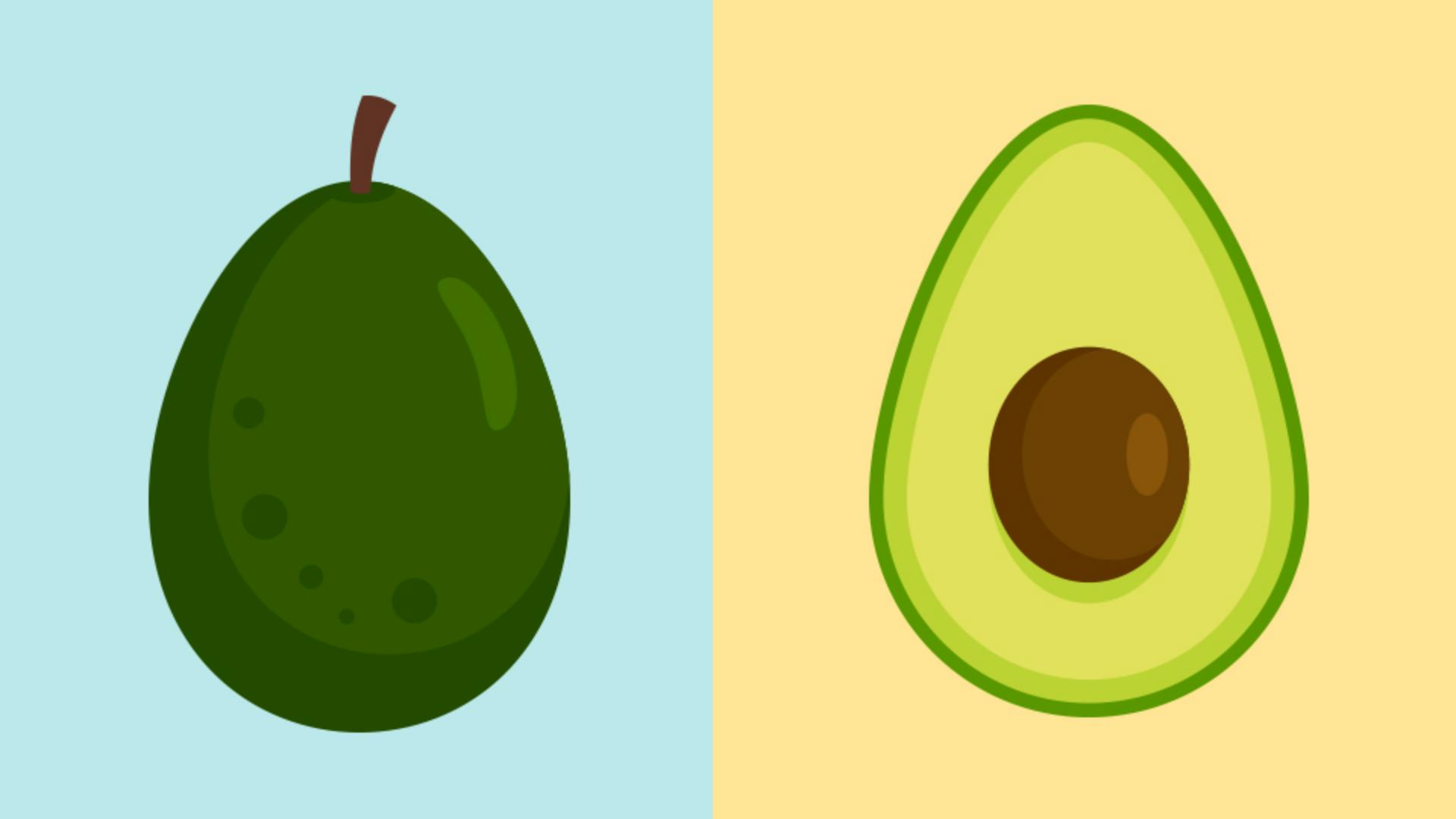
Introduction
In this tutorial, you'll begin drawing in Illustrator using a series of tools and techniques, including the Pencil and Pen Tools to draw this artwork.
So, let's jump in.
Drawing freeform shapes with the pencil tool
With a document open, you'll start by drawing with the Pencil Tool and you'll get a feel for it.
I'll do a two-finger pinch, so I can zoom in to the artboard.
Now select the Pencil Tool in the Toolbar.
Before drawing you can set Path Smoothness, 10 for clean curves, and 1 for more precise curves, set it to around 5.
To remove the fill, tap Fill, and you can see none here and make sure by tapping Stroke that the stroke color is set.
Come out and you can draw with your finger or Apple Pencil freely.
Start with the bottom of the avocado here, drag around.
And here, if you release to stop drawing, you can actually tap to continue in a straight line.
I'll undo that by tapping with two-fingers come to where you started drawing and tap this point that makes a straight line and closes the path.
To make the stroke color a fill, tap the arrows here to swap them.
Now with the path started, it needs a little bit of work.
Refining paths with the pen and selection tools
This is where you can switch over to the Pen Tool to refine a path.
Select the Pen Tool and you can see these anchor points show up along the path.
They control the shape of the path.
You can actually drag these points and you'll see how it affects the path.
Now when you select an anchor, you can see the direction handles, if the path is curved like this.
You can drag the end of one of those to reshape the path.
Now if you miss the handle and make a new point two-finger tap to undo and you can try again.
You can tap the path to add more points or press and hold on a point to remove it.
You can also edit your shapes in other ways.
Select the Selection Tool and double tap the shape to enter in isolation mode.
The direct Selection Tool is now selected that means you can edit the individual points that control the shape.
You can tap an anchor and delete it using Smart Delete here and the anchor will be removed retaining the shape as best it can.
You can also simplify a path by dragging across the shape and tapping Simplify here.
Even dragging across an anchor and changing it from a corner point like this to a curve and back again.
Now to align these anchor points so that the line here is straight drag across them.
You can then tap the Align options and align them to top.
There.
To move them both you can then drag one of the anchors.
When you're finished, tap Done.
Now to make the inside shapes, you'll draw a path,
Cutting and dividing shapes with combine shapes
and you'll use it to cut this shape into two parts.
So, select the Pencil Tool again.
And to draw a path start about here and drag to make a path that looks something like this.
To change the fill, you can tap Fill and select or mix a color.
Now to cut this shape into two using the path you just drew, you're going to select both of these.
So, select the Selection Tool and drag across.
In the Taskbar, tap Combine Shapes.
You've got the Shape Builder and Pathfinders to work with.
The Shape Builder permanently adds or deletes shapes, and Pathfinder leaves the individual shapes editable.
Tap Divide all to divide the avocado shape using the path on top.
Now this makes a group of objects.
So that you can edit them you need to ungroup them, tap Ungroup here.
Now you can remove this leftover path by tapping away and then tapping on it and deleting it in Common Actions.
And you've got your two shapes.
Let's make the nut of the avocado now.
Creating details, shadows, and finishing shapes
To make this shadow you see here you'll start with a pencil path again.
So, select the Pencil Tool to make the path really smooth, set the Smoothness to 10.
Then come out and drag to make a path like this.
You'll now use the Shape Builder to remove this part and cut it out.
You need to have the path you just made, and the shape underneath selected as well.
So, select the Selection Tool.
And to select this shape as well press the Touch shortcut and tap it.
In the Taskbar, tap Combine shapes and this time you'll use Shape Builder to remove part.
So, tap Shape Builder.
And normally out here you'll drag across shapes to combine them into one.
We want to remove this part of the path.
Press the Touch shortcut and tap the shape to remove it.
When you're finished, you can tap Done.
Select the path by tapping away and then tapping on it and you can change the Fill in the Toolbar.
Finally, you'll make the nut.
So, you'll simply draw an ellipse.
Press and hold on the Rectangle Tool and select the Ellipse Tool.
Come out here and drag to make a shape.
When you're finished, you can change the fill by tapping Fill and selecting a color or making one.
I'll go with a brown and drag it into place.
Drawing in Illustrator can be fun and really creative.
If you want to keep exploring, maybe make the shadow in the nut here you can draw a path, select the nut and the path and use the Divide all pathfinder like you learned earlier.