Introduction
[Arabella Espinosa]: If you've ever wanted to experiment, compare, and save different edits of a single photo in a non-destructive way, then Versions in Lightroom on mobile is your new best friend.
Hi, my name is Arabella Espinosa.
I'm a creative photographer and a regular on Adobe Live, working on everything from portrait and street photography to commercial product shoots and campaigns.
In this quick tutorial, I'm going to be showing you how to use Lightroom on mobile's most underrated tool for creativity.
Let's dive in and take a look at Versions.
Accessing Versions in Lightroom on mobile
To start, let's open a photo in Lightroom on mobile that I've already applied some edits to.
I'll press and hold on the image to show the original, then release to reveal the adjustments I've made.
To access Versions, tap on the clock icon located at the top of the app and select Versions.
There are two types: Auto and Named.
Working with Auto and Named Versions
Auto Versions are saved by Lightroom automatically whenever you make changes and exit the Edit screen or close the app.
In the Auto section, you'll see the Current edit, all auto-saved Versions, and the Original photo.
Creating named Versions
Named Versions are created and named manually by you.
To manually save a version from the current edit, select Named and tap Create version on the top right.
Enter a name and tap Create.
Reverting to previous edits with auto Versions
Now, let's say I really want to return to an earlier version of my image - that's where Auto Versions come in handy.
You can access previously auto-saved Versions by tapping Auto, tapping the version you'd like to revert back to, and clicking Apply on the top right.
From here, I can save this current state as a Named version by repeating the same steps as before.
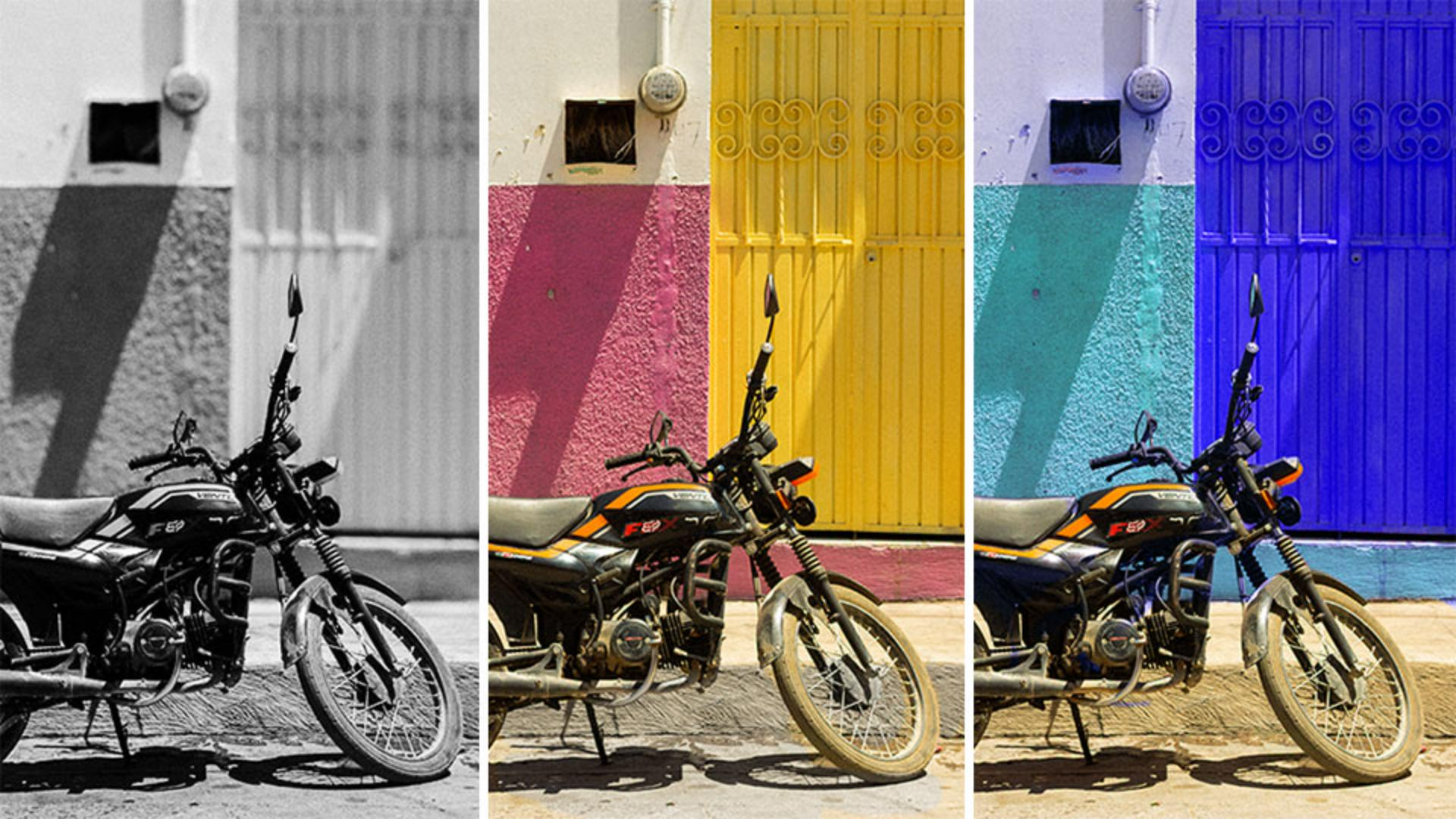
Now that I have a few different versions of my photo, I can cycle through all of them to compare or continue to make tweaks and save new edits.
Versions are a great way for you to experiment with different treatments or editing styles, and they're also available in Lightroom on your computer or Lightroom on the web.
Now that you know all about Auto and Named Versions, give this feature a try next time you're in Lightroom on mobile and see how it can help your creative workflow.