Review PDFs together.
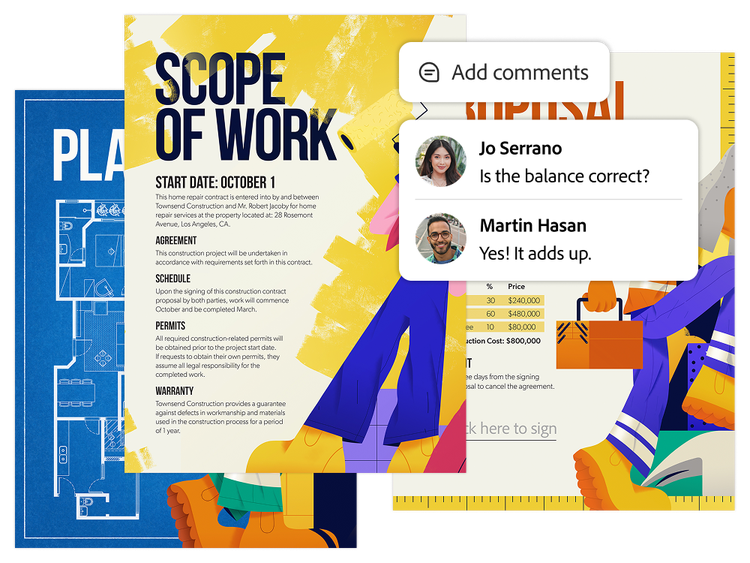
Multiple people can comment on a PDF at the same time. Reviewers can add comments, highlights, emoji reactions, annotations and see feedback as it happens.

Multiple people can comment on a PDF at the same time. Reviewers can add comments, highlights, emoji reactions, annotations and see feedback as it happens.

Acrobat keeps all comments in one place, so you can easily see who made each comment. Teams can reply to feedback, resolve comments and track review progress without leaving the document.
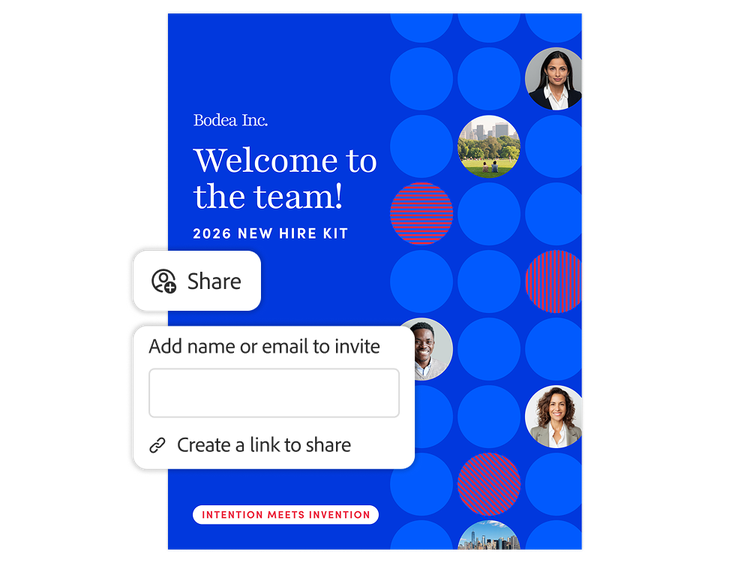
With Acrobat, you can easily share a PDF link with your team and control who can view or comment. Now everyone can work on the same document, so there’s no need to manage multiple versions or consolidate feedback from different files or emails.
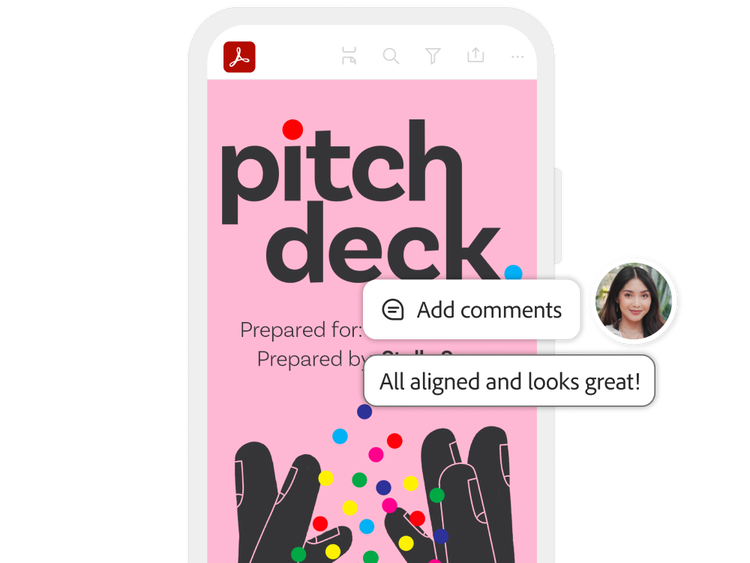
Teams can review and comment on shared PDFs from desktop, web or mobile devices, making Acrobat a reliable document collaboration tool for remote teams.
PDF Spaces gives teams a shared workspace to organise related documents, invite collaborators and leave comments. Teams can use AI Assistant to generate summaries and insights, ask questions and get guided next steps, all in Acrobat.


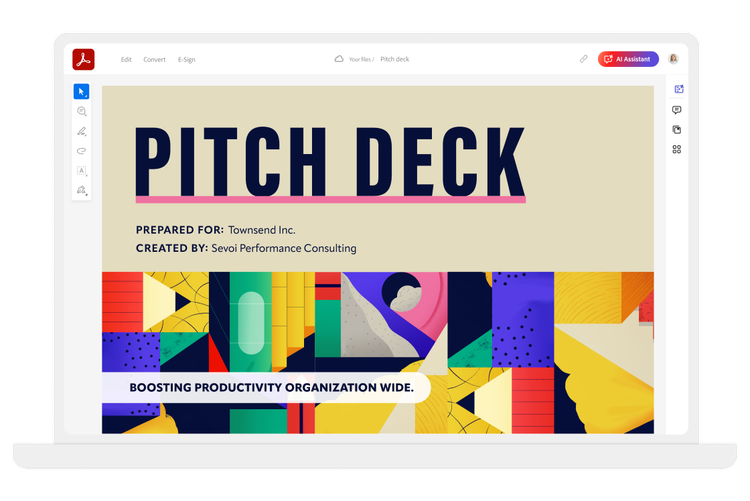
Acrobat gives you all the PDF tools you need to simplify workflows, edit PDFs and get more done every day — wherever you work. More than a PDF editor, Acrobat makes it easy to collect and reconcile feedback in a single PDF. It’s the most efficient way to create, share and convert PDFs across desktop, mobile devices and the web.

Accelerate crucial workflows with our solutions for businesses and teams.

PLANS AND PRICING
Free
By clicking the “Download now” button, you acknowledge that you have read and accepted all of the Terms and Conditions.
The trusted standard for viewing and sharing PDFs

View, print, share, and comment
Available on desktop and mobile
£19.97/moincl. VAT Fee applies of half your remaining annual commitment if you cancel after 14 days.
The secure solution for PDF and e-signature workflows
Create, edit, export, compare and organise PDFs
Collect e-signatures and track responses
Password-protect and redact PDFs
Create web forms, turn scans into editable PDFs and access 70+ features
£24.98/moincl. VAT Fee applies of half your remaining annual commitment if you cancel after 14 days.
The all-in-one AI-powered PDF and design solution for business workflows
Create, edit, export, compare and organise PDFs
Collect e-signatures and track responses
Password-protect and redact PDFs
Create web forms, turn scans into editable PDFs and access 70+ features

Ask AI to edit, convert or compress PDF
Understand dense documents with AI summaries, podcasts, and interactive reports
Organise, share and collaborate with PDF Spaces
Redesign resumes, reports, and invoices with professionally designed templates
Filters
Sort
Popularity
Alphabetically
coll-no-results-text
Categories
REFINE YOUR RESULTS
Close
Special Offers – opens in a new window
filter by category
RESOURCES
1 result in
results in
coll-result-mobile-text
results in
1 result in
results for
1 result in
results in
Your search for returned no results
Your search for returned no results
View more
coll-all-filters-text
coll-filters-category-text
coll-filters-applied-text
coll-filters-results-text
coll-filters-reset-text
Free
By clicking the “Download now” button, you acknowledge that you have read and accepted all of the Terms and Conditions.
The trusted standard for viewing and sharing PDFs
View, print, share, and comment
Available on desktop and mobile
£238.75/yrincl. VAT No refund if you cancel after 14-days.
The secure solution for PDF & e-signature workflows
Create, edit, export, compare and organise PDFs
Collect e-signatures and track responses
Password-protect and redact PDFs
Create web forms, turn scans into editable PDFs and access 70+ features
£296.93/yrincl. VAT
No refund if you cancel after 14-days.
The all-in-one AI-powered PDF and design solution for business workflows
Create, edit, export, compare and organise PDFs
Collect e-signatures and track responses
Password-protect and redact PDFs
Create web forms, turn scans into editable PDFs and access 70+ features
Ask AI to edit, convert or compress PDF
Understand dense documents with AI summaries, podcasts, and interactive reports
Organise, share and collaborate with PDF Spaces
Redesign resumes, reports, and invoices with professionally designed templates
Filters
Sort
Popularity
Alphabetically
coll-no-results-text
Categories
REFINE YOUR RESULTS
Close
Special Offers – opens in a new window
filter by category
RESOURCES
1 result in
results in
coll-result-mobile-text
results in
1 result in
results for
1 result in
results in
Your search for returned no results
Your search for returned no results
View more
coll-all-filters-text
coll-filters-category-text
coll-filters-applied-text
coll-filters-results-text
coll-filters-reset-text
Free
By clicking the “Download now” button, you acknowledge that you have read and accepted all of the Terms and Conditions.
The trusted standard for viewing and sharing PDFs
View, print, share, and comment
Available on desktop and mobile
£29.96/moincl. VAT Cancel anytime, no fee.
The secure solution for PDF & e-signature workflows
Create, edit, export, compare and organise PDFs
Collect e-signatures and track responses
Password-protect and redact PDFs
Create web forms, turn scans into editable PDFs and access 70+ features
£34.98/moincl. VAT Cancel anytime, no fee.
The all-in-one AI-powered PDF and design solution for business workflows
Create, edit, export, compare and organise PDFs
Collect e-signatures and track responses
Password-protect and redact PDFs
Create web forms, turn scans into editable PDFs and access 70+ features
Ask AI to edit, convert or compress PDF
Understand dense documents with AI summaries, podcasts, and interactive reports
Organise, share and collaborate with PDF Spaces
Create flyers, social content and presentations from documents
Filters
Sort
Popularity
Alphabetically
coll-no-results-text
Categories
REFINE YOUR RESULTS
Close
Special Offers – opens in a new window
filter by category
RESOURCES
1 result in
results in
coll-result-mobile-text
results in
1 result in
results for
1 result in
results in
Your search for returned no results
Your search for returned no results
View more
coll-all-filters-text
coll-filters-category-text
coll-filters-applied-text
coll-filters-results-text
coll-filters-reset-text
£20.22/moper licenceexcl. VAT Fee applies if you cancel after 14-days. Up to 10 licenses with free trial.
A highly secure PDF and e-signature solution with advanced tools and admin features.

Available on desktop, web and mobile

View, print, share and comment

Edit text and images, plus export, protect and organise documents

Collect binding e-signatures and track responses

Manage licences and users with the Adobe Admin Console

Create web forms, redact, compare and access 70+ features
£24.94/moper licenceexcl. VAT Fee applies if you cancel after 14-days. Up to 10 licenses with free trial.
Everything in Acrobat Pro plus PDF Spaces, Acrobat AI Assistant, Adobe Express Premium and admin features.
Available on desktop, web and mobile
View, print, share and comment
Edit text and images, plus export, protect and organise documents
Collect binding e-signatures and track responses
Manage licences and users with the Adobe Admin Console
Create web forms, redact, compare and access 70+ features

Summarise documents, gain insights and ask questions with PDF Spaces and a prebuilt AI Assistant

Generate presentations and create flyers, social posts and more with professional templates in Adobe Express
Filters
Sort
Popularity
Alphabetically
coll-no-results-text
Categories
REFINE YOUR RESULTS
Close
Special Offers – opens in a new window
filter by category
RESOURCES
1 result in
results in
coll-result-mobile-text
results in
1 result in
results for
1 result in
results in
Your search for returned no results
Your search for returned no results
View more
coll-all-filters-text
coll-filters-category-text
coll-filters-applied-text
coll-filters-results-text
coll-filters-reset-text
£242.64/yrper licenceexcl. VAT No refund if you cancel after 14-days.
A highly secure PDF and e-signature solution with advanced tools and admin features.
Available on desktop, web and mobile
View, print, share and comment
Edit text and images, plus export, protect and organise documents
Collect binding e-signatures and track responses
Manage licences and users with the Adobe Admin Console
Create web forms, redact, compare and access 70+ features
£299.28/yrper licenceexcl. VAT No refund if you cancel after 14-days.
Everything in Acrobat Pro plus PDF Spaces, Acrobat AI Assistant, Adobe Express Premium and admin features.
Available on desktop, web and mobile
View, print, share and comment
Edit text and images, plus export, protect and organise documents
Collect binding e-signatures and track responses
Manage licences and users with the Adobe Admin Console
Create web forms, redact, compare and access 70+ features
Summarise documents, get insights and ask questions with PDF Spaces and a prebuilt AI Assistant
Generate presentations and create flyers, social posts and more with professional templates in Adobe Express
Filters
Sort
Popularity
Alphabetically
coll-no-results-text
Categories
REFINE YOUR RESULTS
Close
Special Offers – opens in a new window
filter by category
RESOURCES
1 result in
results in
coll-result-mobile-text
results in
1 result in
results for
1 result in
results in
Your search for returned no results
Your search for returned no results
View more
coll-all-filters-text
coll-filters-category-text
coll-filters-applied-text
coll-filters-results-text
coll-filters-reset-text
£19.97/moincl. VAT Fee applies of half your remaining annual commitment if you cancel after 14 days.
A highly secure PDF and e-signature solution with advanced tools.
Available on desktop, web and mobile
View, print, share and comment
Edit text and images, plus export, protect and organise documents
Collect binding e-signatures and track responses
Create web forms, redact, compare and access 70+ features
Acrobat AI Assistant
Add AI Assistant to your Acrobat plan for £1.99/moincl. VAT£1.99/moincl. VAT.
Add AI Assistant to your Acrobat plan for £20.02/yrincl. VAT£20.02/yrincl. VAT.
Fee applies of half your remaining annual commitment if you cancel after 14 days.
Save 75% on 20+ apps including Acrobat Pro, plus Firefly creative AI for images, video and audio. Pay £16.24/moincl. VAT in the first year and £32.99/moincl. VAT thereafter.

20+ creative apps, plus everything in Acrobat Pro, including:
View, print, share and comment
Edit text and images, plus export, protect and organise documents
Collect binding e-signatures and track responses
Create web forms, redact, compare and access 70+ features
Acrobat AI Assistant
Add AI Assistant to your Acrobat plan for £1.99/moincl. VAT£1.99/moincl. VAT.
Add AI Assistant to your Acrobat plan for £20.02/yrincl. VAT£20.02/yrincl. VAT.
Filters
Sort
Popularity
Alphabetically
coll-no-results-text
Categories
REFINE YOUR RESULTS
Close
Special Offers – opens in a new window
filter by category
RESOURCES
1 result in
results in
coll-result-mobile-text
results in
1 result in
results for
1 result in
results in
Your search for returned no results
Your search for returned no results
View more
coll-all-filters-text
coll-filters-category-text
coll-filters-applied-text
coll-filters-results-text
coll-filters-reset-text
https://main--dc--adobecom.aem.live/dc-shared/assets/images/product-icons/svg/acrobat-pro-40.svg
Add AI Assistant to your Acrobat Pro or {{creative-cloud-pro}} student plan. PRICE - ABM - AI Assistant for Acrobat for Education for the {{annual-paid-monthly-plan}}.
CTA {{buy-now}} | Buy now AI Assistant for Acrobat for Education
Acrobat gives you seamless and highly secure shared reviews, real-time commenting and PDF tools that make collaborating on documents easier than ever.
With AI Assistant, you can create an AI-powered workspace in PDF Spaces where your entire team can add files and collaborate to build strong work. Customised AI agents help guide collaboration and produce the output your project needs. Teams can choose from different assistant types, such as an instructor to explain key concepts, an analyst to evaluate and compare documents or build a customised assistanttailored to specific project goals.


