AI story generator: How to use AI to generate a story.
Even the most creative people get writer’s block. Luckily, the Acrobat AI Assistant is there to help you fill in the gaps when you’ve hit a creative wall.
You can use the assistant as an AI story generator, to produce ideas and content for your next story, script or project.
Whether you’re working in a PDF brainstorming your next idea, or need a little help getting started, Adobe’s AI writing generator tools can help you create something totally unique.
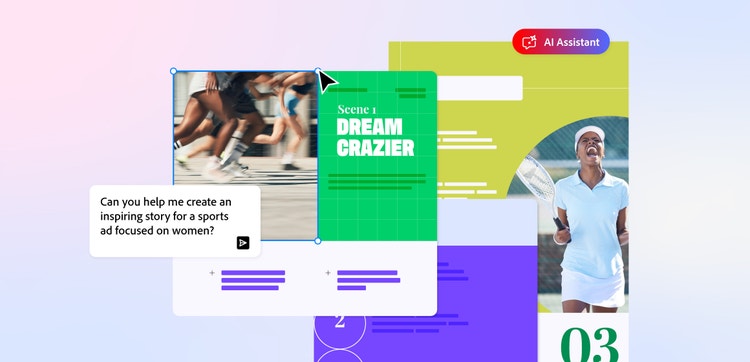
How to generate a story with the Acrobat AI Assistant.
Generating ideas using the Acrobat AI Assistant’s story generator tools is easy and accessible. Create a prompt, tweak, edit, and build out your ideas. You can also personalise your Assistant to guide its responses and tailor them to each project.
Here’s how to get started:
1. Generate a new storyline idea.
Create story generator prompts to guide the AI Assistant’s responses. You can provide as much detail as you like, depending on how specific you want the ideas to be.
For example, you could ask it to ‘Create a video script for an Instagram story, and then provide further information on the overall project purpose, how long you want the video to be, and what the main plot points are.
Don’t forget, you can edit your prompts and refine the responses as much as you like until you’re happy.
2. Turn your idea into a storyboard.
Once you’ve got the base idea down, it’s time to visualise your idea. Turning your AI story ideas into a storyboard is the first step to building out your narrative. This is also when you’ll be able to spot any gaps that need filling or decide whether you need to revisit the AI writing generator to flesh out any missing scenes.
3. Convert your storyboard into a script or story draft.
The next step is to create your first draft. Remember, there’s no need to be perfect straight away – that’s what a draft’s for. Look at your storyboard and all your AI story generator ideas and start to piece them together.
If you need a helping hand, just ask the AI Assistant to suggest a structure based on the doc you’re working on, such as a storyboard PDF.
4. Use the Assistant as an AI sentence generator.
If you’ve already got a work in progress, you can even use Acrobat’s AI Assistant as a sentence generator tool. Just upload your existing content and ask it to lend a hand with the next sentence, line or paragraph. You can even ask the Assistant to rewrite an existing sentence to suit a different character trait or tone of voice.
5. Edit your final draft.
It’s all starting to come together. You have a complete draft of your story, and you’re happy with the different lines and scenes. Now it’s time to edit.
The AI Assistant can help you review, refine and polish up your story. Just use the generator tools to fill in plot holes, improve copy or even check the historical accuracy of your dialogue. Then you’re ready to share with your first human readers and reviewers.
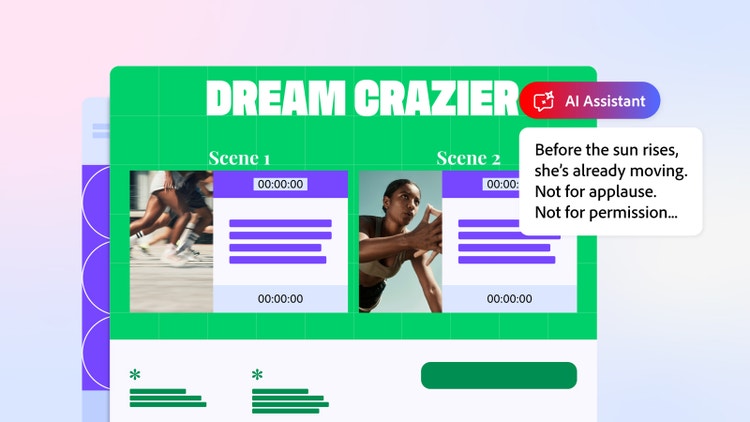
Other ways to use the AI Assistant for story generation.
Besides helping you build out your idea, there are many ways the Acrobat AI Assistant can help you bring your stories to life. For example, you can use the AI story generator tools to:
- Create different content formats. Generate scripts, short stories or even longer-form content.
- Brainstorm ideas. The AI Assistant is like a fresh pair of eyes, and it might suggest a solution to a plot hole you hadn’t even considered.
- Make narrative checklists. If you don’t need help with the storytelling, the AI Assistant can help you pull together a story to-do list.
- Create summaries. Use the AI tool to generate content summaries. Extract key points from documents, whether they’re your own or ones you’re using for research.
- Rewrite and expand content. If you feel something’s missing, use the AI writing generator to tweak and fill the gaps.

AI story generator prompt ideas.
AI story generators and tools can help you create unique content in seconds. But you’ll need to know where to begin. Writing the perfect prompts is key to generating the right ideas.
With this in mind, here are a few examples.
- Brainstorming ideas. What are some ideas I can explore for a short story on XXX?
- Building a narrative structure. Could you provide some key plot points for a script about XXX?
- Creating a campaign story. Could you provide the basic structure for my next campaign story on XXX?
- Filling in story gaps. Identify any narrative gaps, plot points or inaccuracies in my short story.
- Restructuring and rewriting content. Give me some suggestions on how I could improve this character monologue.
- Perfecting a finished project. Are there any obvious errors I need to fix or any final suggestions for this project?
- Incorporating ideas. Suggest how I could incorporate a few facts about XXX into this campaign story.
- Making general improvements. Suggest any general improvements I could make to this script.
- Fixing technical errors. Please highlight any typos, grammar mistakes or missing punctuation in this chapter.
- Checking accuracy. Is this dialogue historically and tonally accurate for the rest of the story?
FAQs.
How do you create good stories with AI?
You can create good AI story ideas by using the Acrobat AI Assistant to help you brainstorm, build a structure and edit.
Start with a detailed prompt that provides the AI Assistant with plenty of background information. Then work with the tool to build out your idea and structure your storyline.
Once you’ve got your initial draft, you can use AI sentence generator tools to make smaller tweaks and rewrite to fit your project goals.
What is the best AI story generator?
The best AI story generator will depend on your individual needs and what you want to use it for. The Adobe Acrobat AI Assistant works within your documents to help you come up with ideas, flesh things out and find mistakes. It’s a helping hand in the creative process, working seamlessly alongside your projects.
Is the AI story generator free to use?
You’ll need to have an Acrobat Studio membership to access the AI Assistant with PDF Spaces. However, you can sign up for a free 7-day trial to test out the story generation tools and see how the AI Assistant could help you write your own stories.
What are some good AI story generator prompts?
The prompts you use with AI story generator tools depend on the type of story or project you’re working on. Start simple, maybe asking Acrobat’s AI Assistant to pull out some key plot point ideas or the basic structure of your story. From there, you can ask it to provide dialogue suggestions or identify any inaccuracies.
Can I legally publish writing written by AI?
Yes, you can legally publish content written by AI, but you must disclose that that was how it was created. However, if a book or script was solely written using AI generators, you won’t be able to claim full legal copyright for yourself. You need to ensure substantial human creative input in order to do this.
Can you use AI to write a script?
Yes, you can use an AI writing generator to create scripts. For example, you could use the Acrobat AI Assistant to write a script from scratch, or ask it to analyse and improve your existing structure. You could even ask the assistant to help you generate several script ideas as part of the brainstorming process. How you use artificial intelligence tools to create stories, scripts and other creative content is completely up to you.
Can the AI story generator write a full novel?
No, you can’t use the Acrobat AI Assistant to write a full story or novel. However, it can help you generate ideas for the initial structure and come up with suggestions for different chapters and sections of copy. You can then edit, tweak and refine the AI-generated copy to fit your tone of voice, characters and narrative.
If you have a complete first draft for your novel, you can use the AI Assistant to review your document and suggest any improvements.
Useful PDF tools.
Sign up for Adobe Acrobat and get access to a range of generative AI tools. Whether you’re working on your next big idea or a professional project, generate, create and edit with Adobe Acrobat.