How to Change a PDF File Size in 4 Easy Steps.
Learn how to easily resize, reduce or expand the size of a PDF to fit any format in four easy steps.


Learn how to easily resize, reduce or expand the size of a PDF to fit any format in four easy steps.
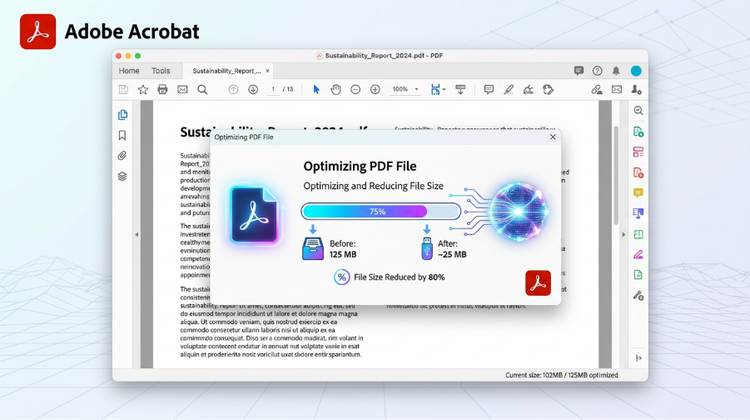
PDFs offer a reliable and consistent way to view and share documents online. But sometimes a PDF document may need resizing for printing, sharing, or to improve its readability. Learn how to change a PDF file size in our simple step-by-step guide with Adobe Acrobat.
PDFs are commonly used because they maintain formatting across different devices. However, there are times when you need to decrease the PDF size to meet specific requirements, such as fitting within A4, letter-size, or other custom dimensions. Adjusting the PDF page size ensures your documents are formatted correctly and look as intended.
PDFs are commonly used to view and exchange documents because they maintain formatting across a range of devices. But there may be times when you need to resize a PDF for displaying, sharing, or printing. Resizing a PDF is the process of decreasing a file’s dimensions to ensure your document is formatted correctly.
Here are common reasons why you might need to resize a PDF:
Change the size of a PDF with Adobe Acrobat. Easily decrease a PDF size to fit your needs with these four simple steps.
Open the PDF file you want to resize in the free Adobe Acrobat Edit a PDF tool.
You can also resize a PDF page in other PDF editing software.
You can also change the size of a PDF using various online tools. Here are some options to consider:
Before resizing a PDF, here are some top tips to keep in mind:
Discover even more ways Adobe Acrobat can help you professionally edit documents across any device.
Sign up to Adobe Acrobat today to unlock a range of capabilities – from decreasing a PDF size, polishing documents and more.