How to Change a PDF File Size in 4 Easy Steps.
Learn how to easily resize, reduce or expand the size of a PDF to fit any format in four easy steps.
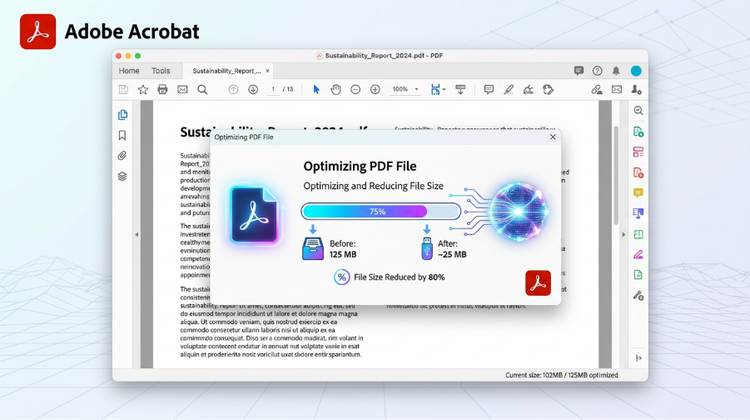
PDFs offer a reliable and consistent way to view and share documents online. But sometimes a PDF document may need resizing for printing, sharing, or to improve its readability. Learn how to change a PDF file size in our simple step-by-step guide with Adobe Acrobat.
PDFs are commonly used because they maintain formatting across different devices. However, there are times when you need to decrease the PDF size to meet specific requirements, such as fitting within A4, letter-size, or other custom dimensions. Adjusting the PDF page size ensures your documents are formatted correctly and look as intended.
Key takeaways.
- Resizing a PDF page’s size can help to ensure it fits specific dimensions for printing or sharing online.
- Smaller PDFs are generally easier to share, faster to upload and download, and take up less storage space.
- You can reduce and resize PDFs using Adobe Acrobat or online tools. The process is quick and simple and can be completed on almost any device.
Why might I need to resize a PDF?
PDFs are commonly used to view and exchange documents because they maintain formatting across a range of devices. But there may be times when you need to resize a PDF for displaying, sharing, or printing. Resizing a PDF is the process of decreasing a file’s dimensions to ensure your document is formatted correctly.
Here are common reasons why you might need to resize a PDF:
- Printing. Resize, expand, or reduce your PDF to fit specific paper dimensions – like A4, A5 and more. This can be useful for printing content such as brochures, flyers and invitations.
- Viewing. Ensure your PDF is well-optimised for web use by scaling and reducing pages to fit different displays and devices.
- Readability. Reduce PDF sizes to improve the legibility of your PDF and ensure all elements are optimised for smaller screens, like smartphones. This can make text easier to read without constant scrolling.
- Storing. Decreasing the size of a PDF can help to save storage space, so you don’t have to worry about overloading your device or cloud space.
- Sharing. Decrease a PDF’s size to make sure your file meets the attachment size restrictions for mail or other platforms or apps.
How to resize a PDF with Adobe Acrobat.
Change the size of a PDF with Adobe Acrobat. Easily decrease a PDF size to fit your needs with these four simple steps.
Step 1: Open your PDF.
Open the PDF file you want to resize in the free Adobe Acrobat Edit a PDF tool.
Step 2: Select the page size.
- Open Adobe Acrobat, then head to File > Print.
- Select Page Size & Handling.
- Choose the Fit option to scale your PDF to the selected paper size. Or click Custom Scale to scale to a specific size.
Step 3: Adjust or shrink the PDF page size.
- Choose from common print size options like A4, A5, or A6.
- Or manually enter your own dimensions into the width and height fields to create a custom size.
Step 4: Save your new PDF.
- When you’re happy with your new page size, click Apply or OK.
- Preview your document to make sure it looks as it should.
- Then click Save As to save your newly resized PDF.
You can also resize a PDF page in other PDF editing software.
How to resize a PDF with online tools.
You can also change the size of a PDF using various online tools. Here are some options to consider:
- Crop a PDF. Trim or resize a PDF using a Crop PDF tool. Drag and drop your PDF into the tool, then crop as desired.
- Compress a PDF. Need to reduce your PDF file size? Easily shrink a PDF online with the Adobe Acrobat Compress a PDF tool. Drag and drop your file into the box to begin.
- Split a PDF. Separate a PDF into multiple files with the free Split PDF tool. Drag and drop a PDF into the drop zone, then use the divider lines to split the PDF into individual files.
Top tips for resizing PDFs.
Before resizing a PDF, here are some top tips to keep in mind:
- Have a back-up. Always create a copy of your original PDF before resizing. This way, you have a back-up just in case anything doesn’t go as planned.
- Consistency is key. Apply the same changes across all pages when resizing or reducing multiple documents to ensure consistency.
- Try out a few options. Don’t be afraid to experiment with different dimensions and formats until you find the right fit. Go with what works best for your plan.
- Check things over. Carefully review the formatting, text, and images of your PDF before sharing or uploading to ensure everything looks clear and aligned.
Discover even more ways Adobe Acrobat can help you professionally edit documents across any device.
Frequently asked questions.
Can I resize a PDF for free?
How do I reduce the file size of a PDF?
How to scale a PDF to A4?
How to resize a PDF for printing?
What are the benefits of decreasing a PDF’s size?
More resources for PDF editing.
- How to Save One Page of a PDF
- Document Management Systems
- How to Compress PDF to 1 MB or Lower
- How to Make a PDF Black and White
Useful PDF tools.
Sign up to Adobe Acrobat today to unlock a range of capabilities – from decreasing a PDF size, polishing documents and more.