Introduction
Using the VR Comp Editor, we can actually convert existing After Effects CC project files that include 3D layers and convert them to 360 video and can be played back in VR.
So, let's take a look at a basic example of this.
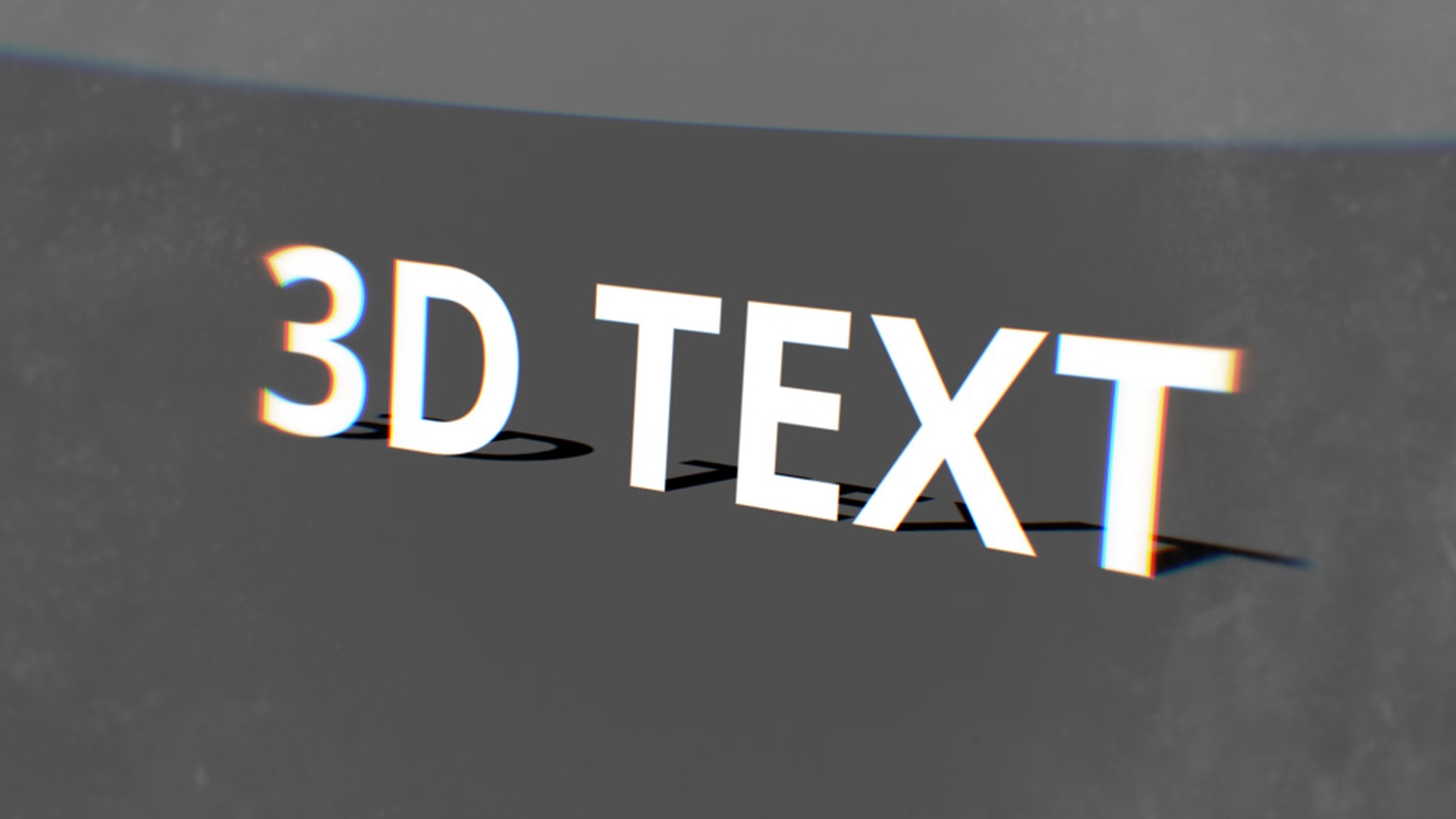
What I have here is a fairly simple 3D text composition.
I'll go ahead and scroll through this and you can see the animation that I've created with some 3D layers and 3D text, and see the camera passes through these text layers and then comes to a stop.
Again we can use the VR Comp Editor to convert this scene which is 3D into a 360 degree video that can be played back in VR.
So, the first thing we need to do,
Opening the VR Comp Editor and adding a 3D edit
is we need to navigate up here to the Window option.
And at the very bottom, you're going to see VR Comp Editor, go ahead and select that.
That's going to open up the VR Comp Editor, which is a dockable panel, so we're just going to move it over here and dock it in my After Effects CC interface.
Now we can see that here.
So, in order for us to convert this composition to 360, need to add a 3D edit.
It's going to pop up the "Add 3D Edit" options.
Go for "Select a composition with 360 footage" at the very top, make sure you leave that on"Blank".
Then under "Camera Settings" down here, I'm actually going to turn on "Use 3D null camera controller" I just find it makes things a lot easier when you're using a null.
And then here under "Advanced Settings", if you are using 3D plugins in your composition, make sure you check on that you are using 3D plugins.
And after that, we just need to select "Add 3D Edit".
That's going to go ahead and open up our Edit window, but you're going to see it's going to be black and that's because we didn't select the composition yet.
Importing a 3D composition and viewing the 360 output
So now, what we need to do is navigate over here to the VR Master.
You're going to see "Properties", I'm going to select that, and under the "Edit Properties" here you're going to have the option to "Import 3D Comp".
So I'm going to select that, and I'm going to select the composition that had my 3D scene in it, so I'm going to select here, and it's called "Scene".
And I'm going to go ahead and select "Import 3D Comp".
That's going to import that animation, the 3D layer that was already created and it's going to convert that now to be equirectangular in 360.
So again, right now we're still looking at this from the "Edit 1 (3D)" view.
I navigate over here to "Open Output Render", We're now going to see a composition with that being projected in 360.
And again, this is a very simple file, so it might be difficult to tell, but you can look at this text, you'll see it has a slight curve to it and that's an equirectangular property that we can now recognize that this is in 360.
Now currently, the camera is not animated,
Animating the camera using the VR master controller
so let's navigate back here to "Edit 1 (3D)".
And what I'm going to do, is I'm going to navigate down here to my "VR Master Cam Controller" and I'm going to hit P for Position, and I'm going to go ahead and create a key frame there at the very beginning.
And I'm just going to move the Current Time Indicator down here in time to around 6 seconds or so.
I'm just going to move the null object forward which is linked to the camera.
Now you can see how this is moving through the scene.
So, I just continue to move this through around to the point where it ended in the original composition.
All right.
I think that looks pretty good.
I'll go ahead and just toggle through this now, we can kind of see how that animation looks.
And you can see this animation is very similar to the original composition we had.
So now, what I want to go ahead and do is go back over here to the "Open Output Render".
Go ahead and open that back up.
Here's a quick ram preview of what the equirectangular animation looks like.
You can see the camera is flying through the text like it did in the original composition but again now, this is being projected in 360.
Rendering the final 360 VR video
When you're ready to render this out, make sure you render out the VR Master output composition.
If we navigate to the Project panel, you'll see the VR Comp Editor created a folder structure here and in that you're going to see the VR Master (VR 2 Output).
That composition is the equirectangular projection of your original composition.
Now all you need to do is render that out to create your 360 video.


