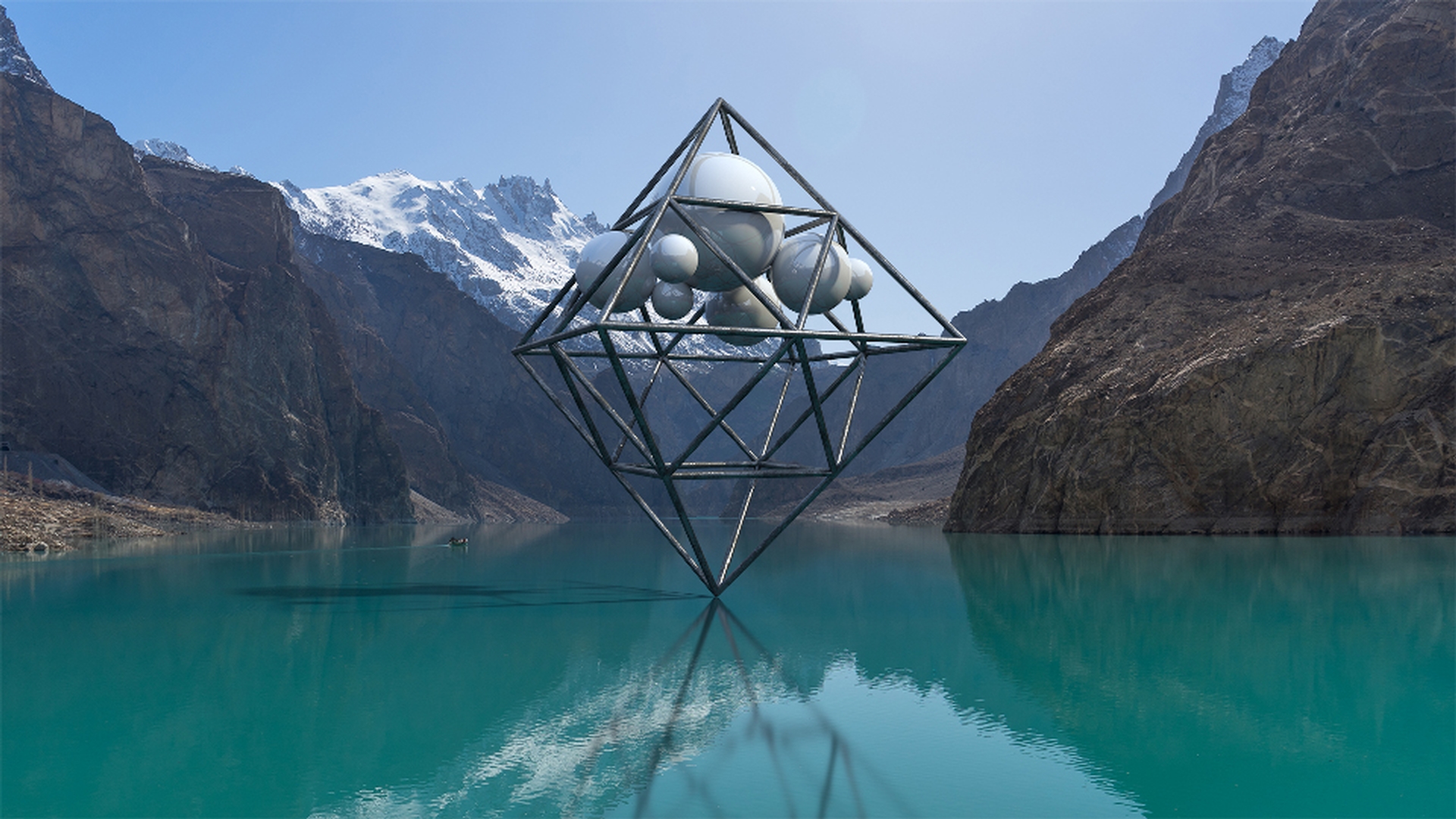
Introduction
Lighting is an important part of making your scene look photo realistic.
Dimension CC gives you access to lighting in 3-D modeled after real world physical lighting.
Let's take a look at ways to create the perfect lighting for your scene with some helpful lighting features.
Understanding environment lights and ambient lighting controls
An Environment Light is a panoramic image wrapped around a 3-D scene.
Think of it as the environment the content lives in and provides ambient lighting, reflections and shadows.
Let's start by adjusting the Intensity.
Note the change in the Intensity impacts all the pixels in the image and not just the bright areas.
Rotating the light spherically rotates the image around the scene.
Thereby rotating the light projected through the image.
The Colorize option lets you tint the overall environment lighting and is a good way to unify elements in the scene.
You have quite a bit of control over the direction, tone and intensity of your lights.
Alternatively, if you don't know exactly what parameters to use for your lights you can select the lighting preset that ships with Dimension CC.
Let's dive into those now.
Applying and rotating built-in light presets
Let's head over to the Design panel on the left-hand side and click the Lights icon to filter down to the 18 available light presets that ship with Dimension CC.
Then we can drag or simply click a light to apply it to the scene.
You'll find that a small thumbnail image of the selected light appears in the Properties panel to show that it replaced the previous image.
Using the Rotation slider, you can control the movement of the lighting around on and even through the model and preview the effect in real time without even using the Render preview.
Adding sunlight and controlling shadows
Let's build up some additional lighting effects by turning on the Sunlight option in the Environment properties panel.
We'll leave the Environment Light turned on to build up the effect.
Sunlight provides strong directional lighting and shadows and its effect is cumulative.
We can use the Cloudiness slider to control how diffuse the sunlight is.
At low Cloudiness the sunlight is strong and produces hard edged shadows.
A high value simulates diffuse sunlight creating softer shadows.
The Height and Rotation sliders allow us to change the directionality of the light.
Keep an eye on the shadows.
To further take control of the shadow, let's expand the Ground Plane settings.
Here we can specifically adjust the Opacity of the shadows being cast.
Colorize is an option within each of the light types. and you can use the effects cumulatively to cast the color of the light source into the image.
Let's bring in a background image
Matching lighting to a background image
to establish a realistic environment for our model.
Before we choose our image be sure to check the Background box on the Properties panel.
There are many ways to import a background.
We can use images provided in the app by filtering by images or from Adobe Stock which is where our background came from or from your Creative Cloud Libraries or you can drag an image from your own computer.
The Match Image dialogue automatically appears and lets you create environment lighting using the background image as a source, match your sunlight settings to the image and even aligns the perspective of your 3-D model to match the image.
You can toggle the settings you want and click OK to apply them.
And just like that the Match Image feature has beautifully composited our 3D scene into a 2D background. and it works with any image you import.
At this point you can make any necessary tweaks to customize your lighting by adjusting the various light properties.
This lets us achieve a flawless match between our model and its new environment.
To wrap things up
Fine-tuning shadows and exporting to Photoshop
let's do some fine-tuning adjustments to the shadow settings in the Ground Plane properties.
You can also continue to build and refine your composition in Photoshop CC by rendering to a PSD from the Render tab at the top of the screen.
You can see in this finished PSD that I've composited other images on separate layers and enhanced the realism and mood of the final design.
Dimension CC gives us photo realistic lighting in 3D to bring our scene to life in just a matter of minutes.

