AI powered media intelligence and search
Find the perfect clip quickly by searching with language based on imagery, spoken words, or content with embedded metadata.
Published
Introduction
This is a tool that I have been waiting for, for a very, very long time.
My name is James Bonanno, and I am a full-time Video Editor, Filmmaker, and Content Creator with a focus on creating travel films and videos for our YouTube channel and for travel clients.
Now, I do put a lot of time into the pre-production and planning of these shoots.
And even with that planning, I always tend to overshoot all the B-roll.
The most time-consuming part is going through all of that footage before I get into the edit and organizing those into folders and sequences in Premiere Pro.
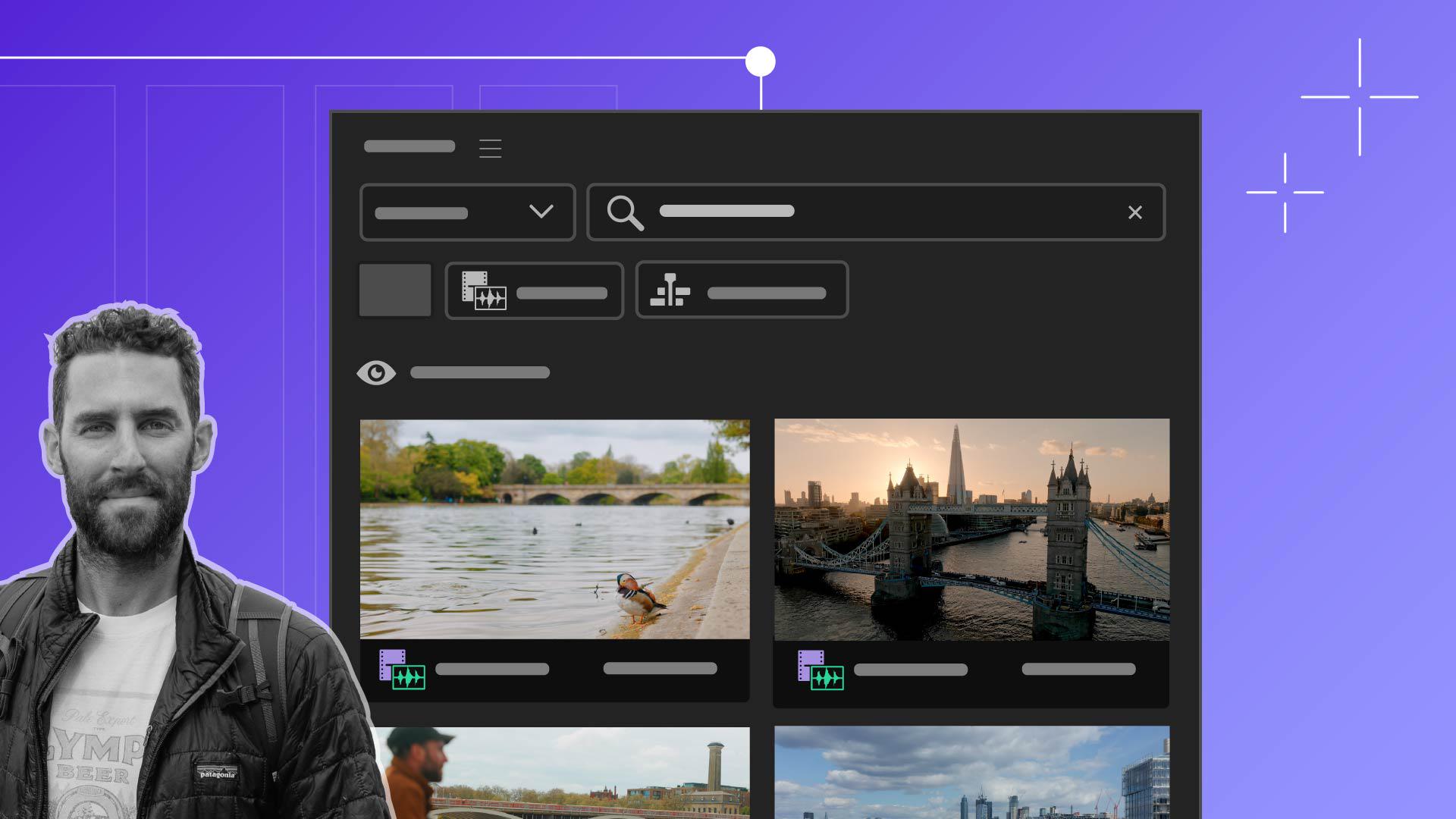
Now, with the new introduction of the AI Media Intelligence and Search feature inside of Premiere Pro, I can use simple everyday language to find the clips that I need before I start the edit.
Understanding Media Intelligence and natural language search
So, what is Media Intelligence?
Media Intelligence analyzes the visuals of your content, so you can use natural language to describe what you want to find.
So, let's dive into Premiere Pro and check out how Media Intelligence actually works.
Accessing Media Search and analyzing footage
So, we're inside Premiere Pro, and the first thing you're going to want to do is navigate over to the Media Search button up here to the right-hand corner.
And now I've already analyzed all of this footage, but it should take a few minutes depending on the speed of your machine.
Media Intelligence analyzes for visuals, and the Search panel also lets you search for text results in transcriptions or embedded metadata, all in one place.
So, this is a promo project I'm working on, with my brother-in-law, who is a drone pilot and map artist for his business.
So, there's a lot of different footage that I'm working with here.
So, let's just start by searching drone.
Running broad visual searches to find clips
And in here we can see that under Everything I have a lot of visuals to go off of because he's provided me with a lot of different drone footage.
I can also just look at all the Visuals.
So, this is a really broad way to search some of these things.
So obviously we have a ton of different drone footage, and you can see that with just the word drone we have over a thousand results.
So how do we actually dial this in and get more specific?
Refining results with descriptive search prompts
Well, we have to be as descriptive as possible when putting in what our prompt is.
Now, I know that I shot a lot of footage on my cinema camera with him arriving at the scene that we were going to be filming.
So, let's just search Everything and search red truck.
And we have eight search results here.
We can see that I actually have this clip here, and we have the red truck here in the foreground.
So, this is a really quick and easy way for me to just get in here, find the exact moments that I'm looking for.
Now there's a part of this cut where we go from outside to an interior of his office, office tight shot camera.
If I double-click this, we have this really nice shot that is of the office.
So, I can actually filter out all the drone office shots that I don't want to use.
I can come in here and search by season based on the types of shots that I want to incorporate from the wintertime.
So, let's just come up here to Everything and we're just going to simply search winter just to see the results that we get.
And here under Visuals you can see we get about 65 results.
And when I open that up, every one of these drone shots is specific to that season, which is a really cool feature.
And here we can get even more specific by drilling down into the details of these clips.
For example, we may want to drill down into the winter mountain drone shot tight shot during the day and just get as descriptive as possible with our prompt to give us the most refined results when we're selecting our clips.
Let's try one additional prompt to highlight the subject in this promo.
So, I'm just going to search, male tight shot.
And we have nine results here.
You can already see that we have this really nice tight shot of him with his hand.
And if we view all these Visuals and we open them up, Premiere automatically creates that in point for us.
We have another shot here.
So, it does a really good job of analyzing those camera angles.
And I think the more descriptive that you can be in your search keywording and what you describe, you can get more refined results.
Using Media Search results to speed up your edit
Now, I feel like what I like using this for currently is to find the shot angle and the shot type that I'm looking for.
In this case, I just want to search tight shot.
And I'm under Visuals, so I'm just looking at the visuals.
You can see that our sequences have been created for us, but if we open up Everything, all of these shots are the tight shots that I'm actually looking for and I shot for that purpose.
We have this really nice tight shot of him right here, and that's already created an in and out point for me, just by searching in this Media Search function, I could just search tight shot male truck and just very easily drag and drop this into my Timeline.
The more descriptive that you can be with locations, with camera angles, with subjects, with any distinctive properties in those clips, the better the results will be.
And I'm just getting into using this tool, so I know that in the future it will only get more refined and better and better for more efficient way to start your edit and your workflow.
Now, I hope you enjoy using this feature as much as I have been, and I cannot wait to see what you create.
What you’ll learn
Media intelligence analyzes the content of your clips
Visuals like people, objects, locations, or camera angles are identified using AI. This happens locally on your computer and Adobe cannot see your footage, which is never used for any AI training .
Search for the perfect clip
After your footage is analyzed, you can search all of your clips using everyday language. More detailed searches return more exact results.
Instruction and footage by

