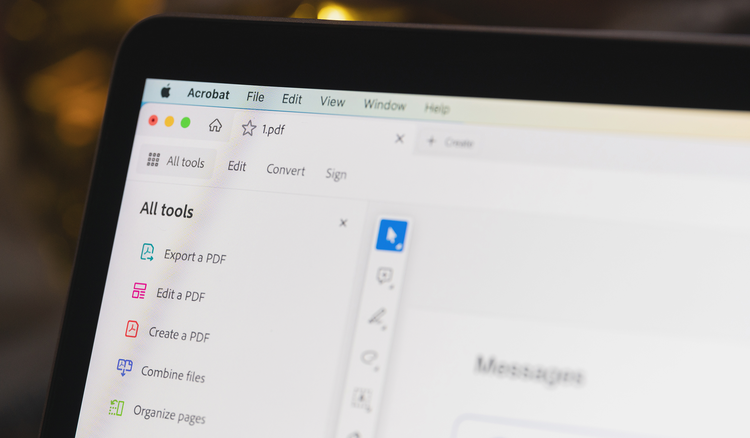
How to edit a PDF on Mac.
Edit PDF text, images, and other elements in just a few steps.


Edit PDF text, images, and other elements in just a few steps.
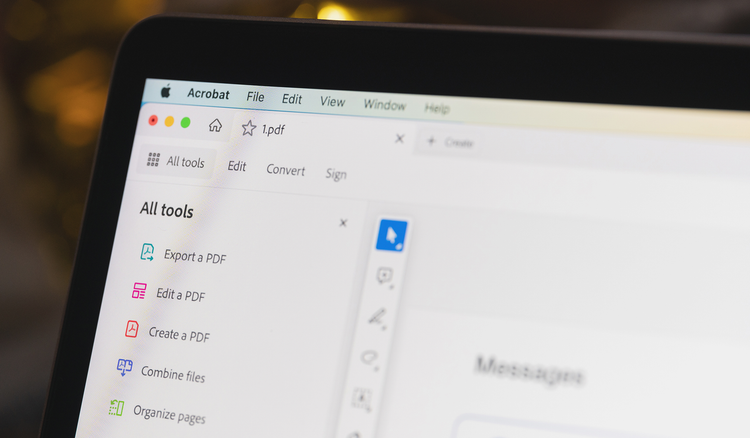
Acrobat offers Mac users a complete PDF experience. Users can edit text and graphics, combine multiple files into a PDF, add security features, and more.
MacOS, the Mac operating system, includes Preview, a free PDF Mac app that lets users open, view, and comment on PDF files. Preview is the default option when opening PDFs on a Mac. So to open a PDF with Preview on a Mac, just double-click the document you want to view.
In Preview, you can annotate a PDF on Mac with strike-through and underline. You can highlight existing text and add comments and shapes. Although you can’t edit existing text, you can add new text. Here are the steps to add new text in a PDF using the Preview app:
If you would like to crop a photo, follow these steps:
Acrobat lets you do more than just view PDFs and make notes. Create a PDF from scratch, annotate files, work with images, and even create fillable PDF forms. In addition to changing the content of PDFs, Acrobat can also help you manage them. It includes numerous security features so users can password-protect and redact PDFs. You can use the PDF converter to convert PDF files into other file formats and rely on a full set of editing tools to change everything about a document.
For best results, change your default PDF viewer to Acrobat on your Apple device. To make Acrobat the default PDF viewer on your Mac, follow the steps:
Then, follow these steps to edit a PDF on Mac:
If you’d like to edit your PDFs online, you can access a free online PDF editor from Adobe Acrobat, which you can access using any internet browser.
Online, you can quickly and easily communicate to collaborators what needs to be added, deleted, or changed. Just follow these steps: